TABLE OF CONTENTS
TABLE OF CONTENTS
- Setting up
- Configuring Instructions: AI - None (Actions Only)
- Configuring Instructions: AI - None (Actions + Decision logic)
- Configuring instructions: Decision hints (Actions + Decision logic)

Setting up
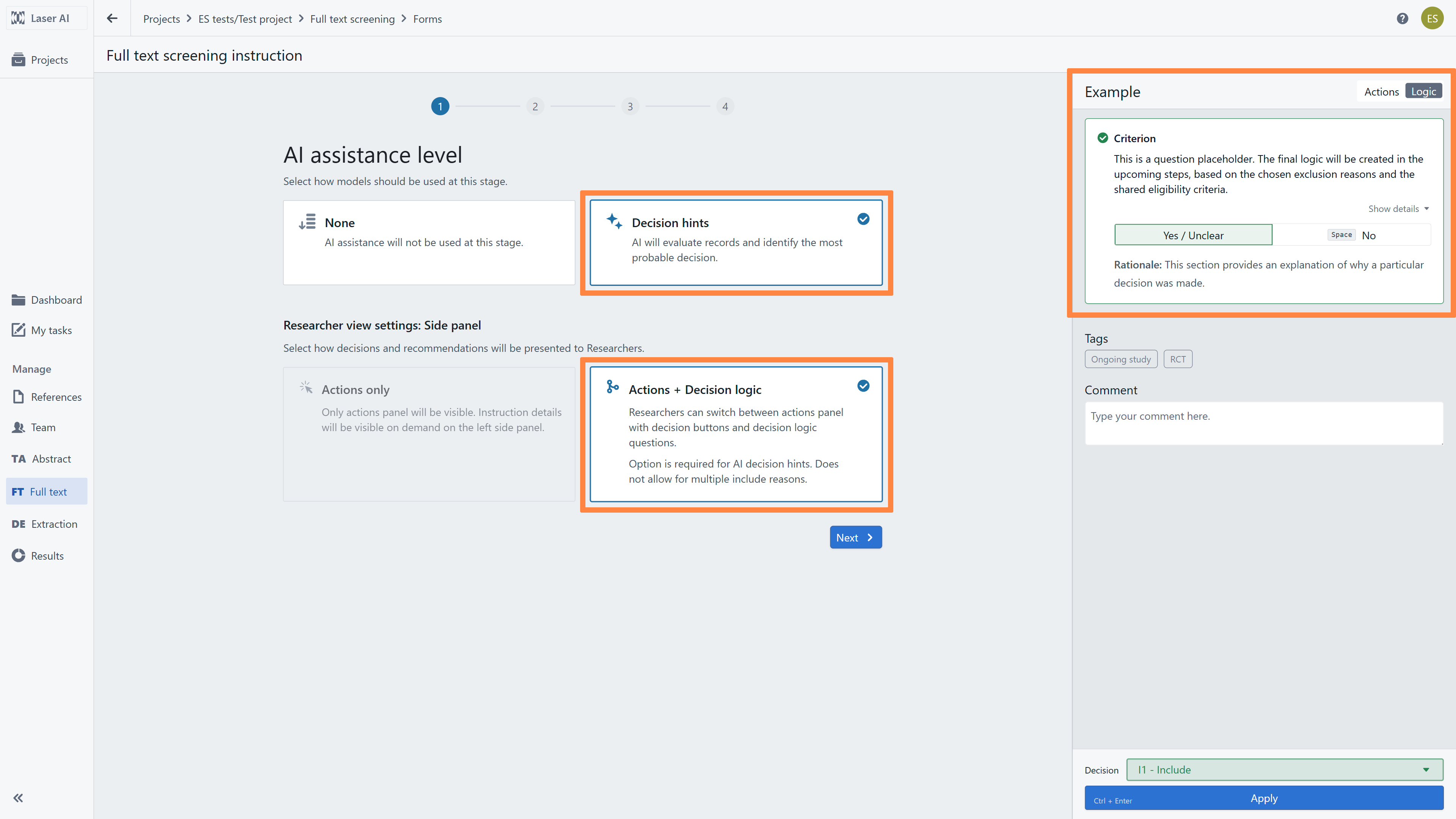
To set et up the instructions fot FT screening, first define how AI models assist reviewers during the screening stage by selecting support level:
None - AI support will not be available during FT screening
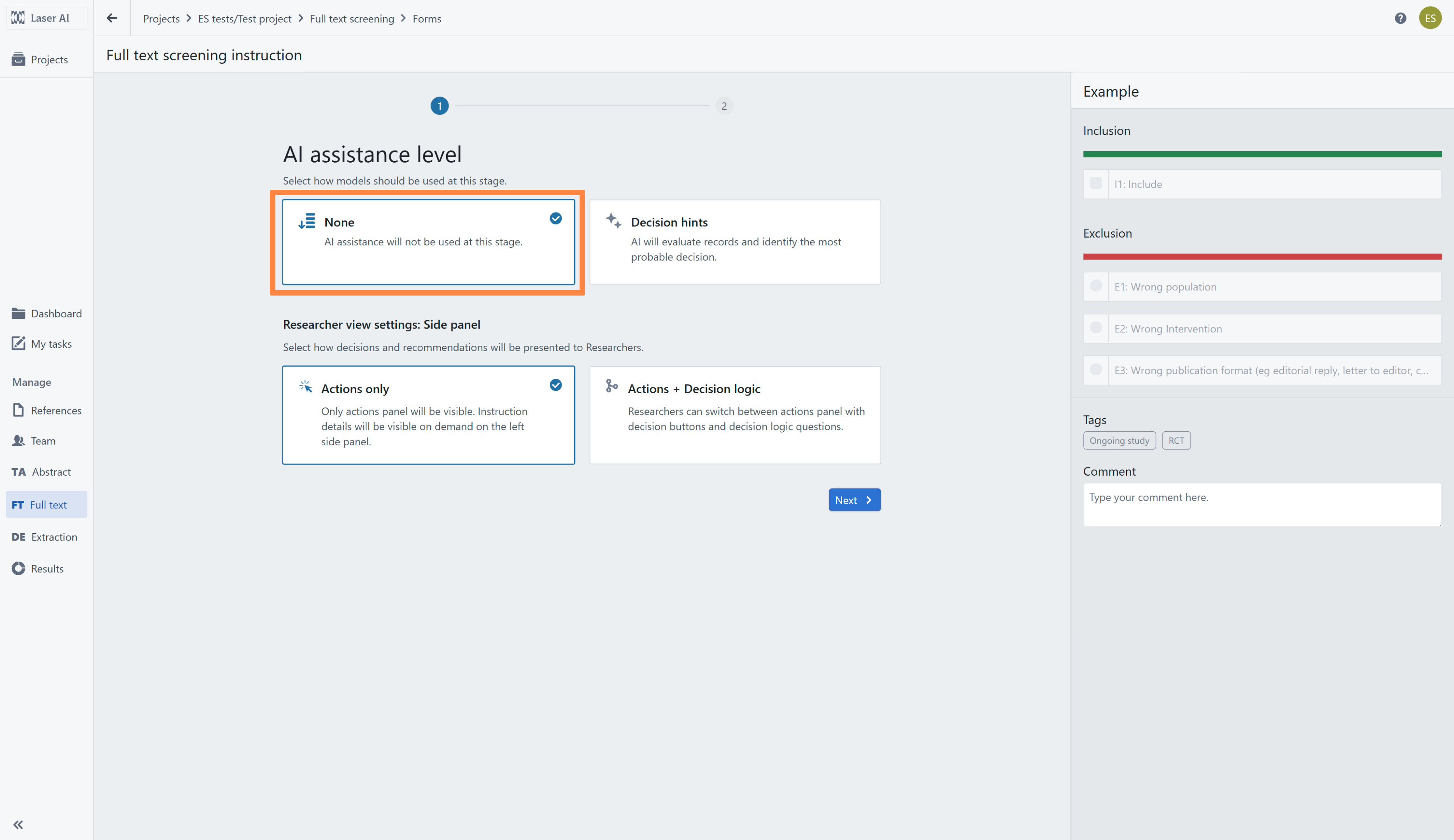
Decision hints - an AI will evaluate each PDF using decision logic and suggest possible decision
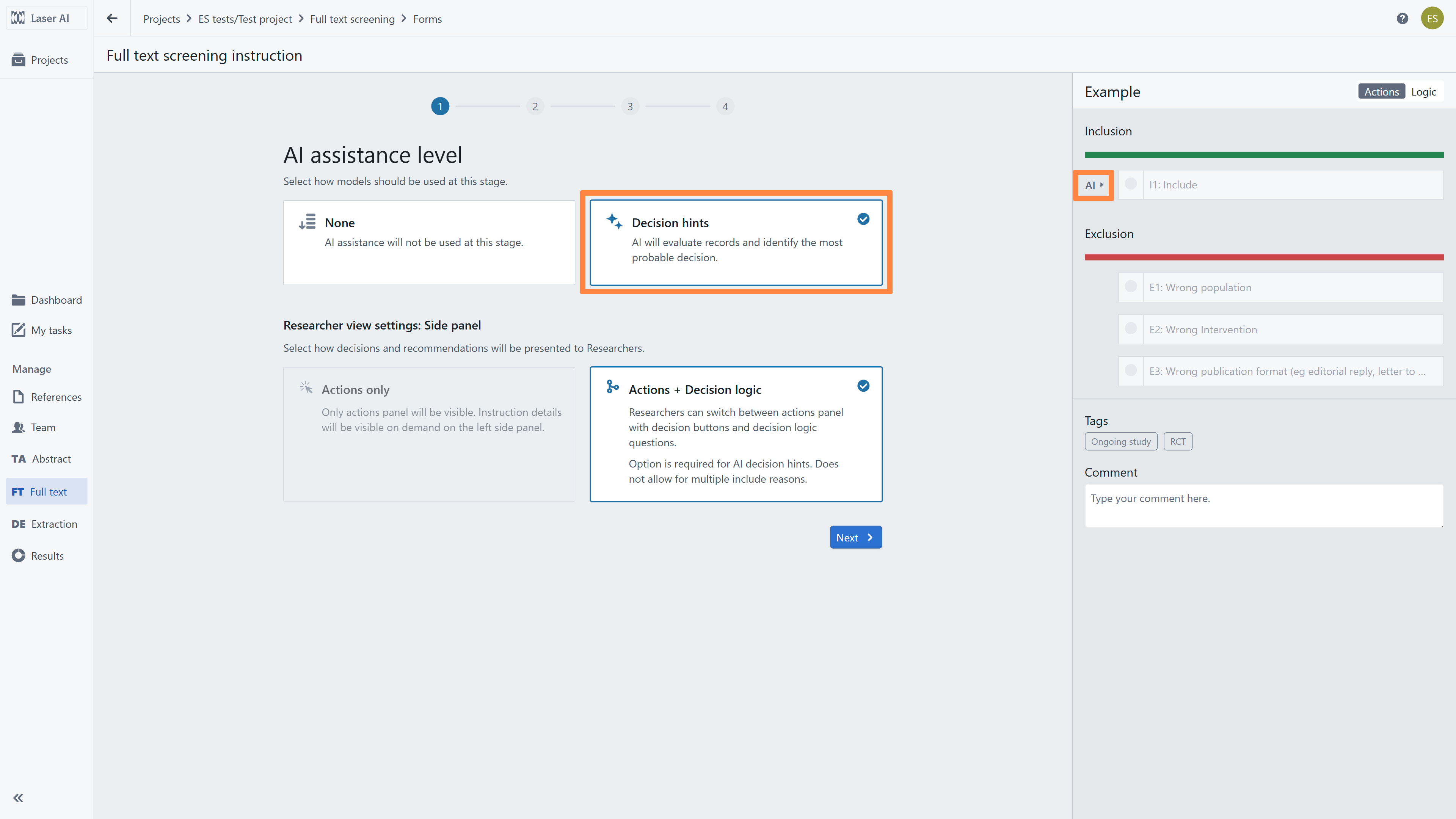
Next, choose how decisions, criteria, and recommendations appear to reviewers during screening based on your selected AI support level:
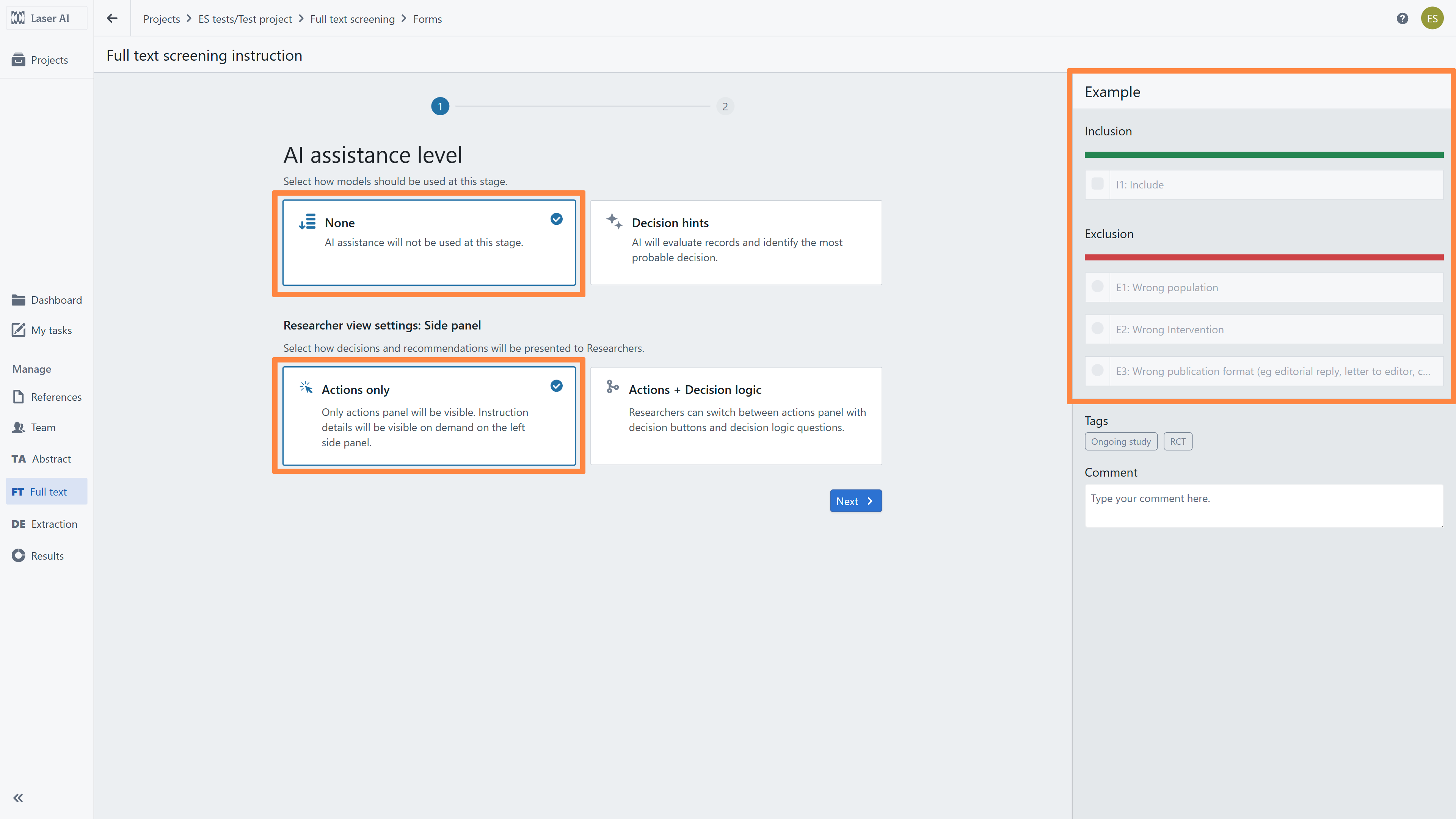
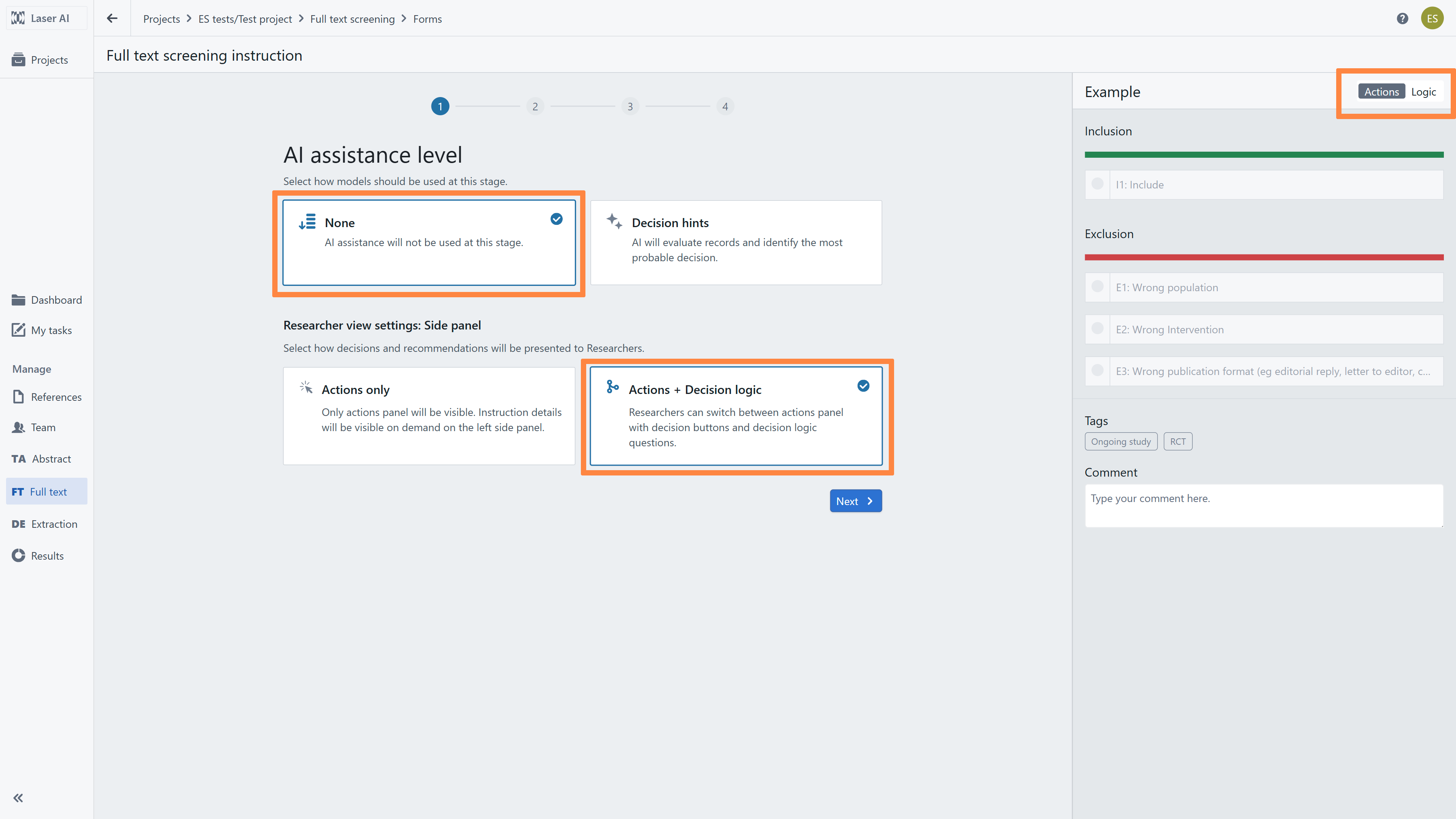
If "None" AI assistance was selected:
Actions only - Displays only the Inclusion/Exclusion action buttons on the right panel. Instruction details can be expanded on the left panel, while the right Decision Logic panel is disabled.
Actions+decision logic - allows Reviewers to switch between the Inclusion/Exclusion decision buttons and detailed eligibility questions.
If “Decision hints” was selected
Actions + decision logic (Default): Automatically applies the interactive layout, allowing reviewers to switch between Inclusion/Exclusion buttons and detailed eligibility questions.
Configuring Instructions: AI - None (Actions Only)
After selecting no AI support while FT screening (‘None’) with Actions only, choose a template from the list. Laser AI provides pre-configured templates for various project types, or you can upload a custom template previously saved within your organization. In the right panel a list of IN/OUT buttons for selected template is available.
Note: All templates remain fully editable after upload.
Configuring Instructions: AI - None (Actions + Decision logic)
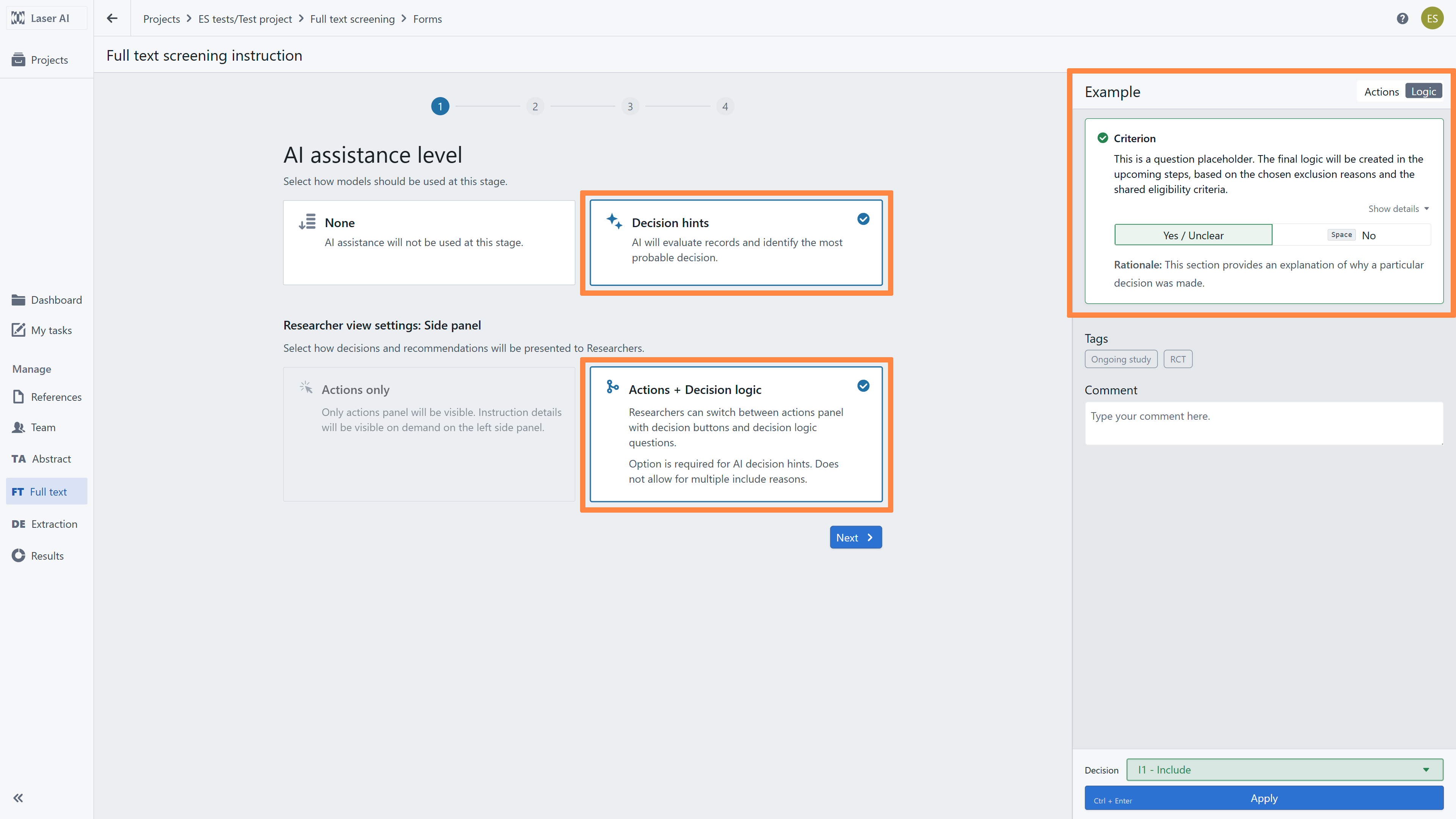
When enabling Decision Logic with no AI support during FT screening, you must first set up your screening instructions using one of two methods:
Generate new instruction (Recommended for new projects): Upload your eligibility criteria to draft and refine a new set of instructions.
Load from templates (Recommended for project updates): Select and import a previously saved template from your library.
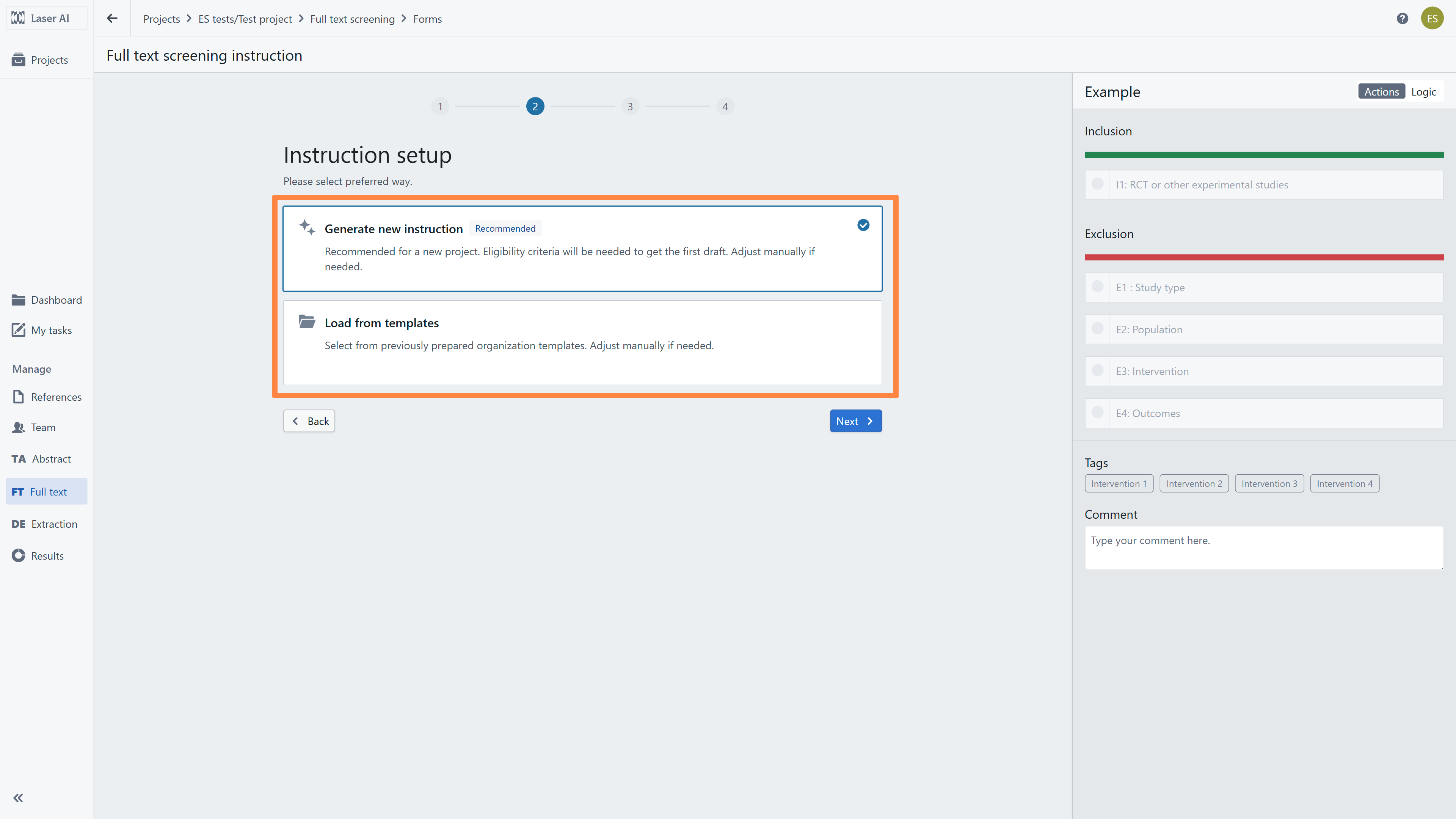
When selecting ‘Generate new instruction’, you must define your action buttons (used to tag included and excluded records):
Select Action Buttons: Choose standard IN/OUT buttons or select a pre-configured set from the list.
Review your chosen buttons in the right panel.
Note: Action buttons are flexible and remain fully editable. You can add or remove buttons in subsequent setup steps.
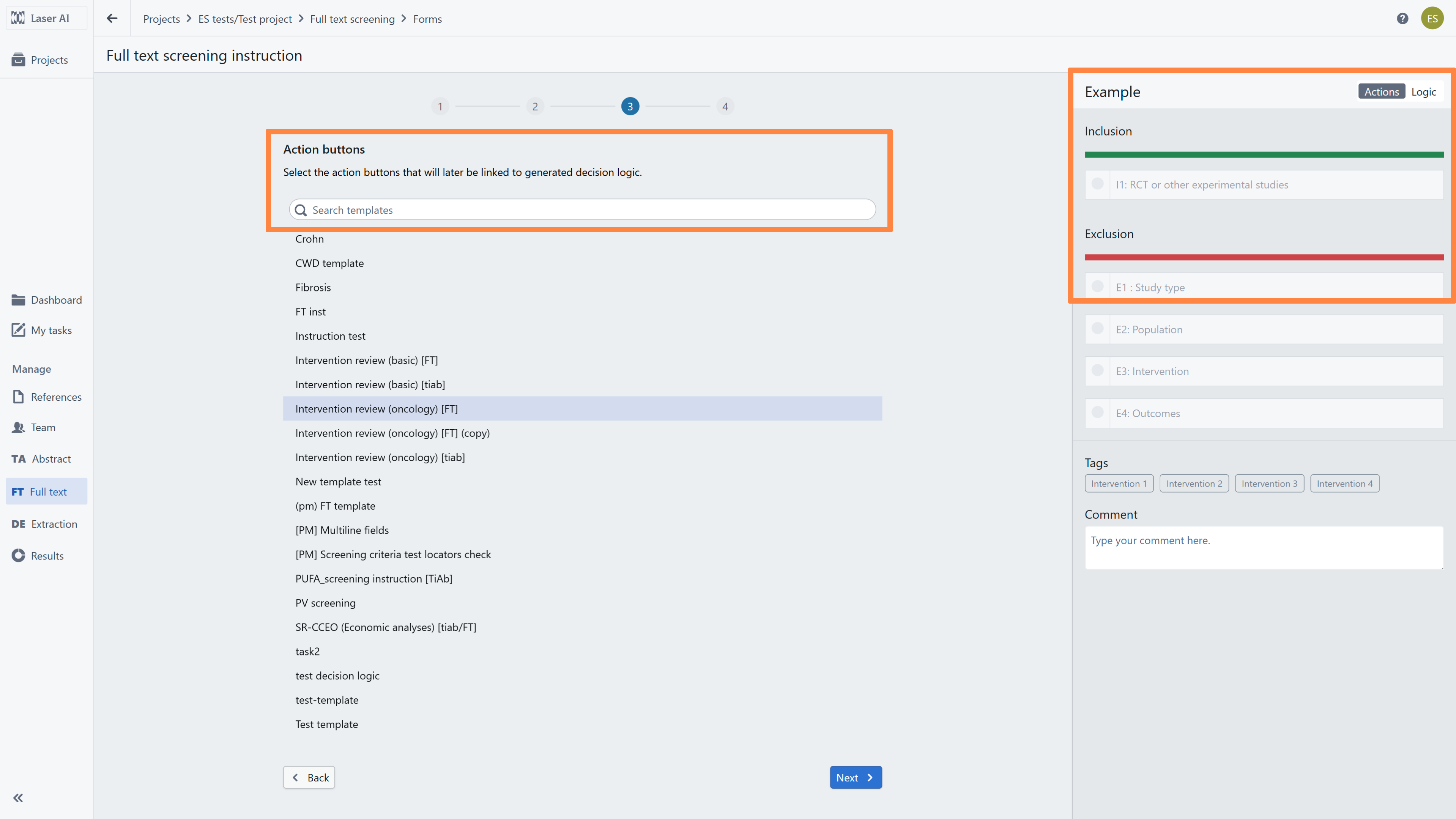
As your action buttons are selected, enter your review's eligibility criteria. The AI model will analyze this information and generate an initial instruction draft for your team to review and refine.
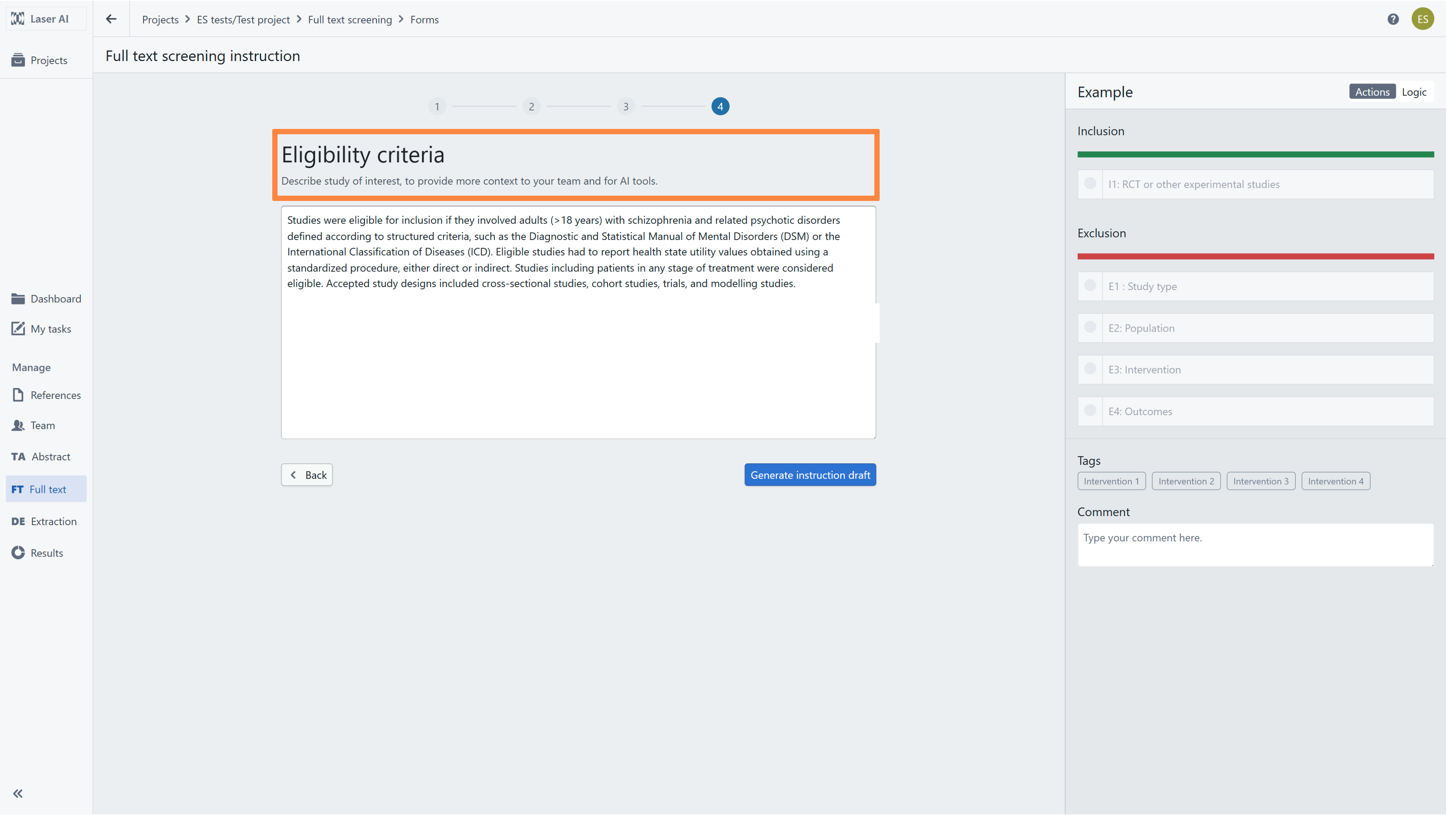
Configuring instructions: Decision hints (Actions + Decision logic)
The setup steps for AI ranking + Decision suggestions are identical to AI - none (when Actions and Decision Logic are enabled). The only difference is the output: selecting Decisions hints provides AI support during screening.
When enabling Decision Logic, you must first set up your screening instructions using one of two methods:
Generate new instruction (Recommended for new projects): Upload your eligibility criteria to draft and refine a new set of instructions.
Load from templates (Recommended for project updates): Select and import a previously saved template from your library.
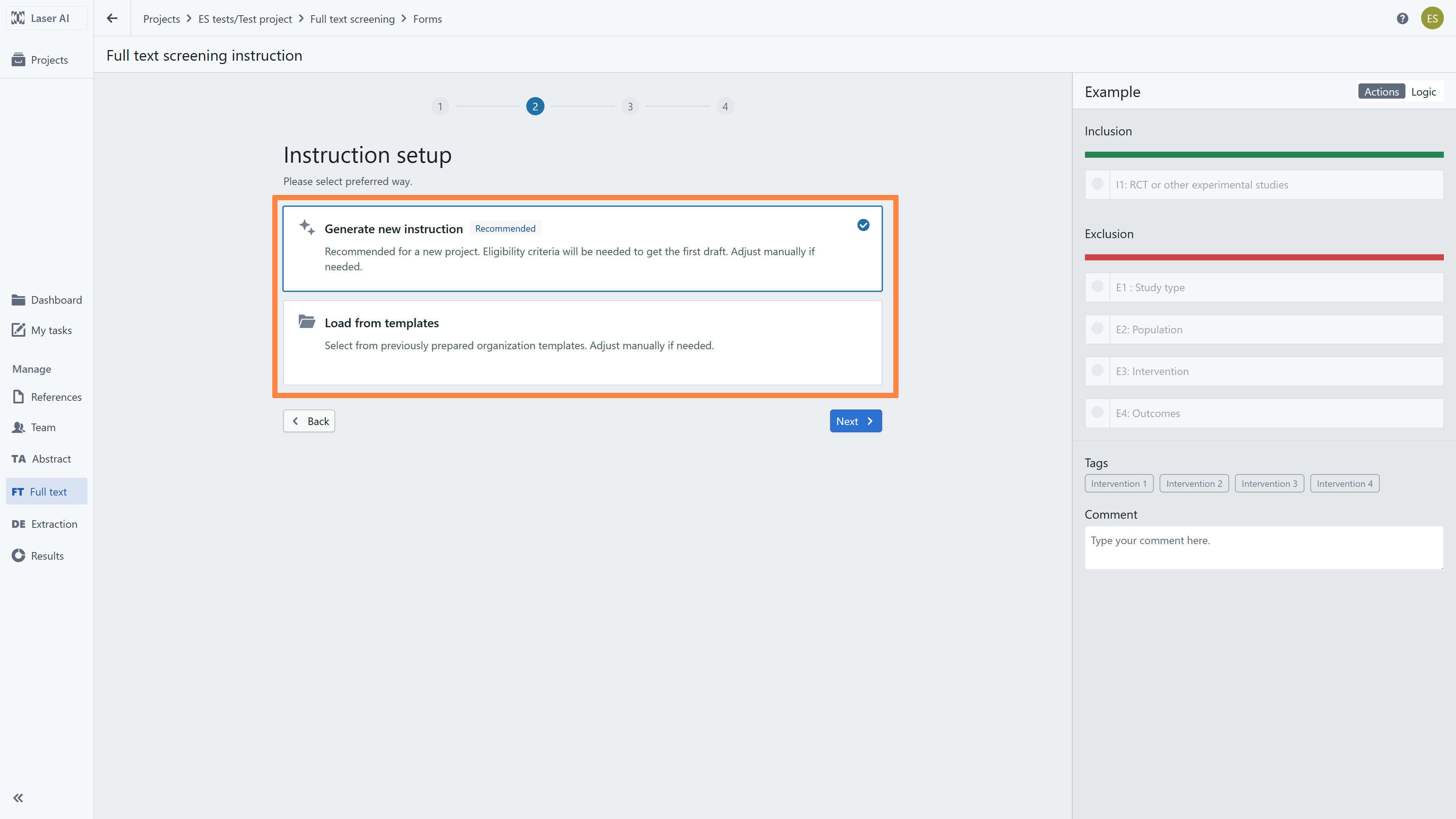
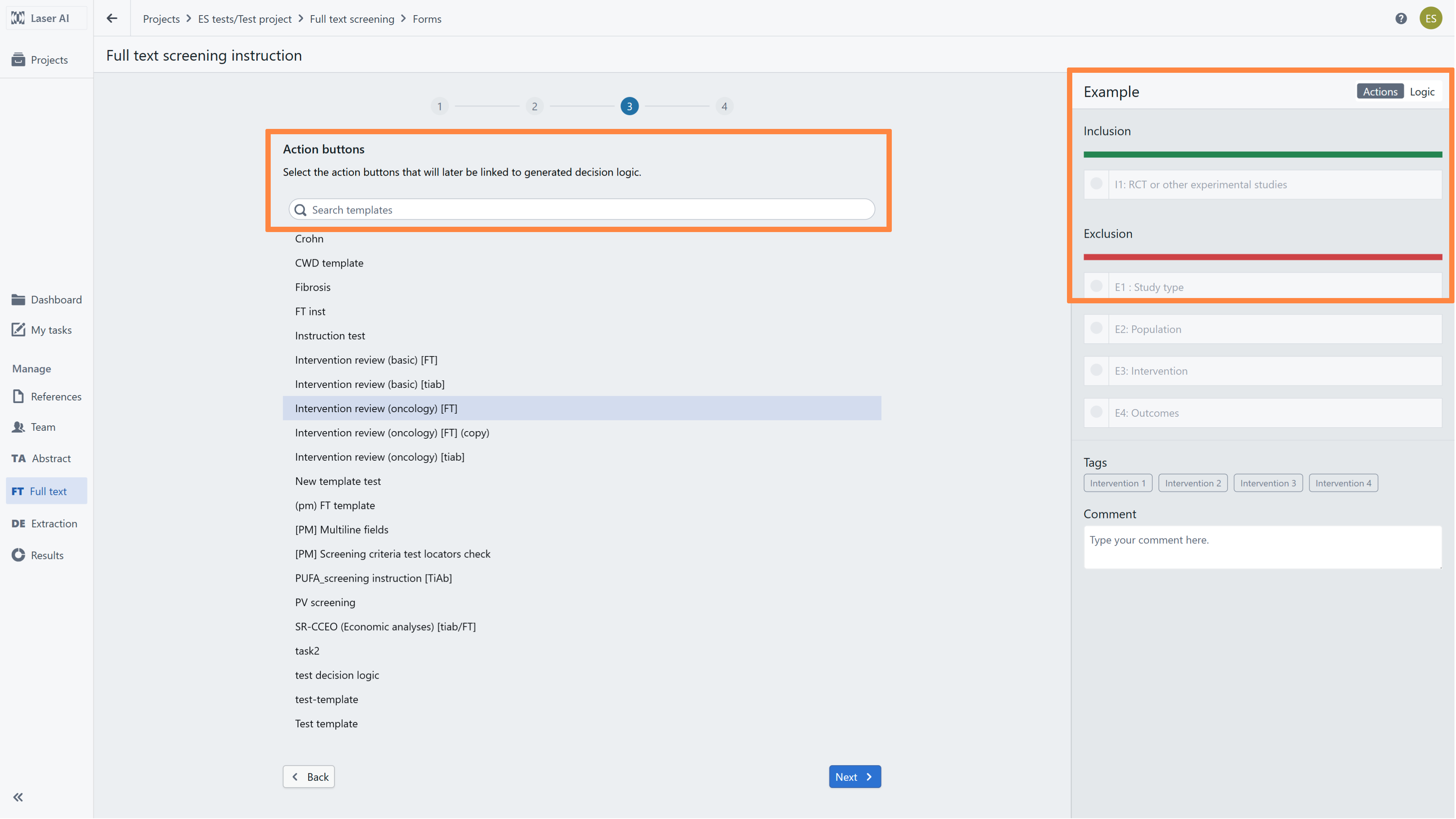
When selecting Generate new instruction, you must define your action buttons (used to tag included and excluded records):
Select Action Buttons: Choose standard IN/OUT buttons or select a pre-configured set from the list.
Preview Selection: Review your chosen buttons in the right panel.
Note: Action buttons are flexible and remain fully editable. You can add or remove buttons in subsequent setup steps.
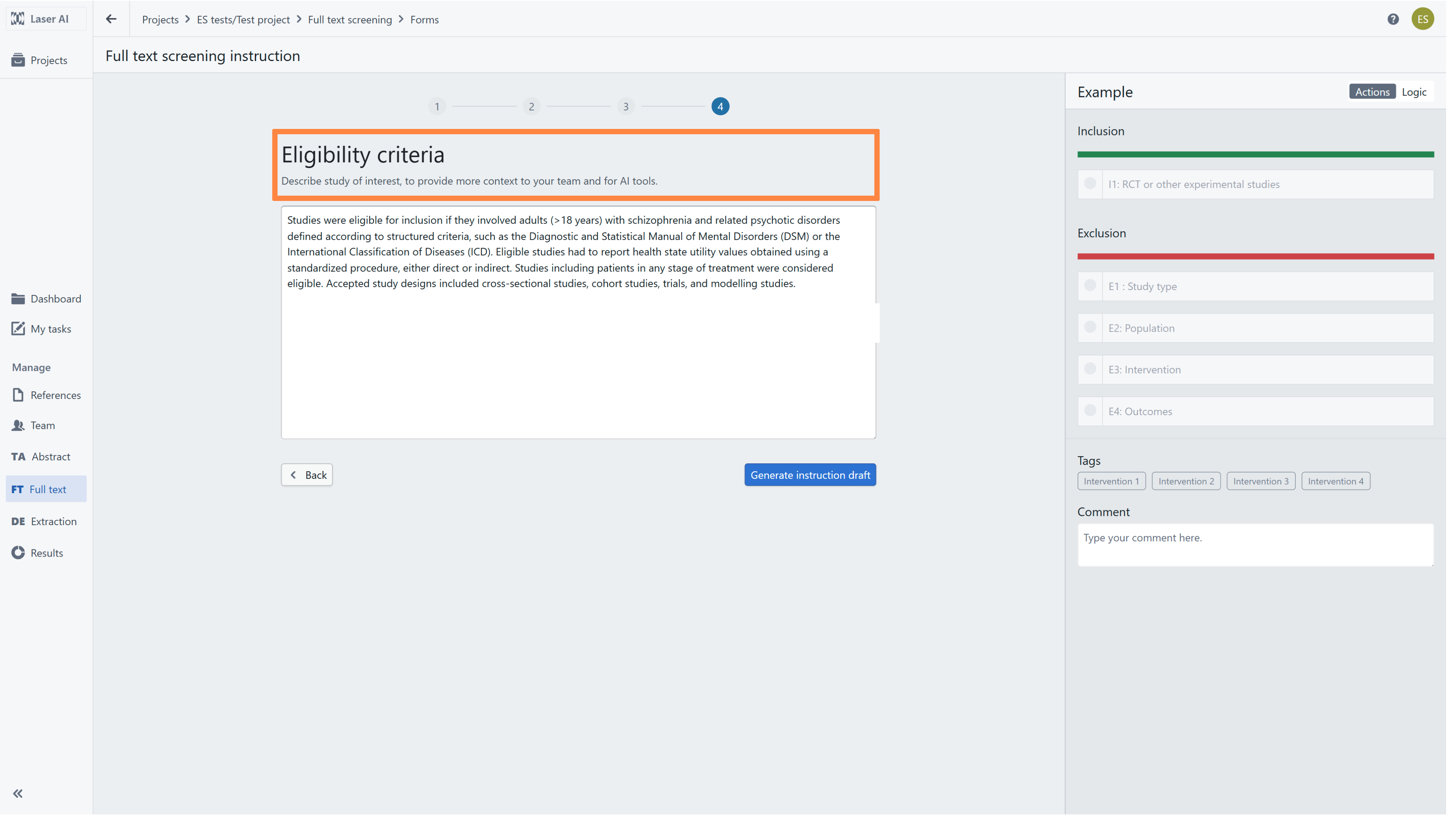
As your action buttons are selected, enter your review's eligibility criteria. The AI model will analyze this information and generate an initial instruction draft for your team to review and refine.
RELATED ARTICLES
Was this article helpful?
That’s Great!
Thank you for your feedback
Sorry! We couldn't be helpful
Thank you for your feedback
Feedback sent
We appreciate your effort and will try to fix the article