The Flexible Extraction Analysis module is designed to enable dynamic exploration and customization of extracted data. It allows users to filter results, select and arrange columns, group and aggregate data, and apply sorting to suit specific analytical needs. By adjusting how data is displayed, i.e. whether by study, intervention, outcome, or other variables, users can quickly generate tailored views that support efficient interpretation and reporting.
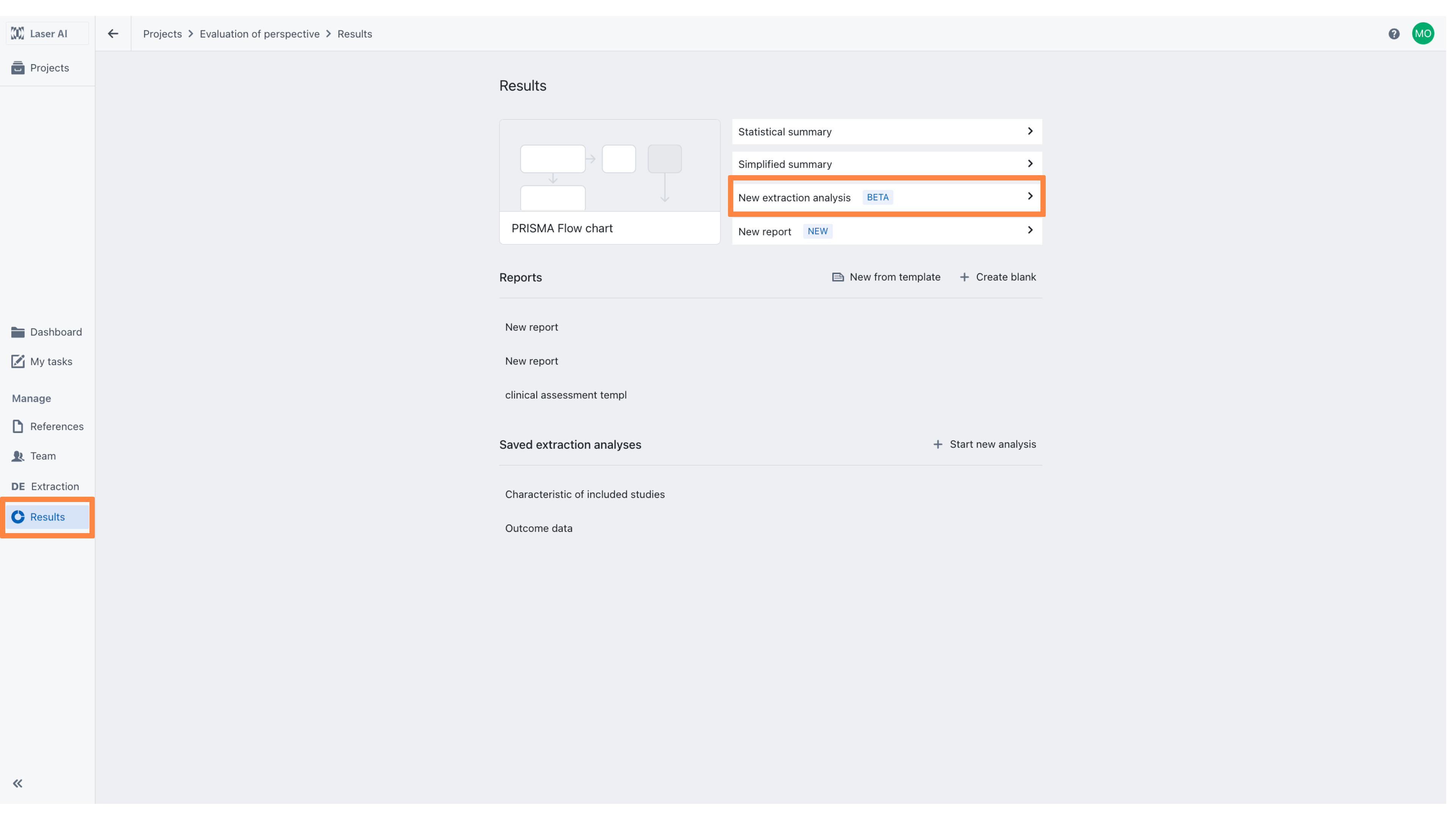
Flexible extraction analysis can be accessed from the Results module.
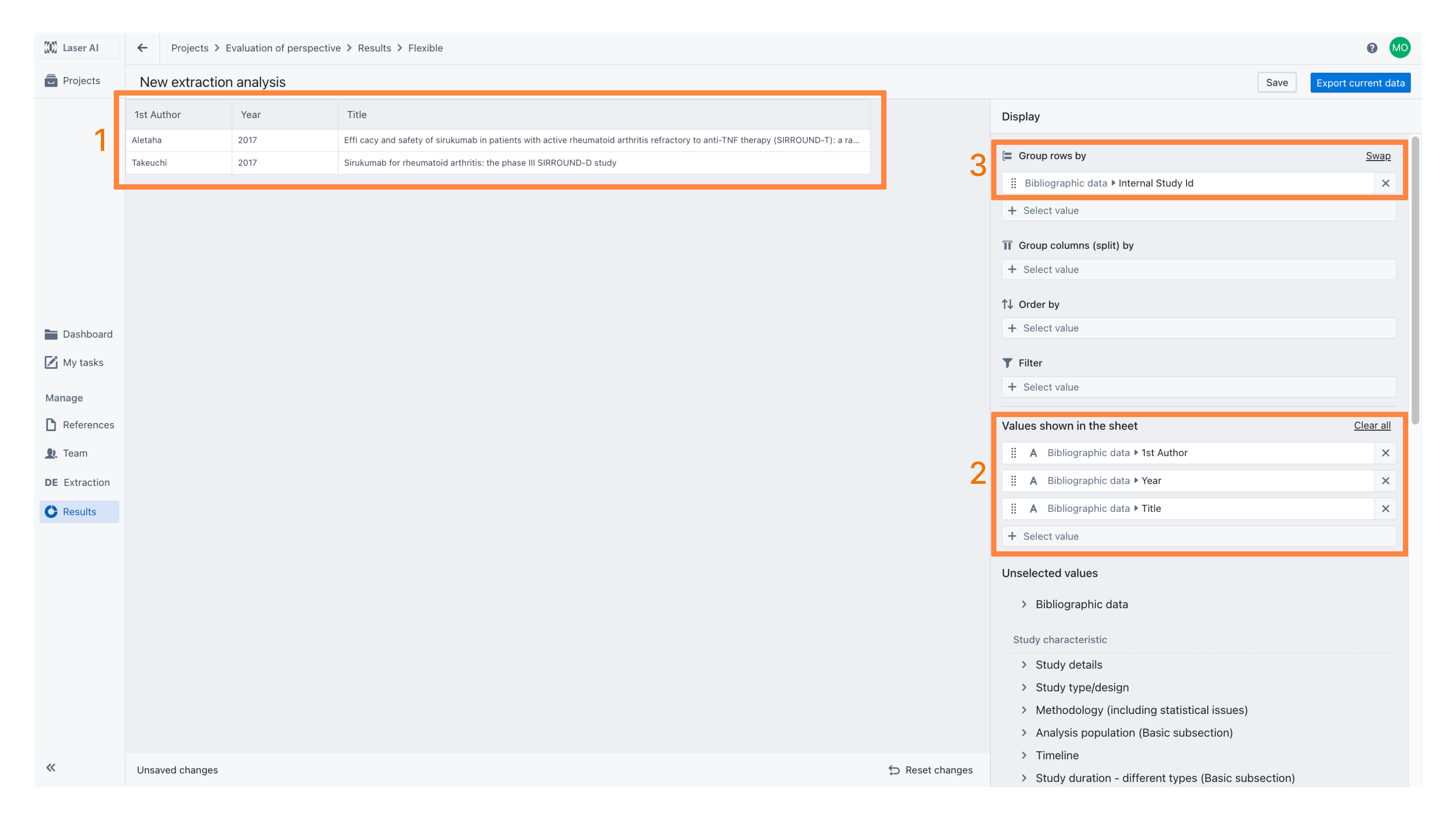
When you open a new Flexible Extraction Analysis, the default view will be as shown below. In this example project, data from two studies has been extracted [1]. The displayed columns include 'First Author', 'Year' and 'Title' [2]. Rows are grouped by Study ID [3].
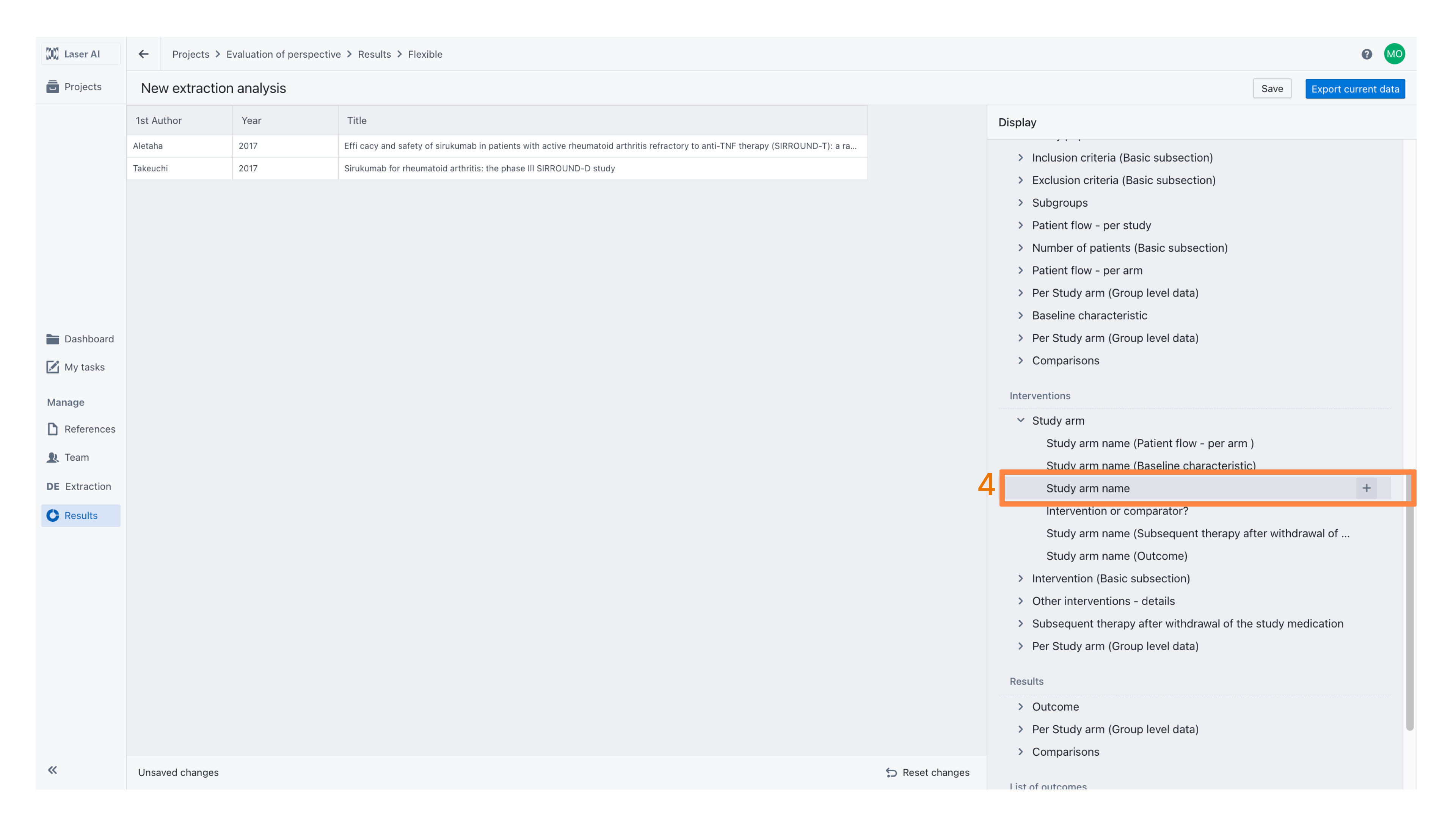
To display additional columns, scroll through the list of “Unselected values,” locate the appropriate field and click on the plus icon [4].
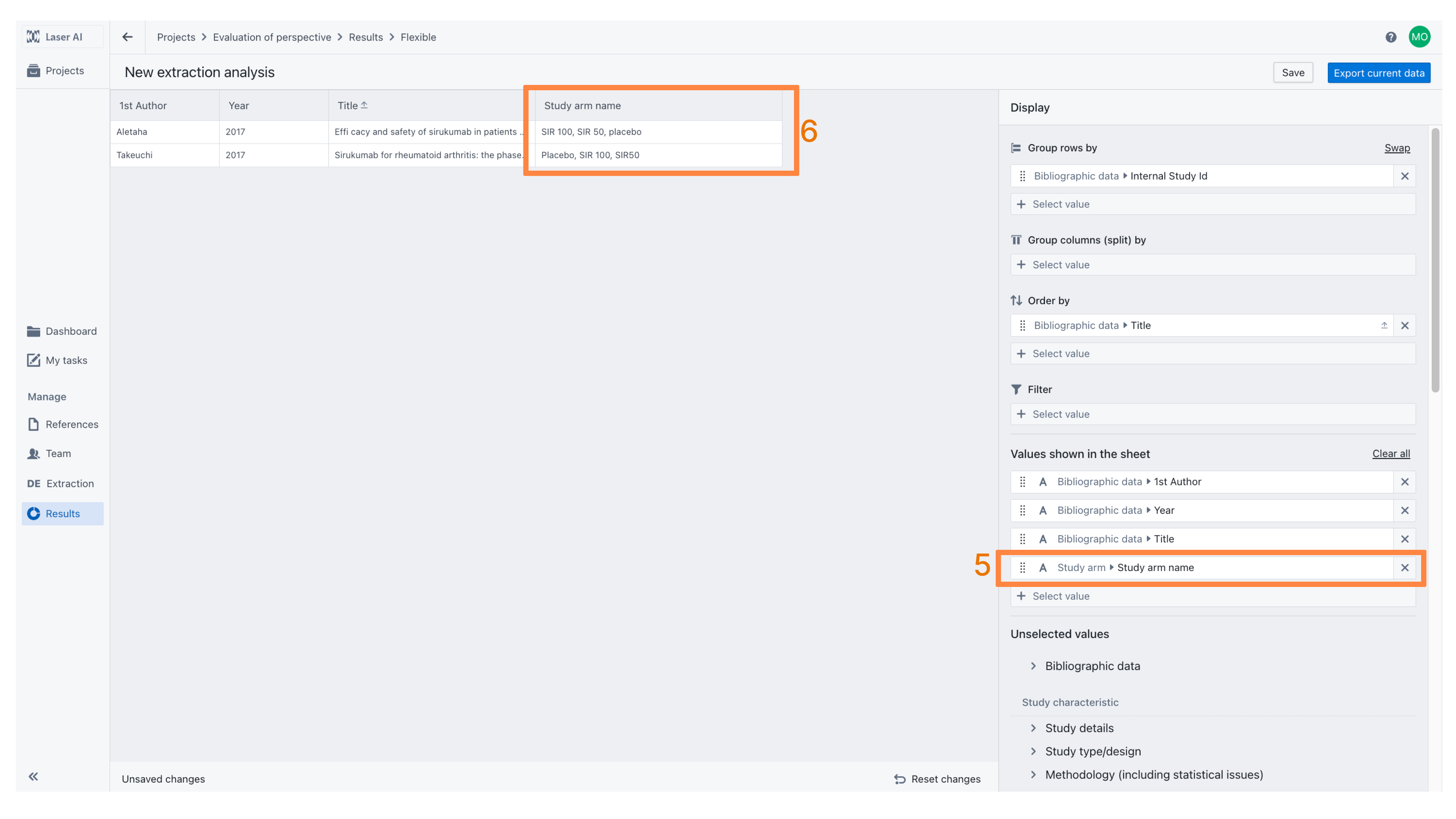
If grouping by Study ID is maintained [3], adding additional values to display (“Values shown in the sheet”) [5] will merge all values into a single row. For example, when the Study Arm Name [6] field is added, all study arm names within each study are listed in one row, separated by commas.
In contrast, removing grouping by Study ID [7] will result in each unique value being displayed in a separate row [8].
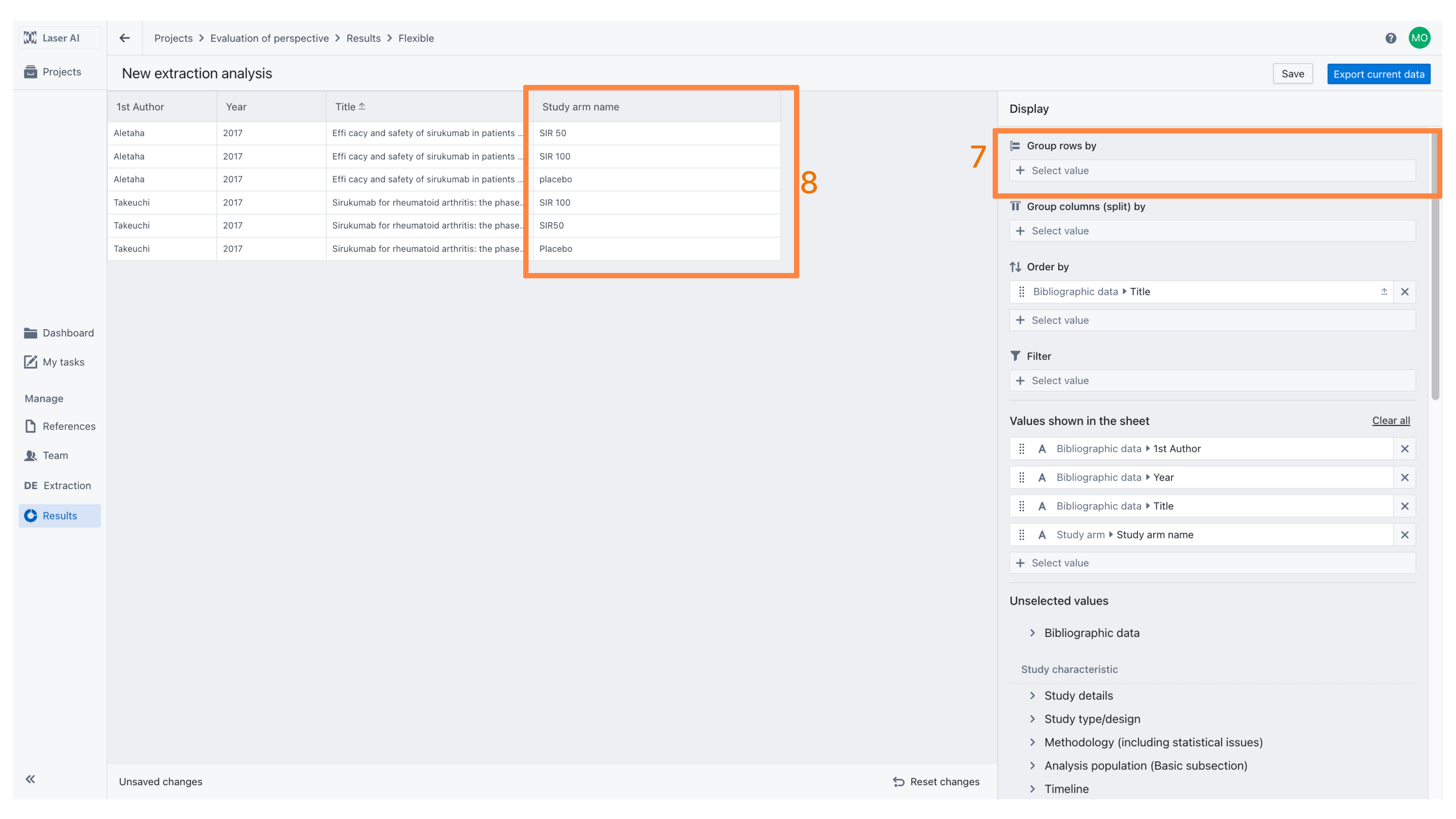
The results can be managed flexibly. For example, to identify the countries in which studies were conducted, the data can be grouped by Country [9]. This displays each country in a single row, with other values merged accordingly. For example, if multiple studies were conducted in the same country, their first authors will be displayed together [10].
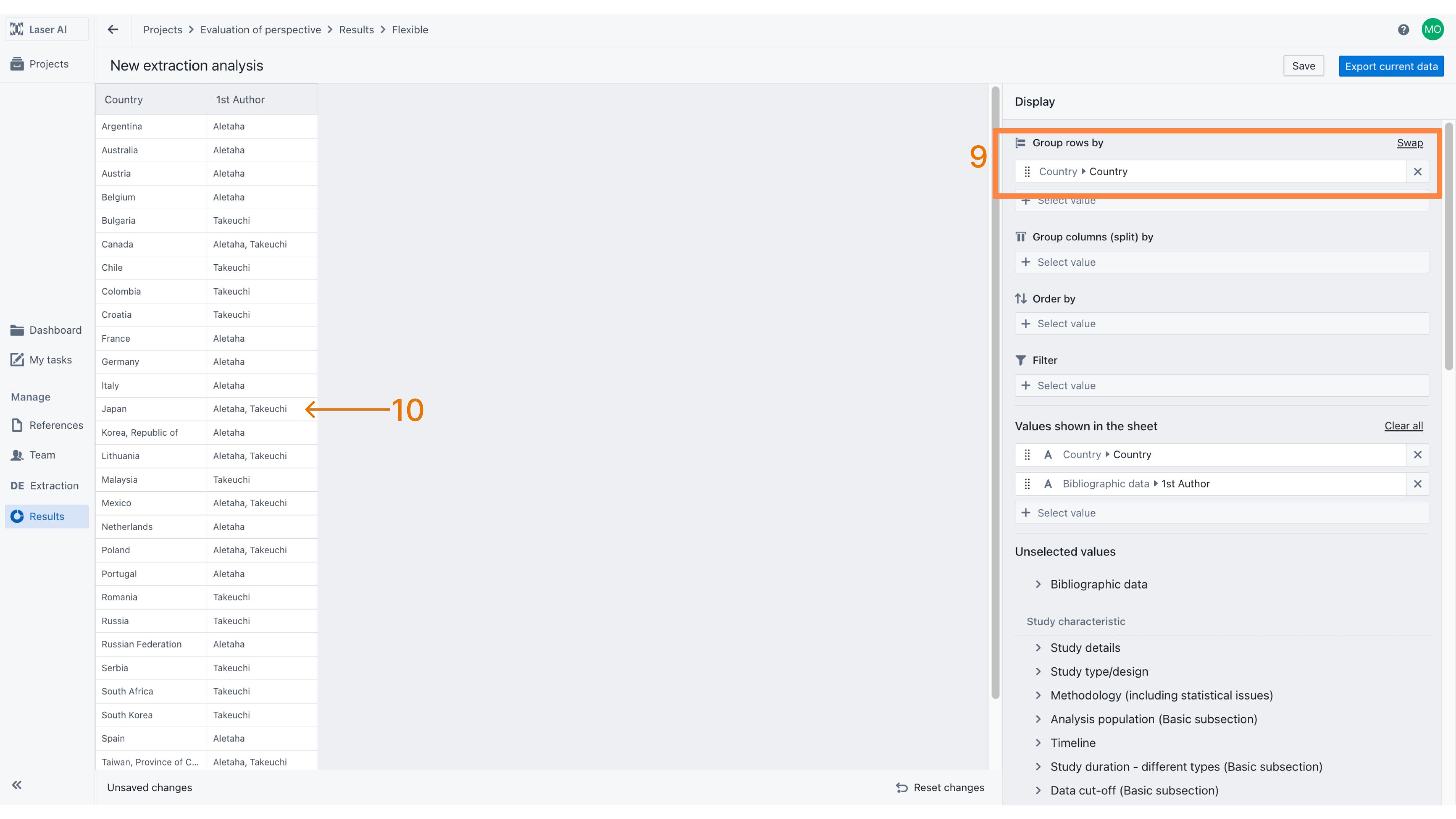
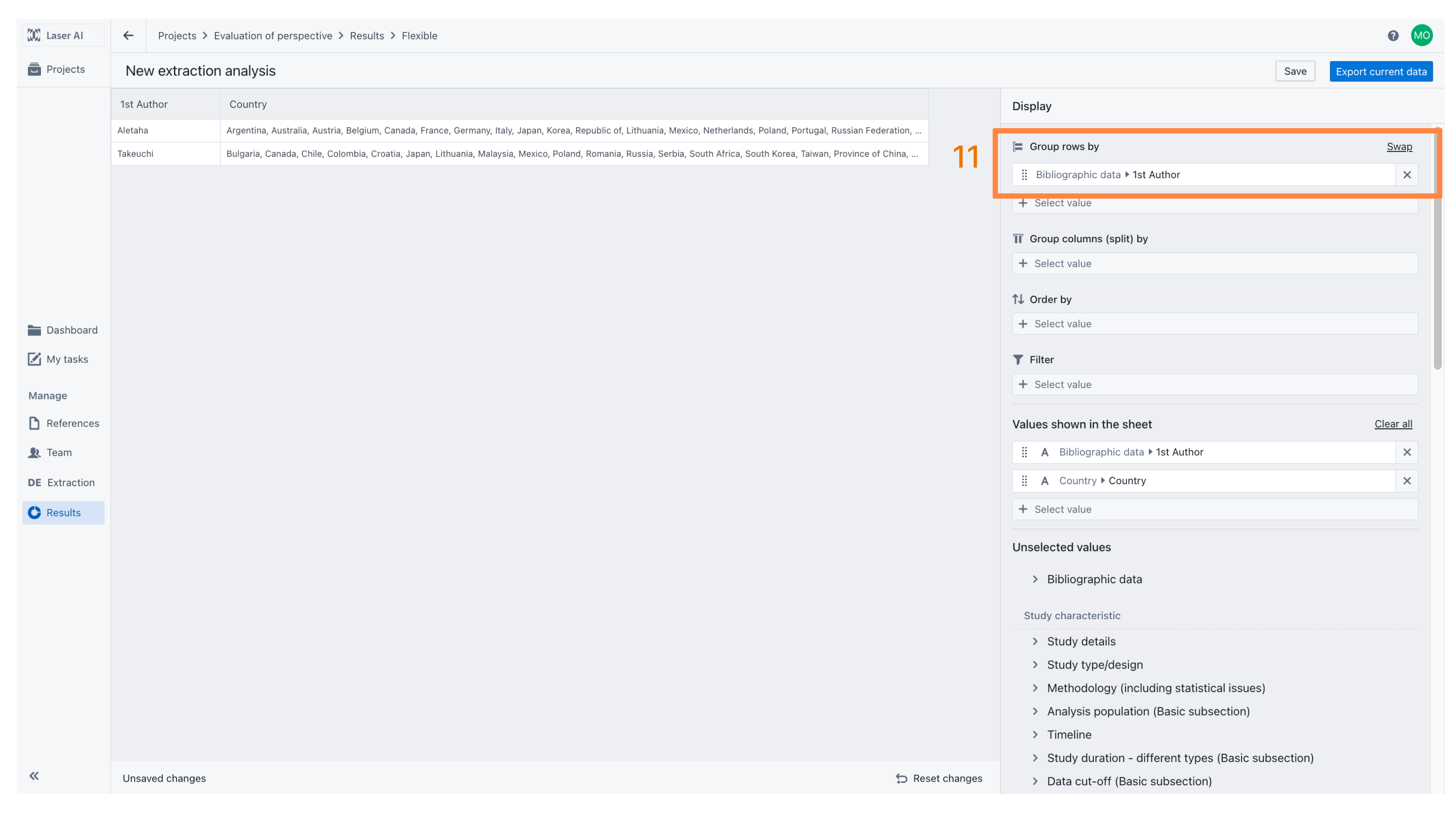
Alternatively, to display all countries in a single row for each study, group the data by Study ID [11].
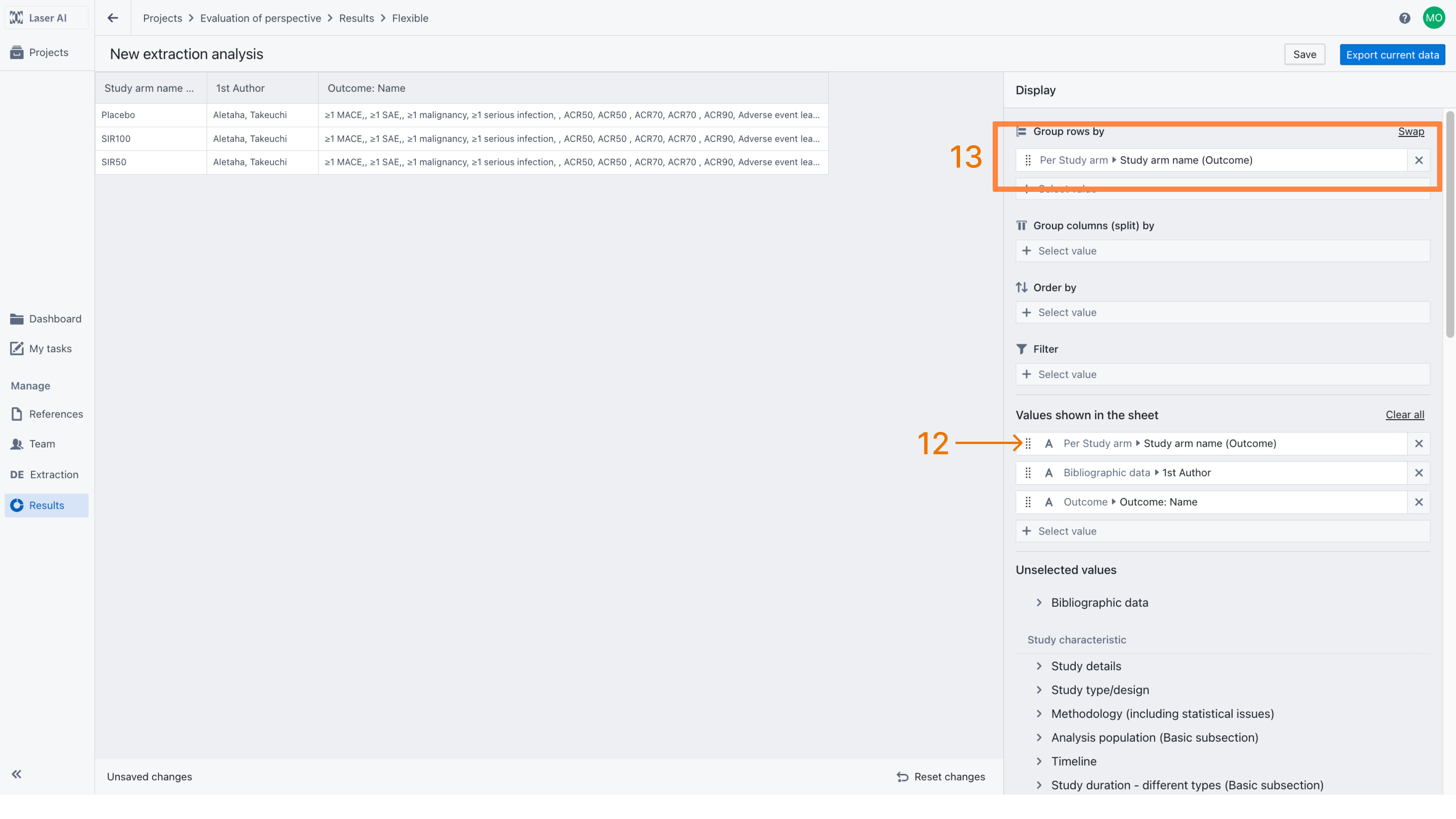
The order of displayed columns can be customized using drag-and-drop within the “Values shown in the sheet” section [12]. In this example, the results are grouped by Intervention (i.e., Study Arm Name) [13], which merges all outcomes measured for each intervention into a single row, regardless of the study in which they were conducted. For convenience, the Study Arm Name is displayed as the first column.
Filtering and ordering
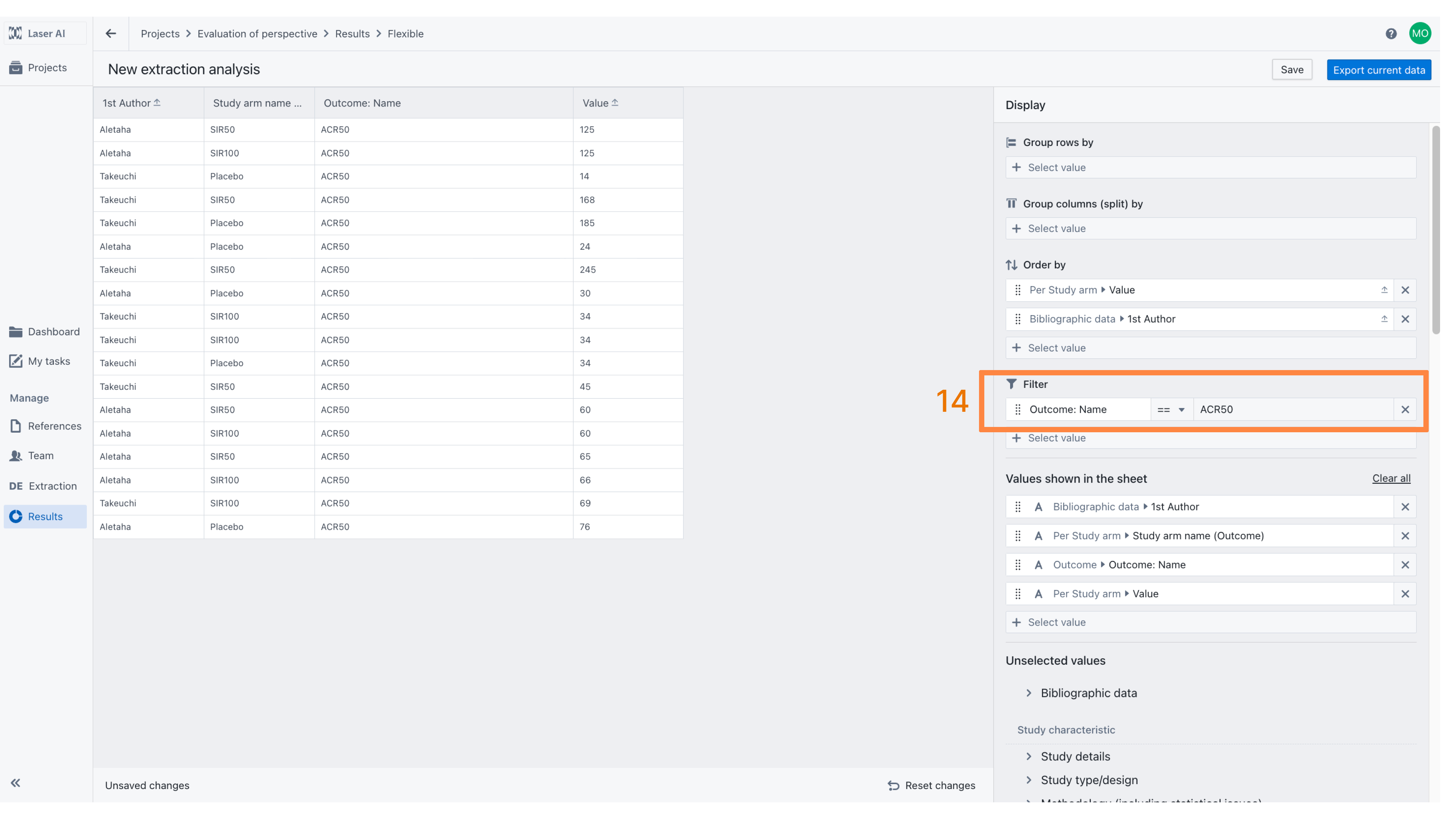
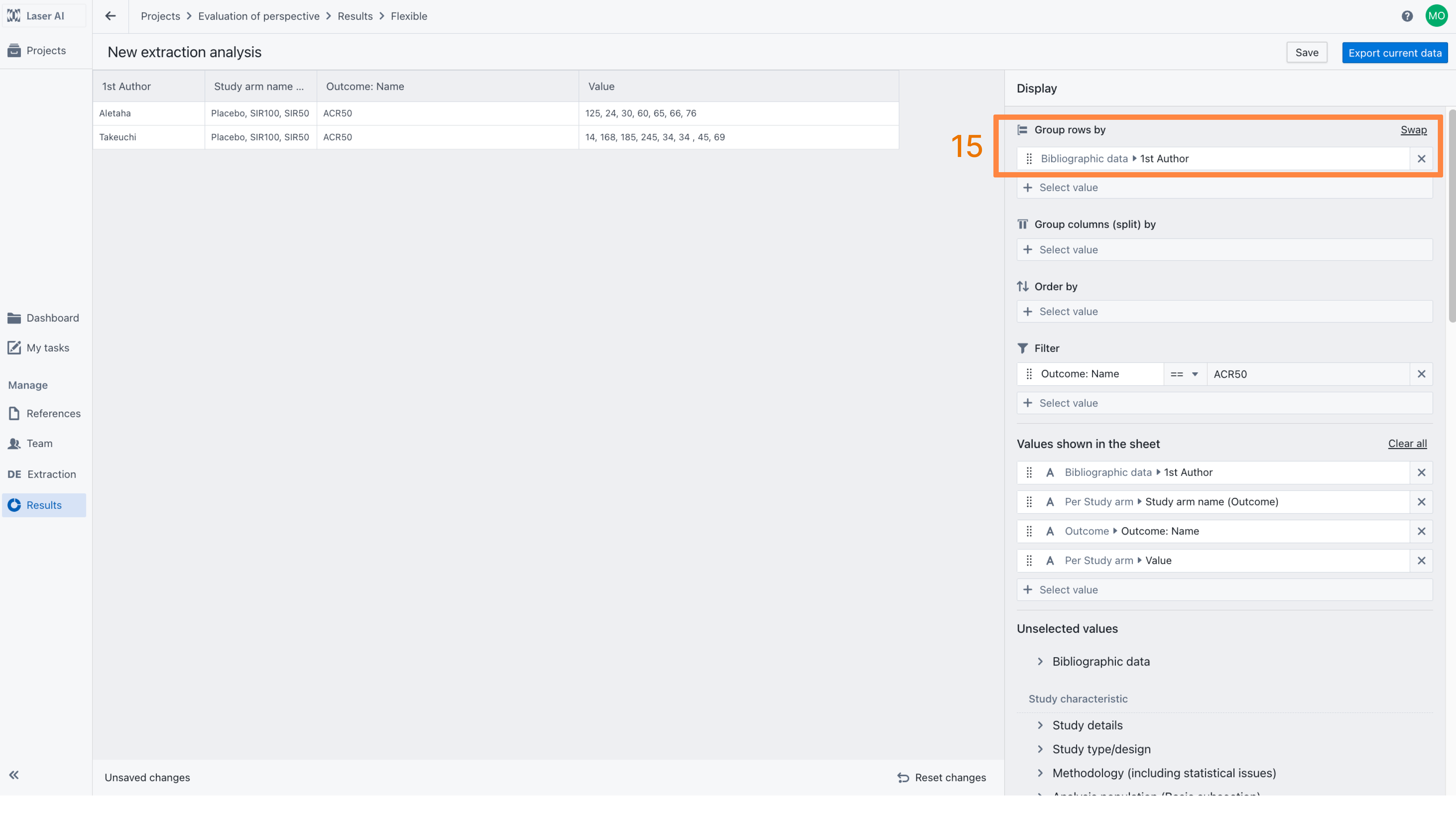
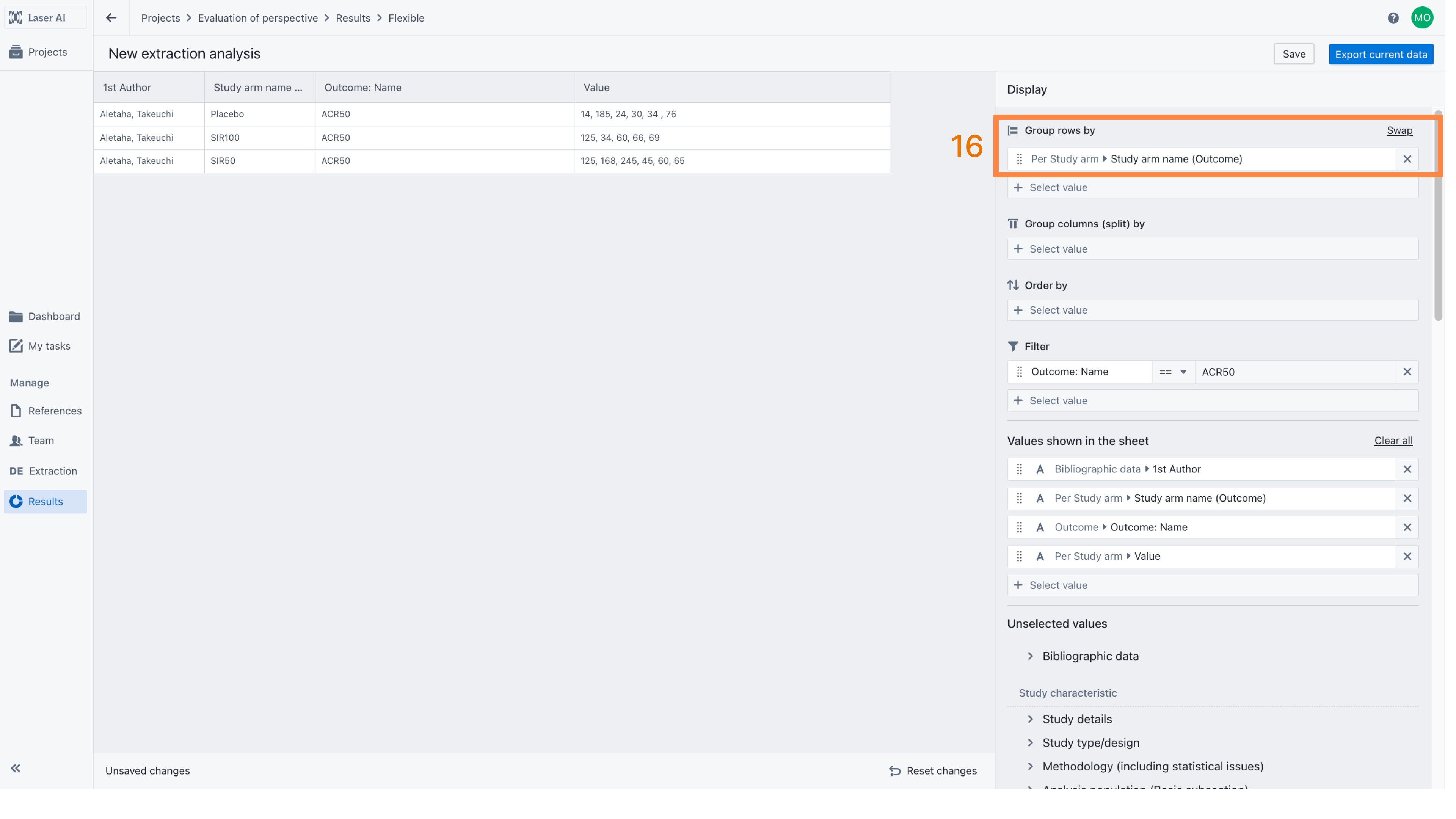
To display outcome values for a single outcome (e.g., ACR50), go to the “Filter” section and set Outcome Name equal to ACR50 [14]. To merge all outcome values into a single row, select an appropriate grouping option. For example, group by Study ID to display values separately for each study [15], or group by Study Arm Name to view results by intervention [16].
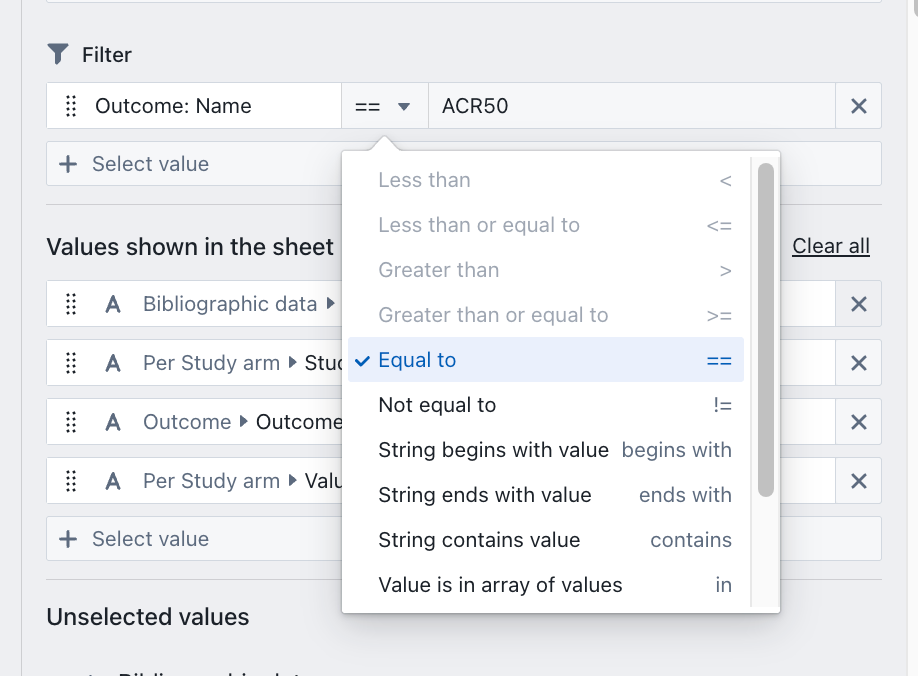
There are multiple filtering options available. Please note that depending on the data type, some options may be inactive. For instance, filters designed for numerical values will be greyed out for text fields.
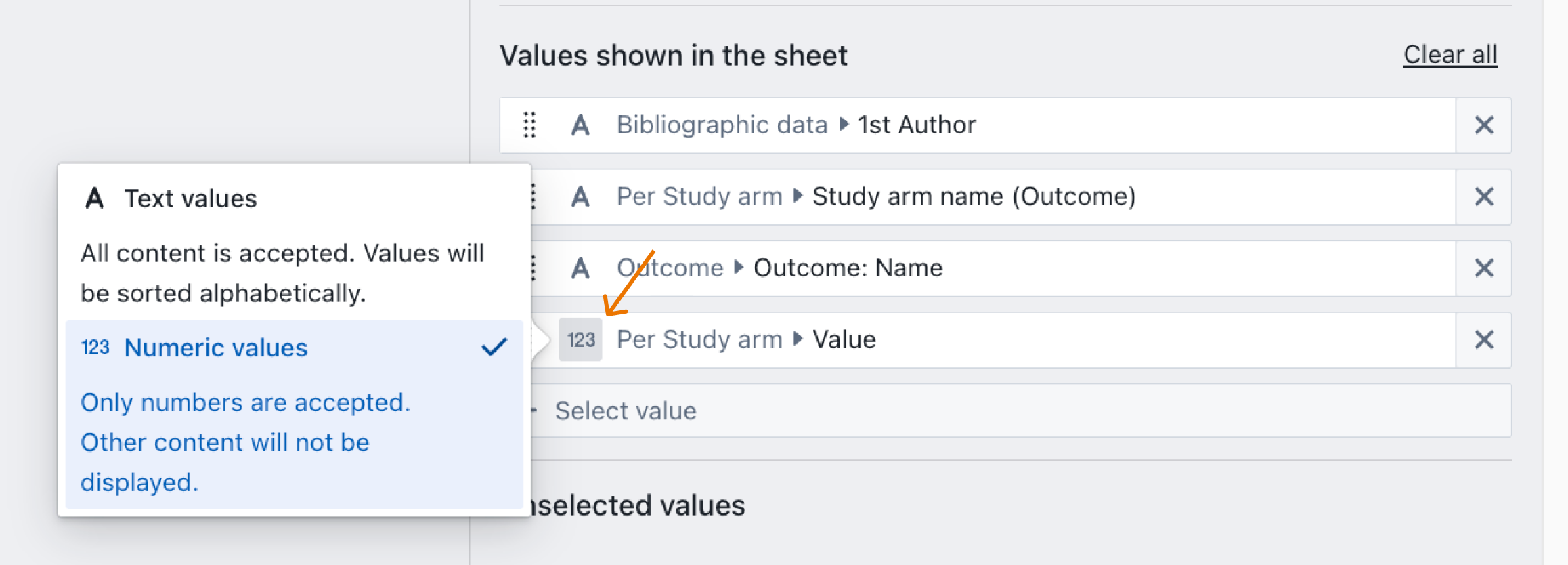
By default, all field types are set as 'text' - to change that click "A" or "123" icon on value bar.
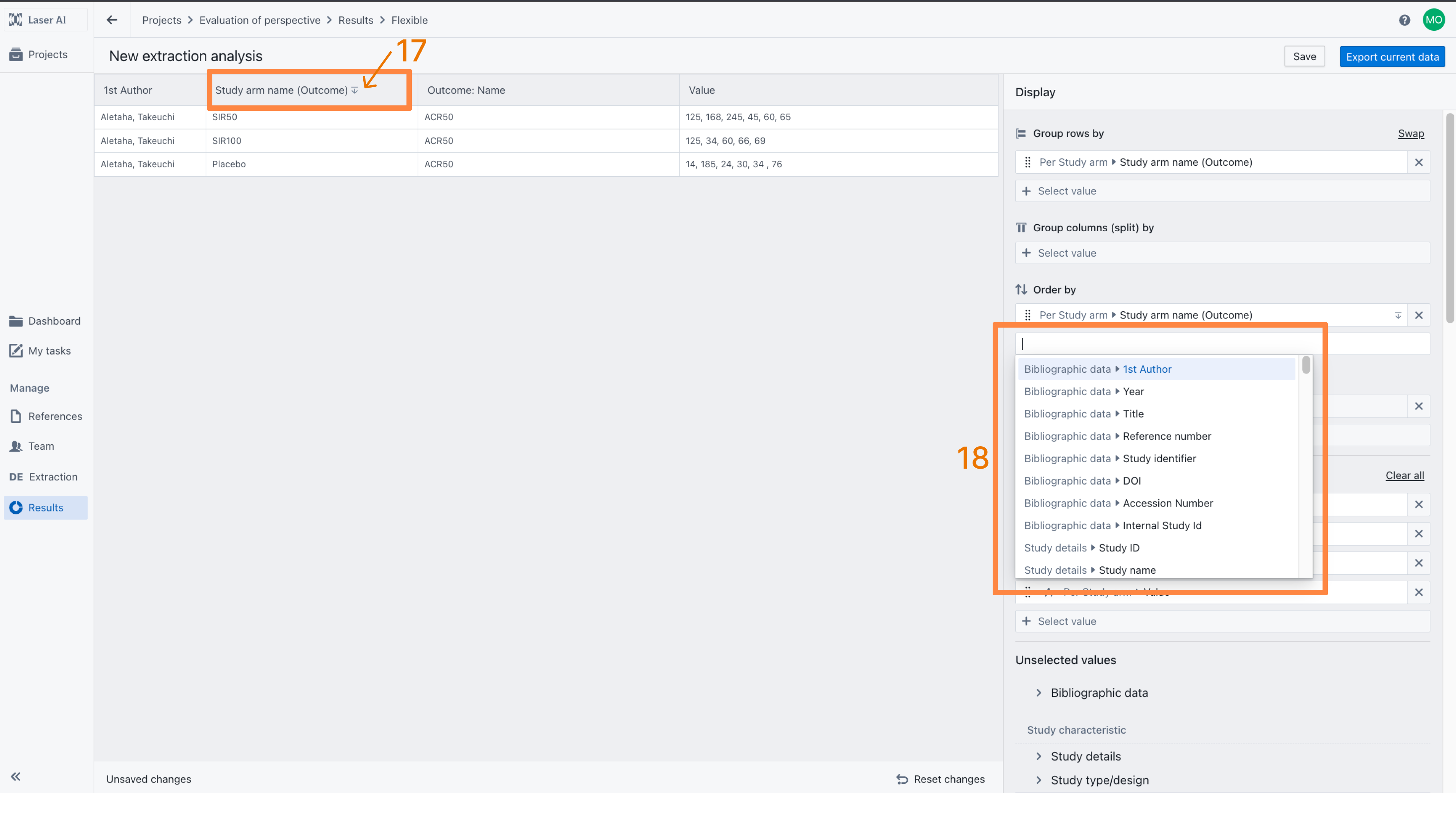
To sort rows by a specific column, click the column header [17] and select ascending or descending order. Alternatively, you can define a sorting rule in the “Order by” section [18].
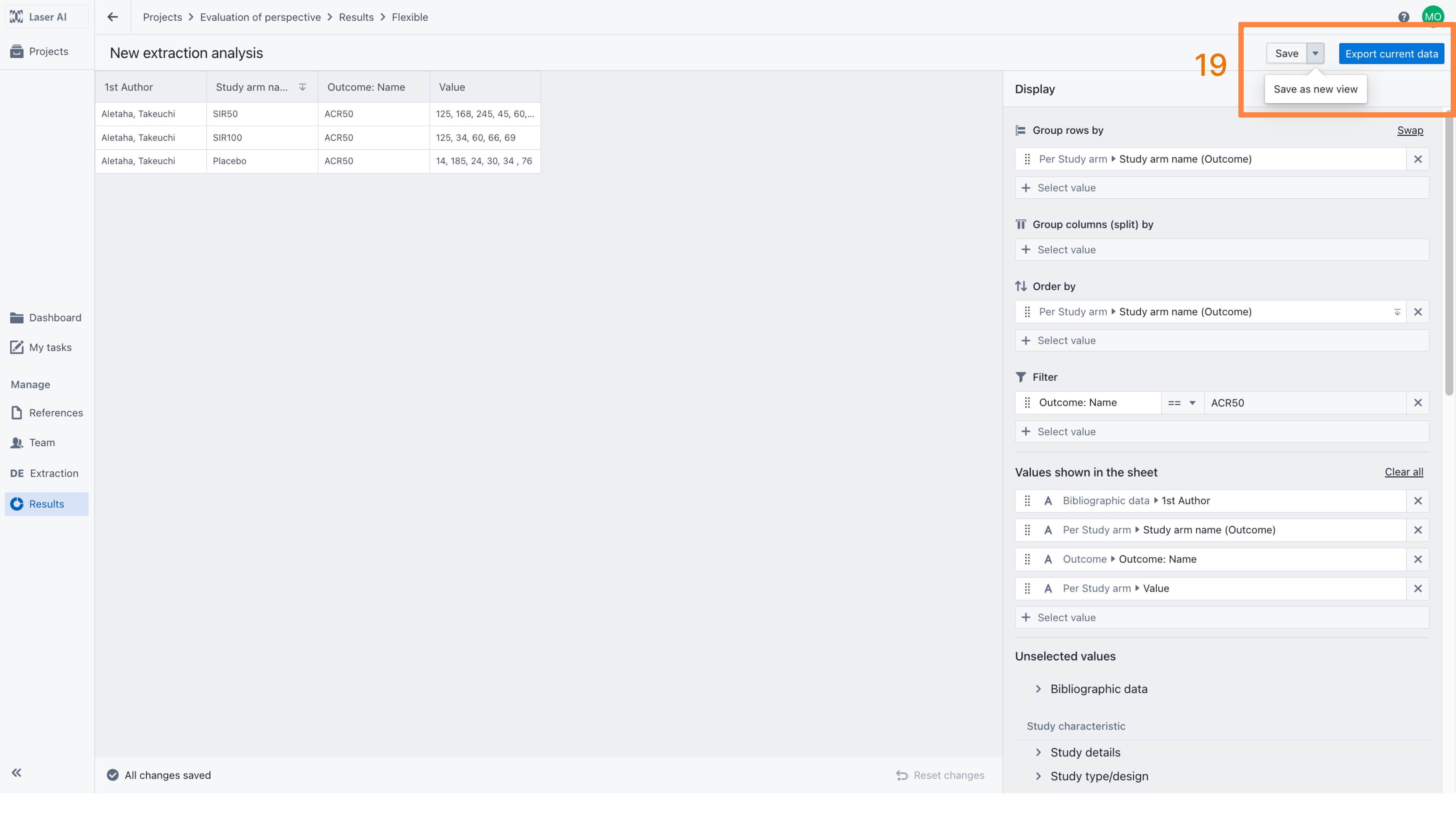
Finally, the configured view can be saved for future use or exported as a CSV file. Saving the view allows you to quickly return to the same configuration later, while exporting enables further analysis or sharing of the data outside the platform.
Was this article helpful?
That’s Great!
Thank you for your feedback
Sorry! We couldn't be helpful
Thank you for your feedback
Feedback sent
We appreciate your effort and will try to fix the article