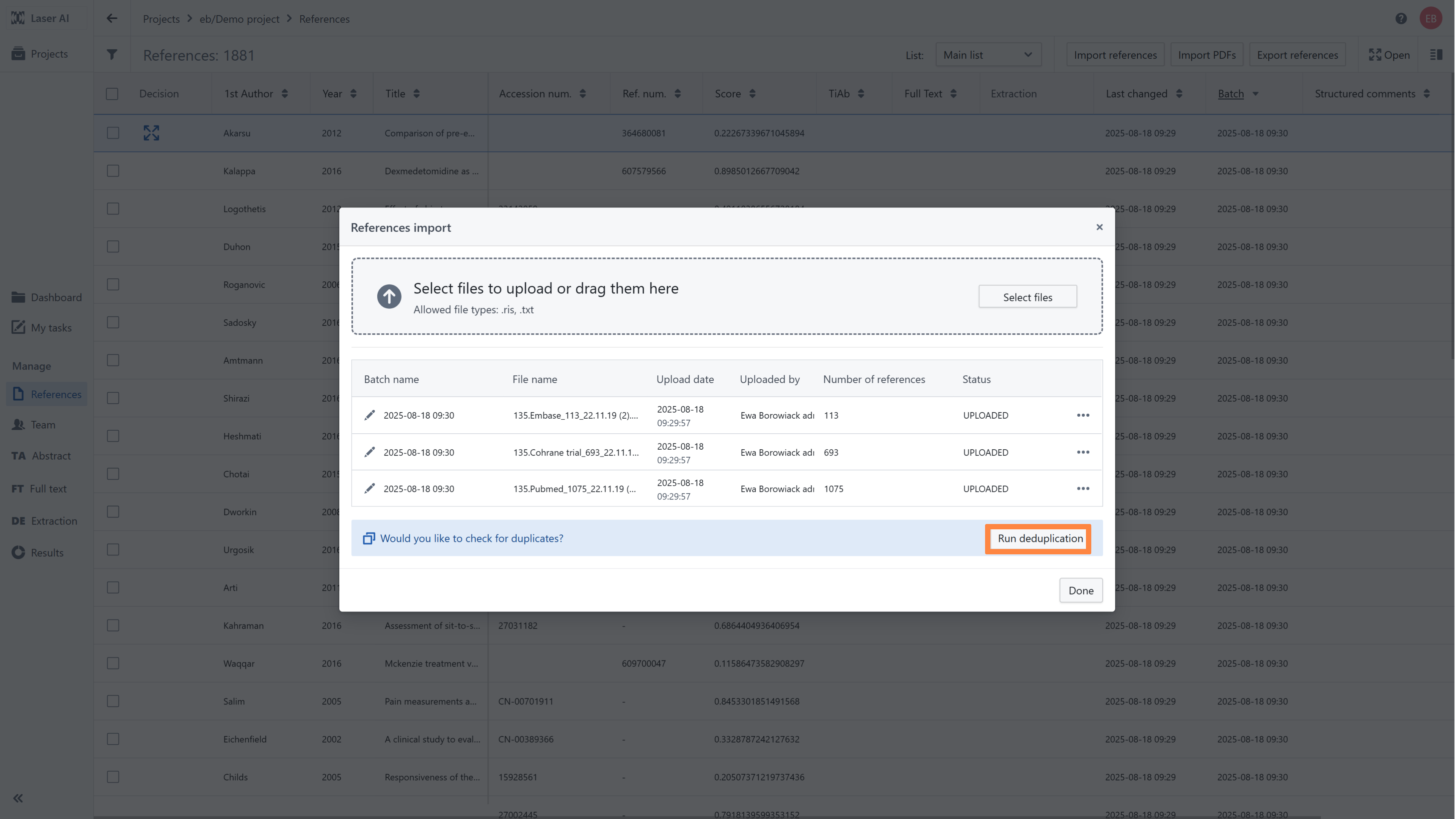
Once all search results are uploaded into LaserAI, you can check for duplicates. To start deduplication, click the Run Deduplication button (by clicking this button you activate SuperDeduper algorithm).
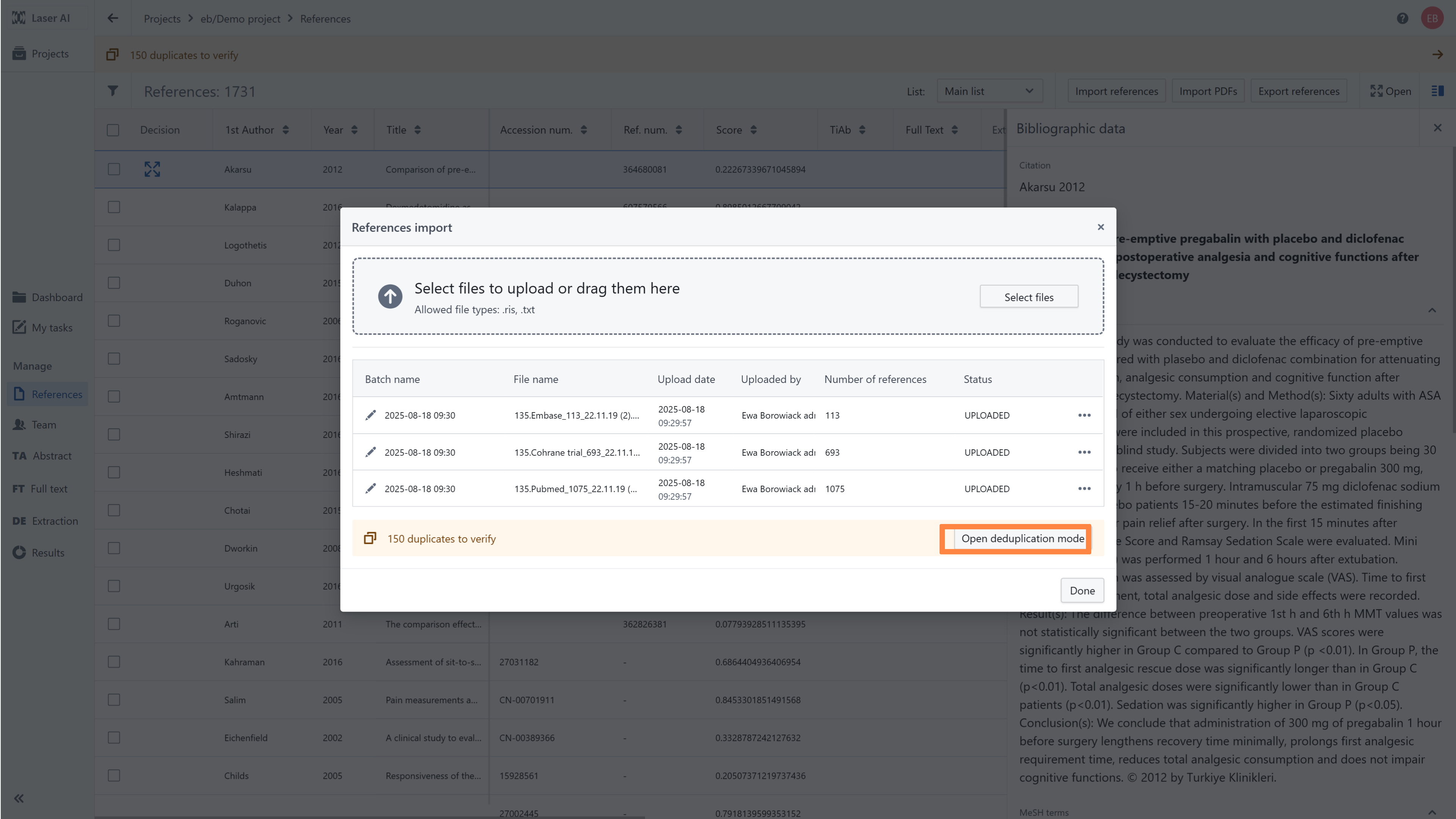
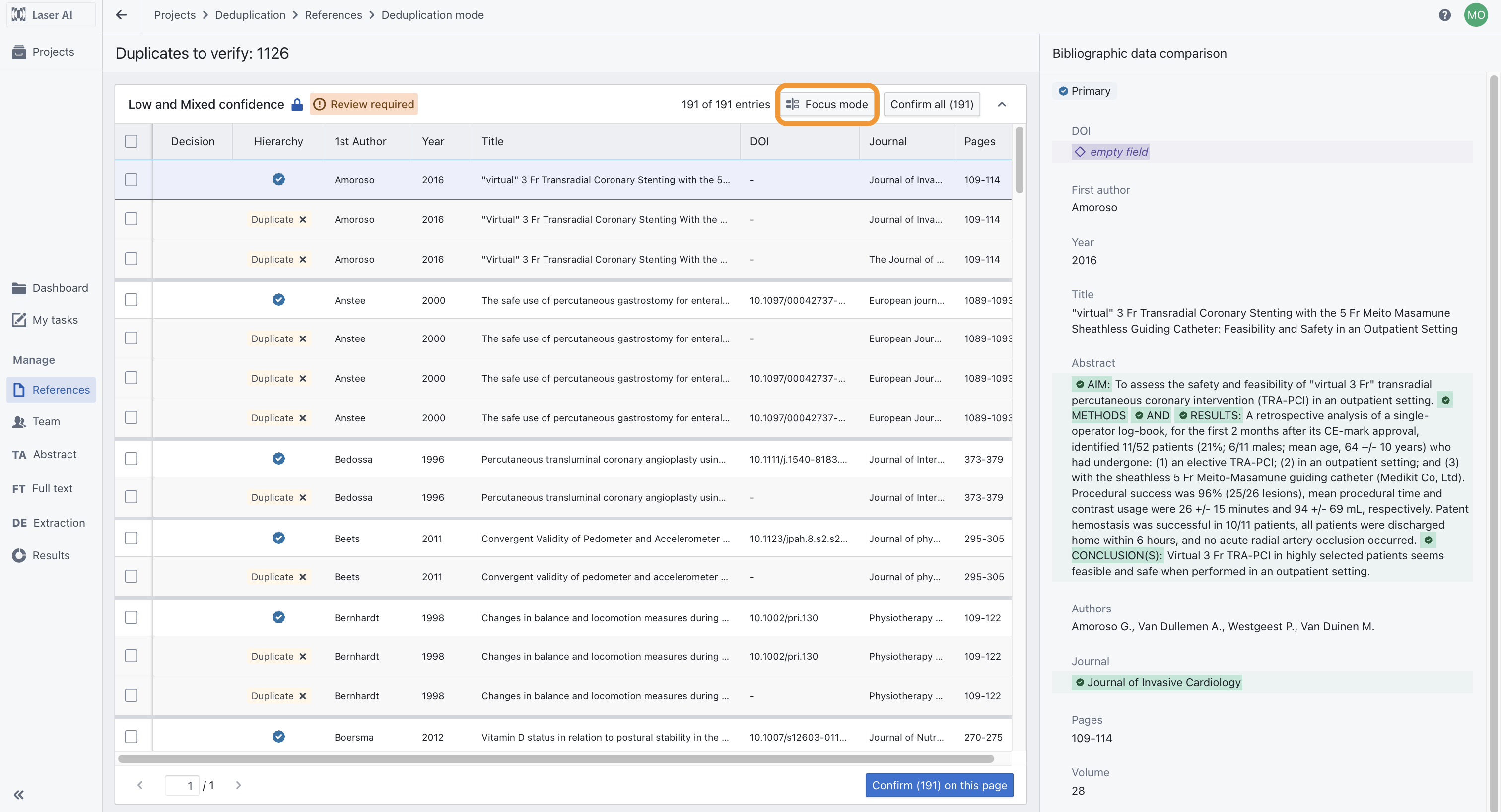
When deduplication is complete, click Open Deduplication Mode. In this module, you can accept or reject the duplicates suggested by the tool.
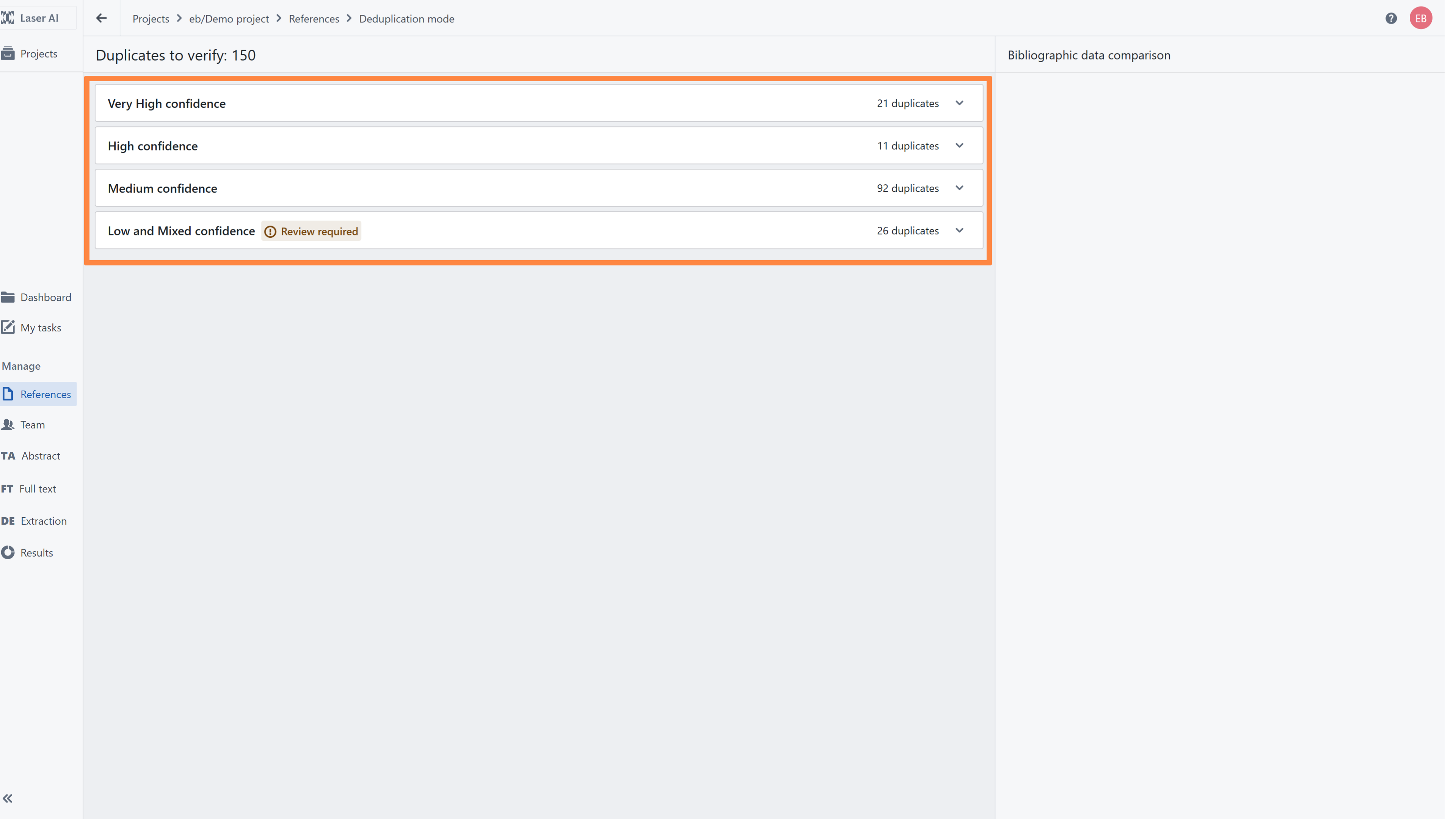
The deduplication algorithm groups potential duplicates into four batches based on confidence level:
- Very High Confidence – Records that are almost certainly duplicates.
- High Confidence – Records that are very likely duplicates,
- Medium Confidence – Records that may be duplicates,
- Low and Mixed Confidence (Review Required) – Records with uncertain similarity; manual review is necessary.
Note. We evaluated the SuperDeduper algorithm retrospectively (on public datasets) and prospectively (on three systematic reviews manually deduplicated by independent reviewers). Performance was assessed by sensitivity, specificity, accuracy, and false positives/negatives.

The algorithm achieved 99.4% accuracy, 98.2% sensitivity, and >99.9% specificity. A small number of false positives (i.e. records that were incorrectly classified as duplicates, 12 FP out of over 40 000 records) occurred only in the Low and Mixed Confidence batch; no false positives were detected in the top three batches.

Based on these findings you can consider automatically excluding duplicates from the Very High Confidence, High Confidence, and Medium Confidence batches. Only the Low and Mixed Confidence batch requires manual review. More information can be found in  this article
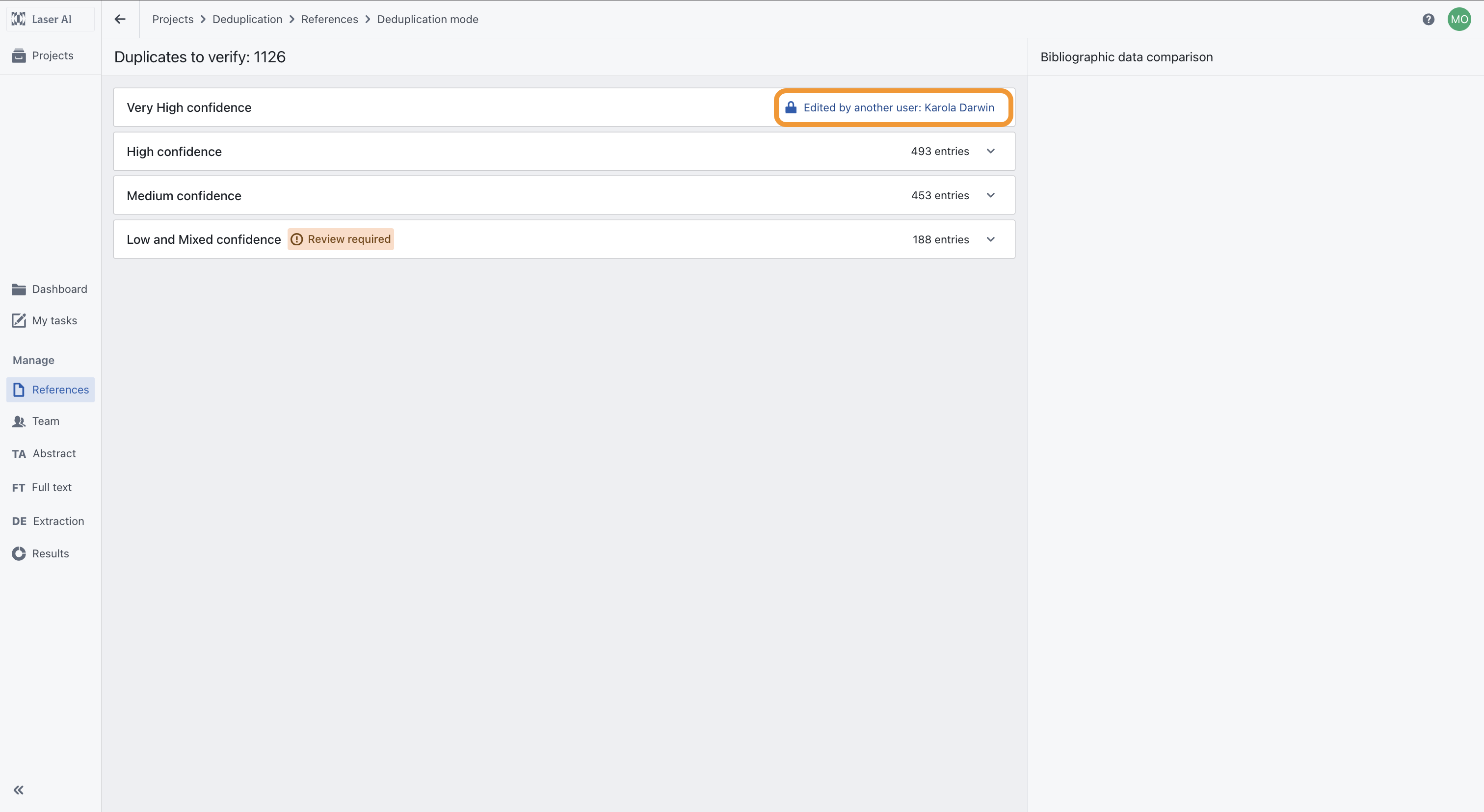
Please note that a given cluster of duplicates can only be reviewed by one person at a time. Specifically, while one user is reviewing a given cluster, that cluster will be blocked for other users.
Within each batch, references are displayed in clusters. Each cluster contains one primary reference and the associated duplicate references identified by the algorithm.
The deduplication process can be done in two ways:
Manual review – Go through each cluster and remove records you consider not to be duplicates.
Confirm All – Approve all duplicates in the batch at once; all records marked as duplicates will be confirmed automatically.
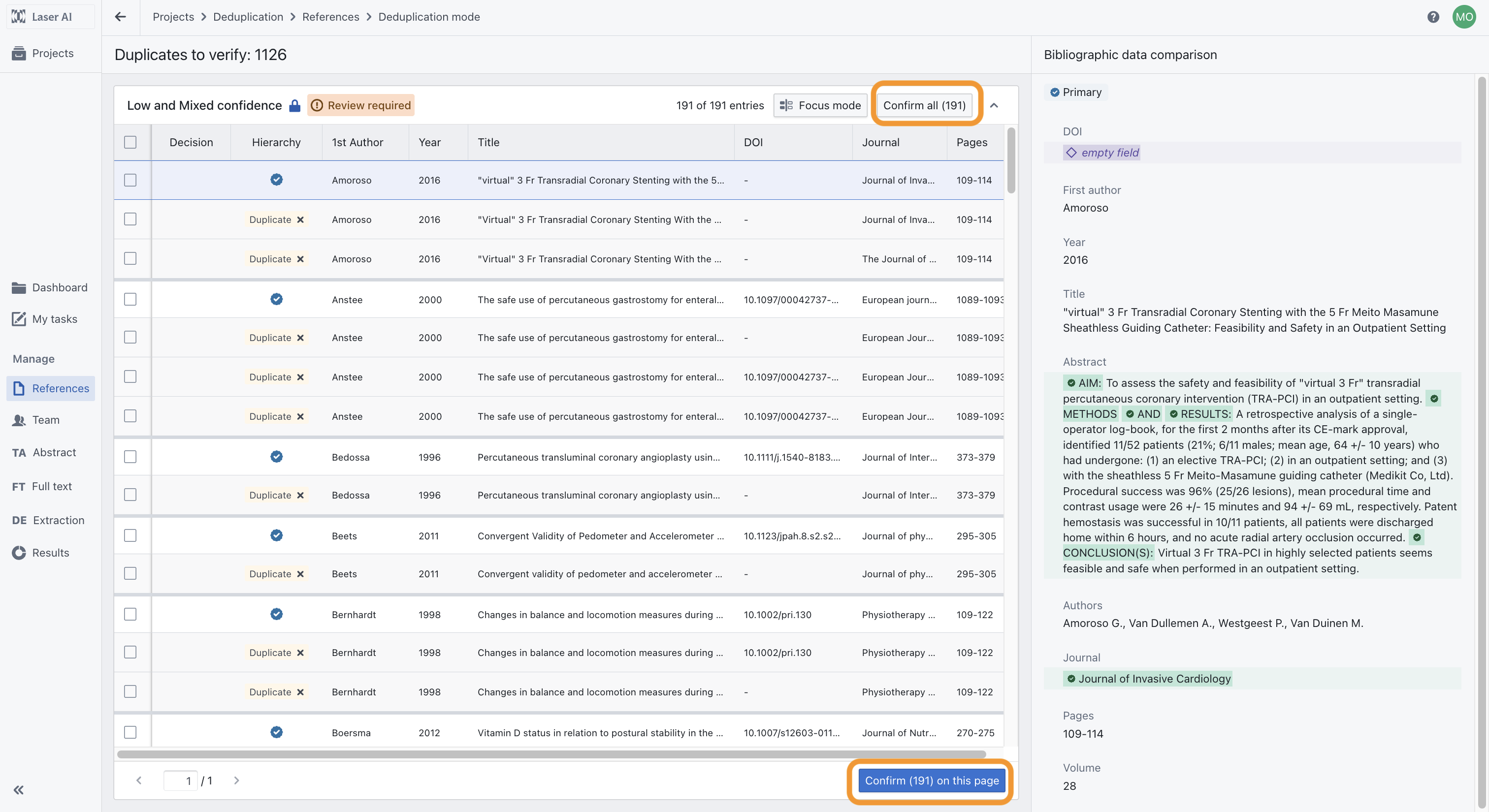
Manual review process on record lists
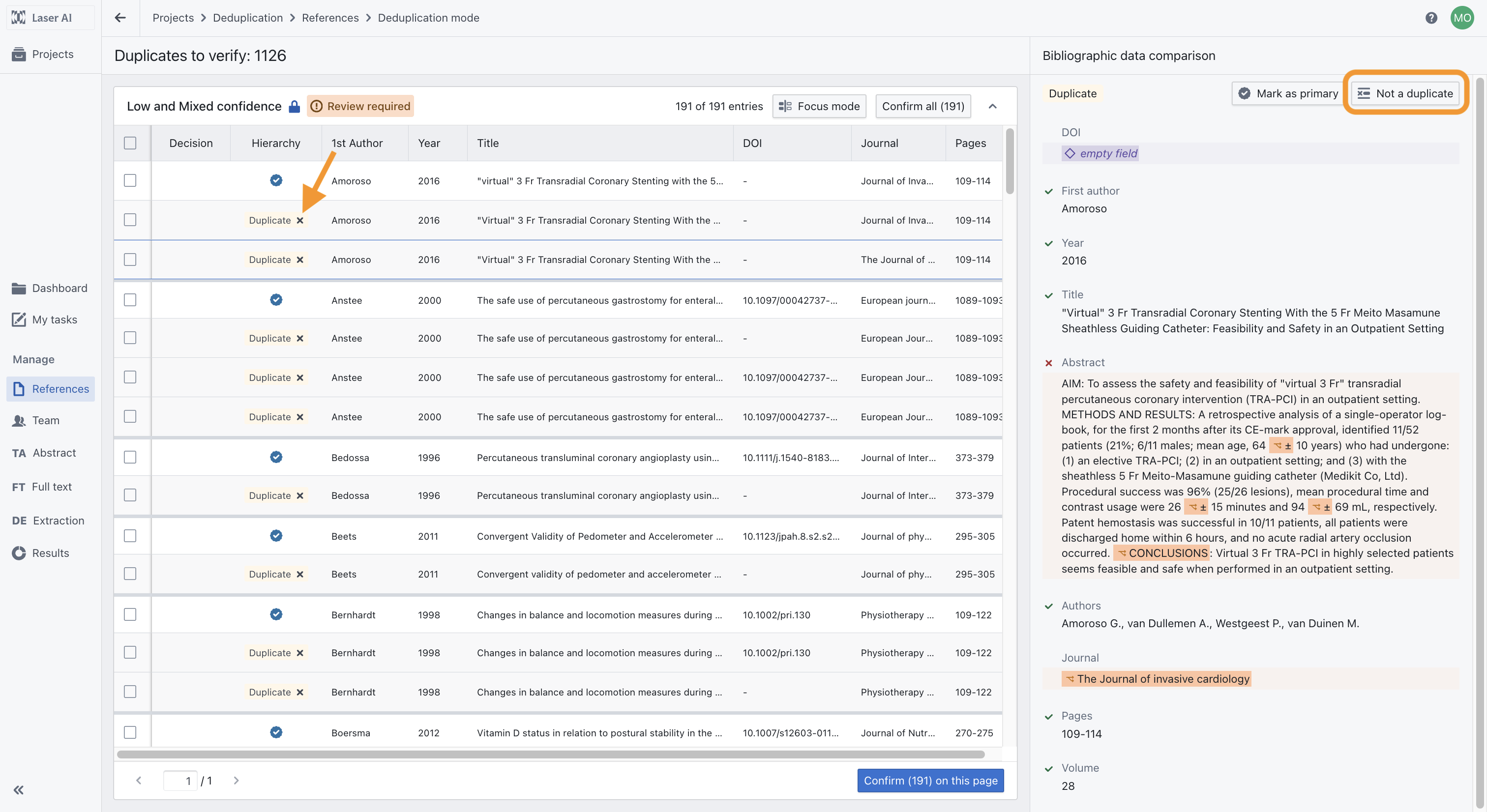
To reject a tool’s suggestion, click the X icon next to the record marked as a duplicate (pointed by the arrow) or "Not a duplicate" button.
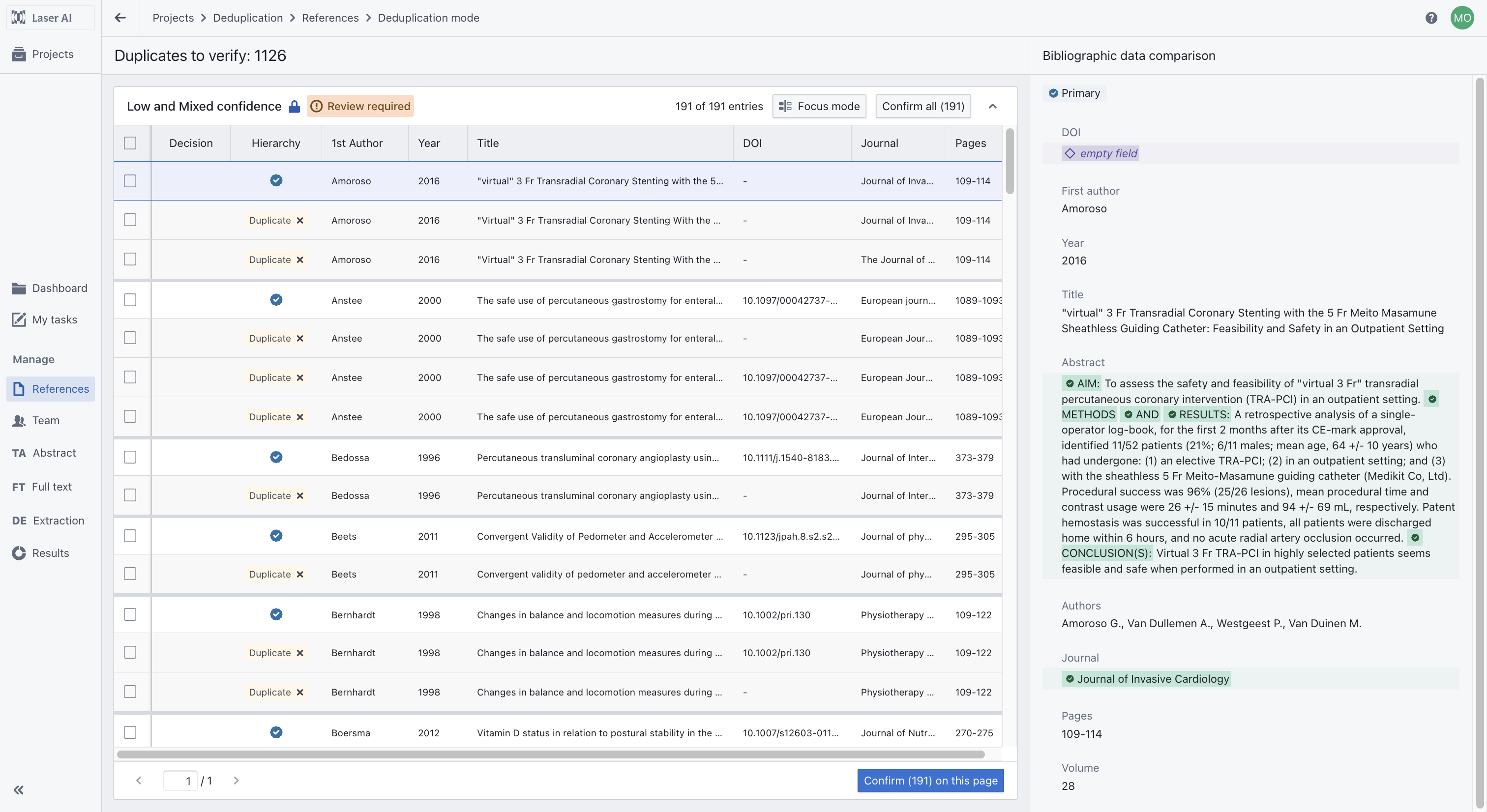
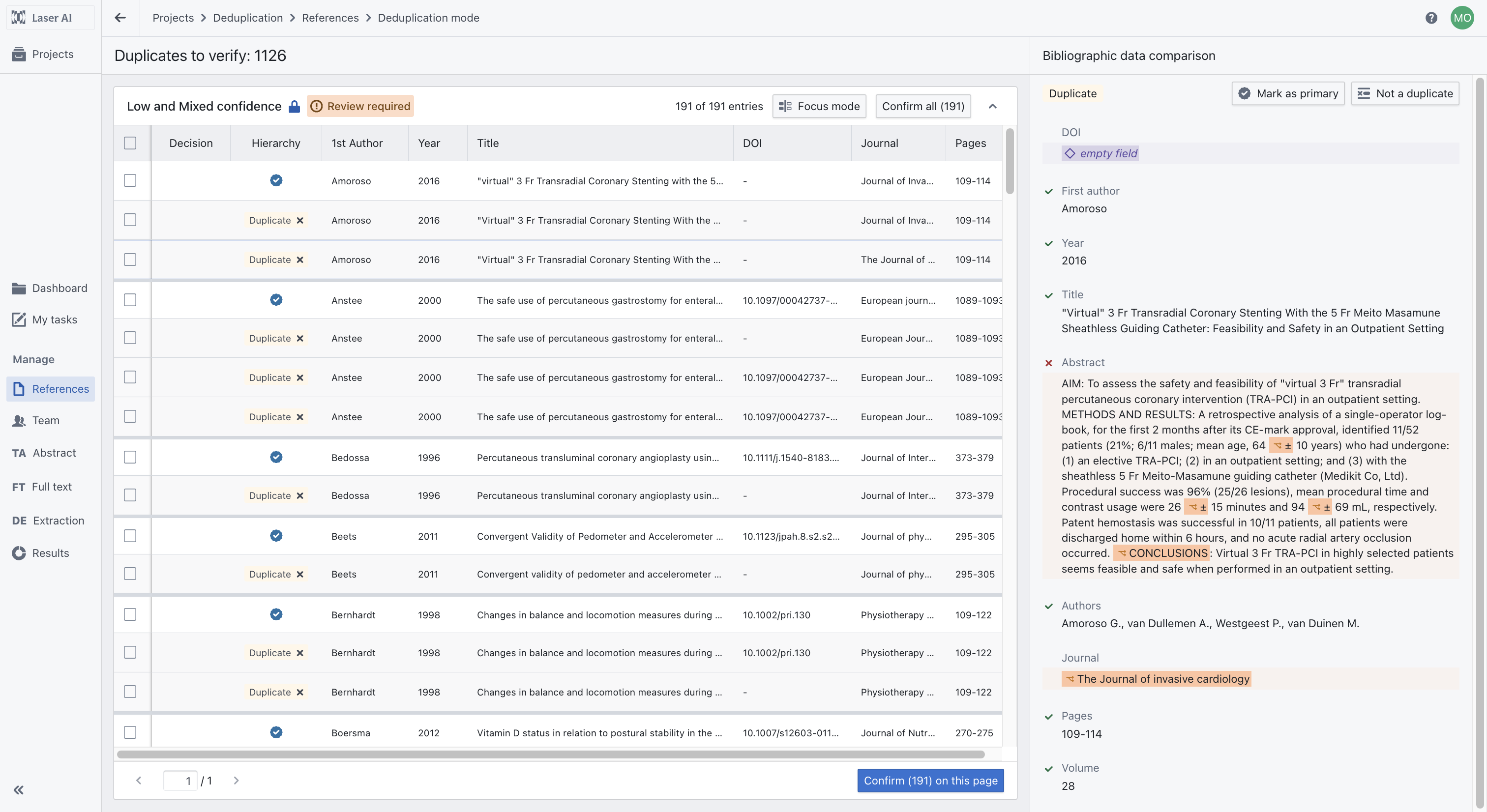
In the Bibliographic Data Comparison section, fields for records identified as duplicates, are marked with an ✖ if they differ from the primary reference, and with a ✔ they match. Additionally, green and orange backgrounds indicate which bibliographic information fields differ between records. A light background highlights the entire field where differences are detected, while a darker background is applied to specific words or sentences that differ.
Manual review process in the Deduplication Focus mode
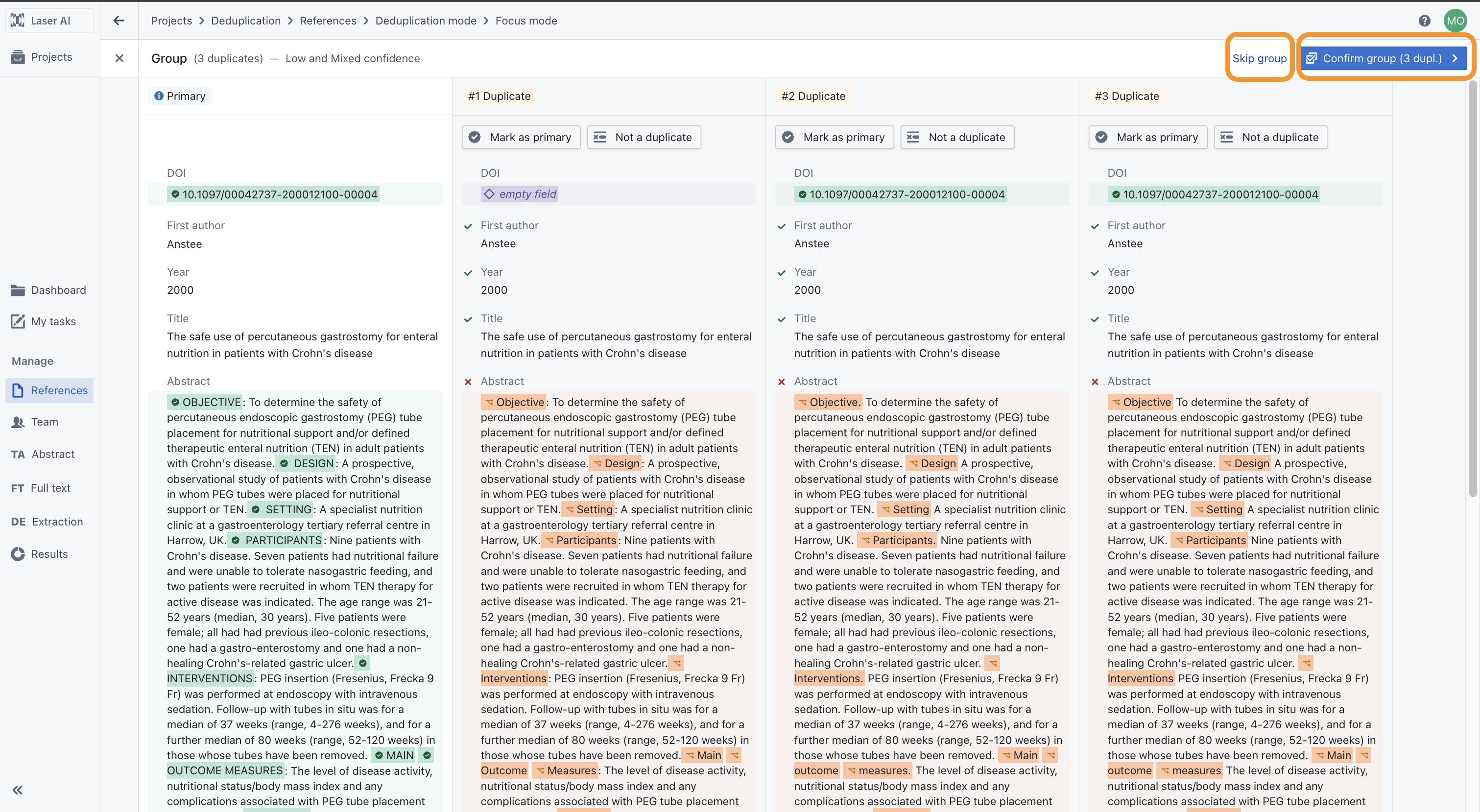
A dedicated Focus Mode allows for more convenient comparisons between records.
Here, you can see all bibliographic information for the analyzed group of records, aligned side by side. You can make decisions for each record, such as changing which record is treated as the primary one (using the “Mark as primary” button), removing a record from the group (using the “Not a duplicate” button), or confirming or skipping the entire group of records.
The selection of the primary record follows these rules:
- The record containing both a title and an abstract is chosen.
- If multiple records meet this condition, the record with the most completed bibliographic fields is selected.
- If two or more records contain the same number of completed fields, the record from the first uploaded RIS file is chosen.
Tip: If you prefer records from a specific source (e.g., PubMed), upload that source first.
If duplicates within a cluster are correctly identified, you can still change which record is set as the primary reference (the one that will be carried forward to the next stages). To do this, click Mark as Primary Reference.
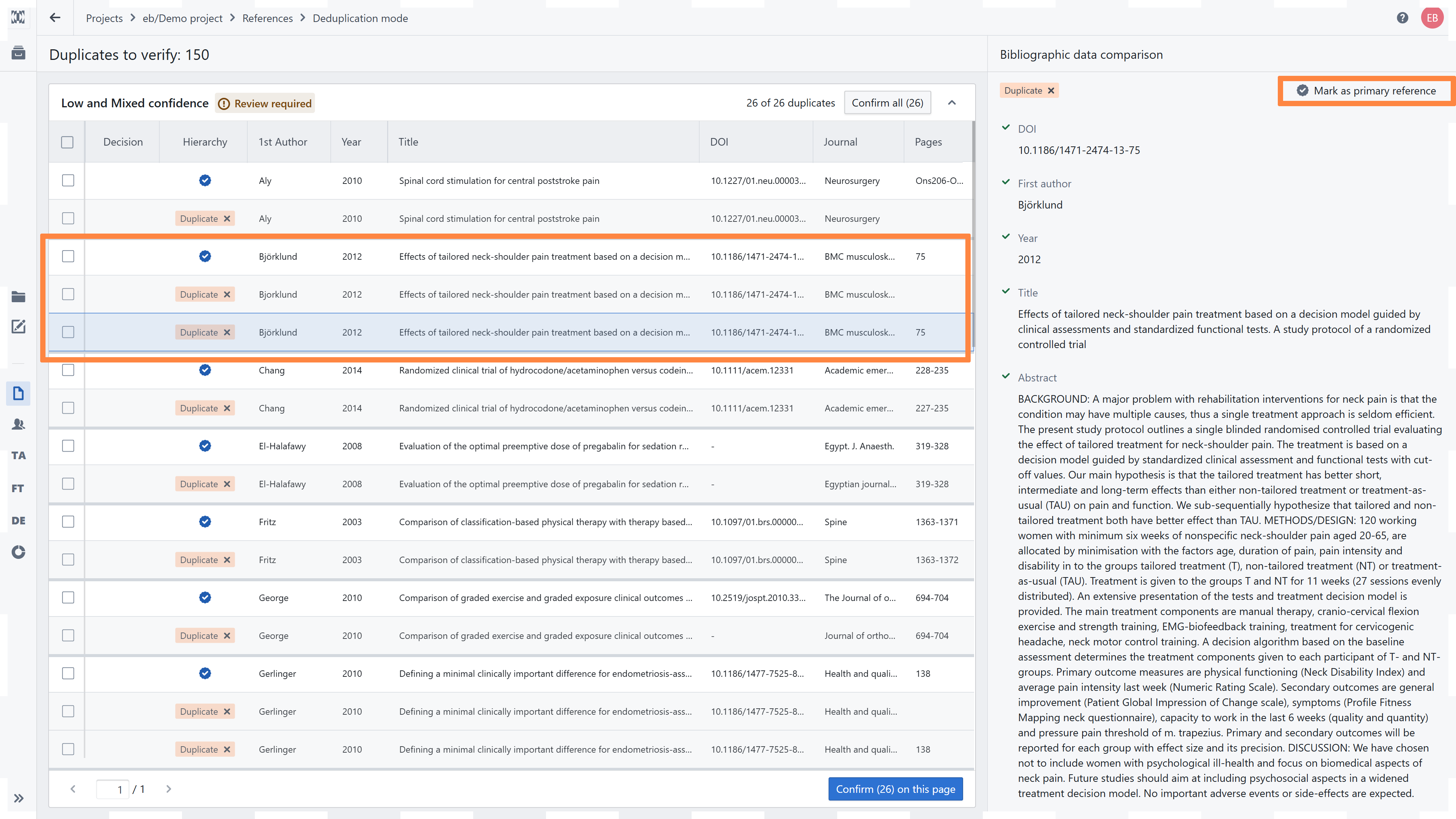
If new search results are added to an ongoing project for which screenings have already been initiated, the 'Mark as duplicate' option can be disabled for records that have previously been marked as primary references and are already in the screening process.
Once the deduplication is completed, you can still access records labeled as duplicates in the reference list. From this view, you can change your decision at any time.
For example, if you remove the duplicate label, the record will return to the main list of references and become available for distribution to further stages.
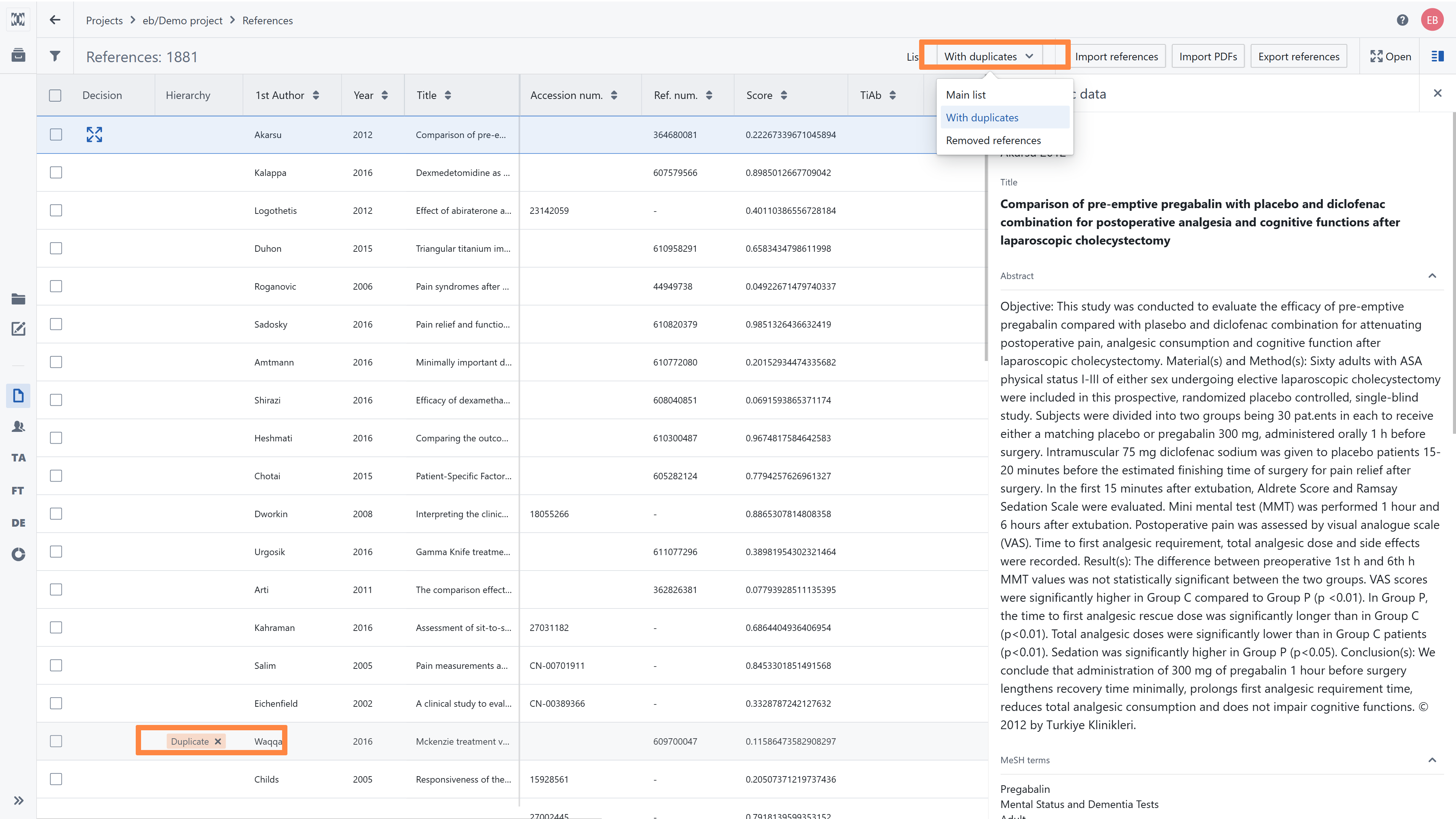
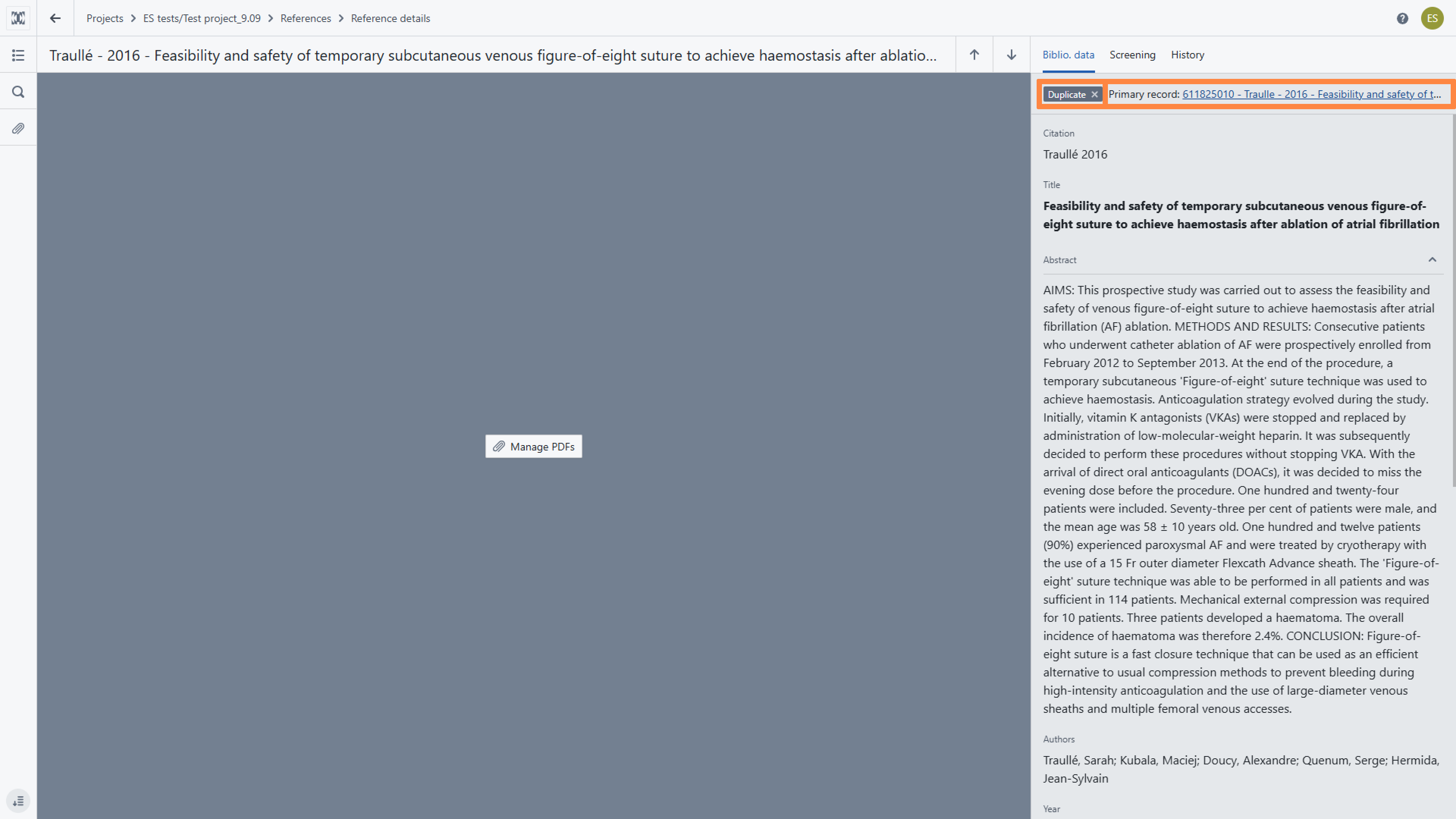
You can also check the duplicate status in the single reference details. From here, you can unmark a reference as a duplicate or view the reference that has been marked as the primary one.
RELATED ARTICLES
Was this article helpful?
That’s Great!
Thank you for your feedback
Sorry! We couldn't be helpful
Thank you for your feedback
Feedback sent
We appreciate your effort and will try to fix the article