The Results tab provides access to a dashboard for creating reports with project results.
To create a new report:
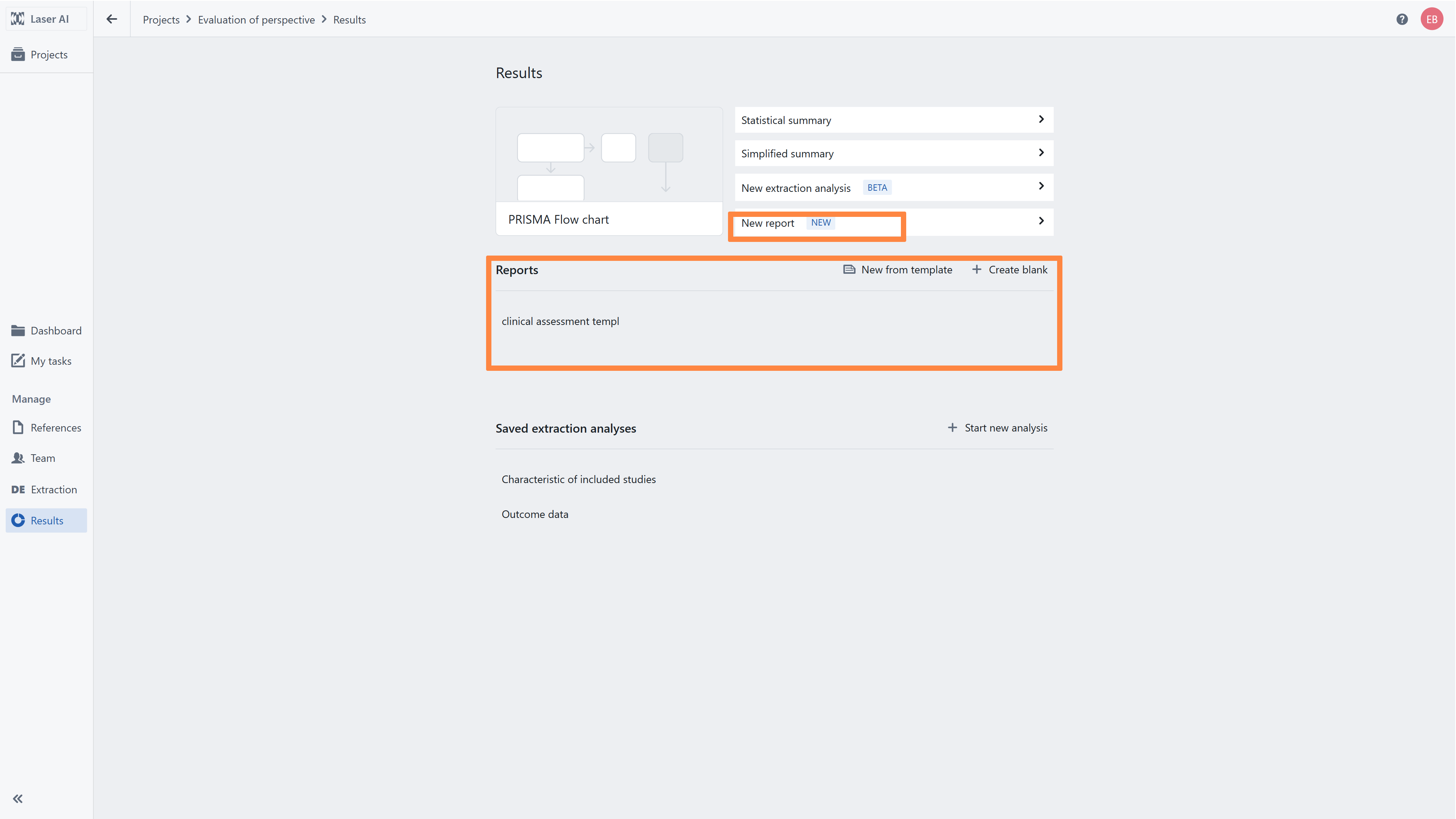
- Go to the Results tab in the left-side navigation panel.
- Click New report or
- Choose either New from template or Create blank.
All previously created reports are available in the Reports section.
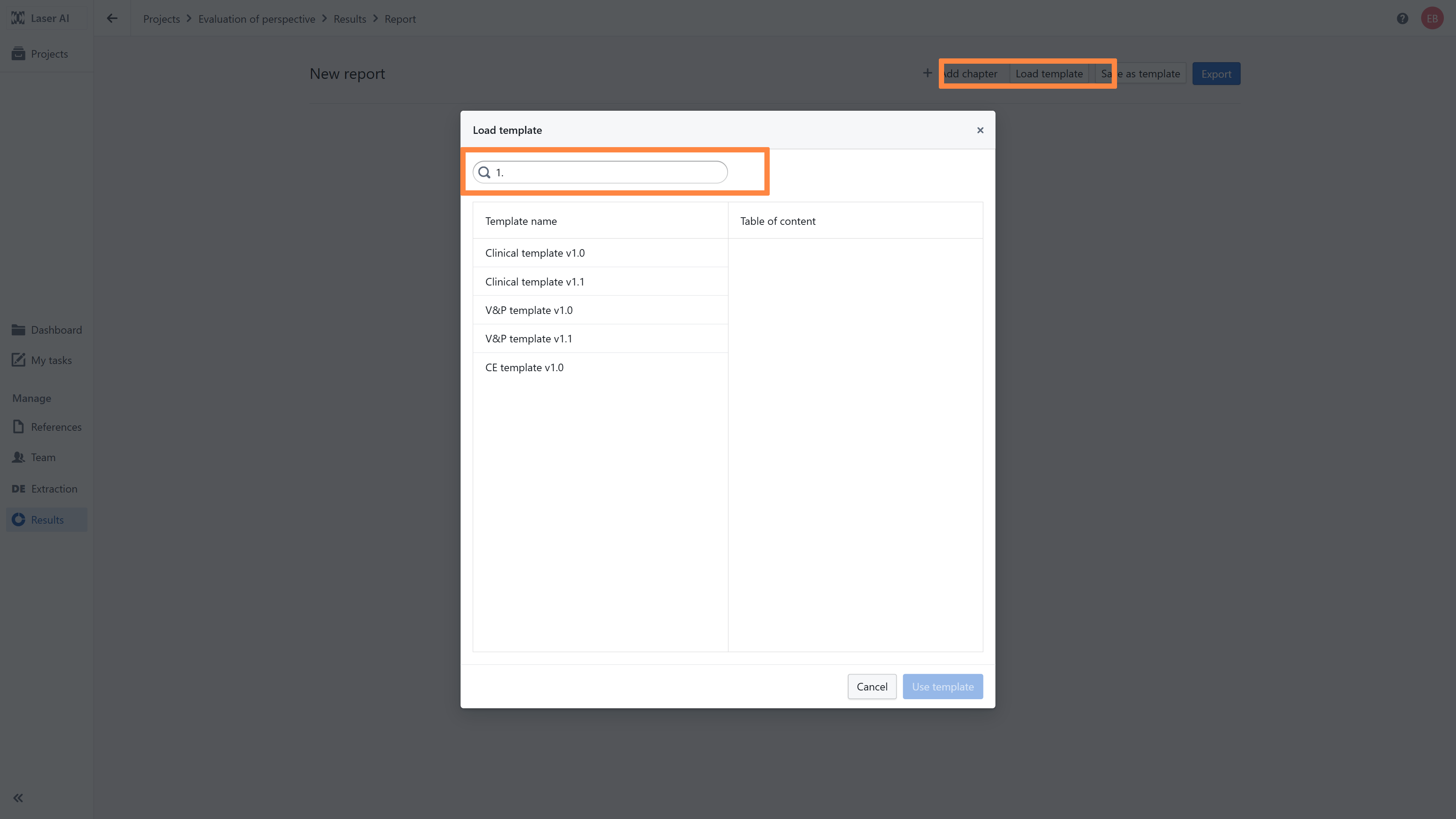
If you already have templates in your library, you can select one by clicking Load template, and
then start working with it.
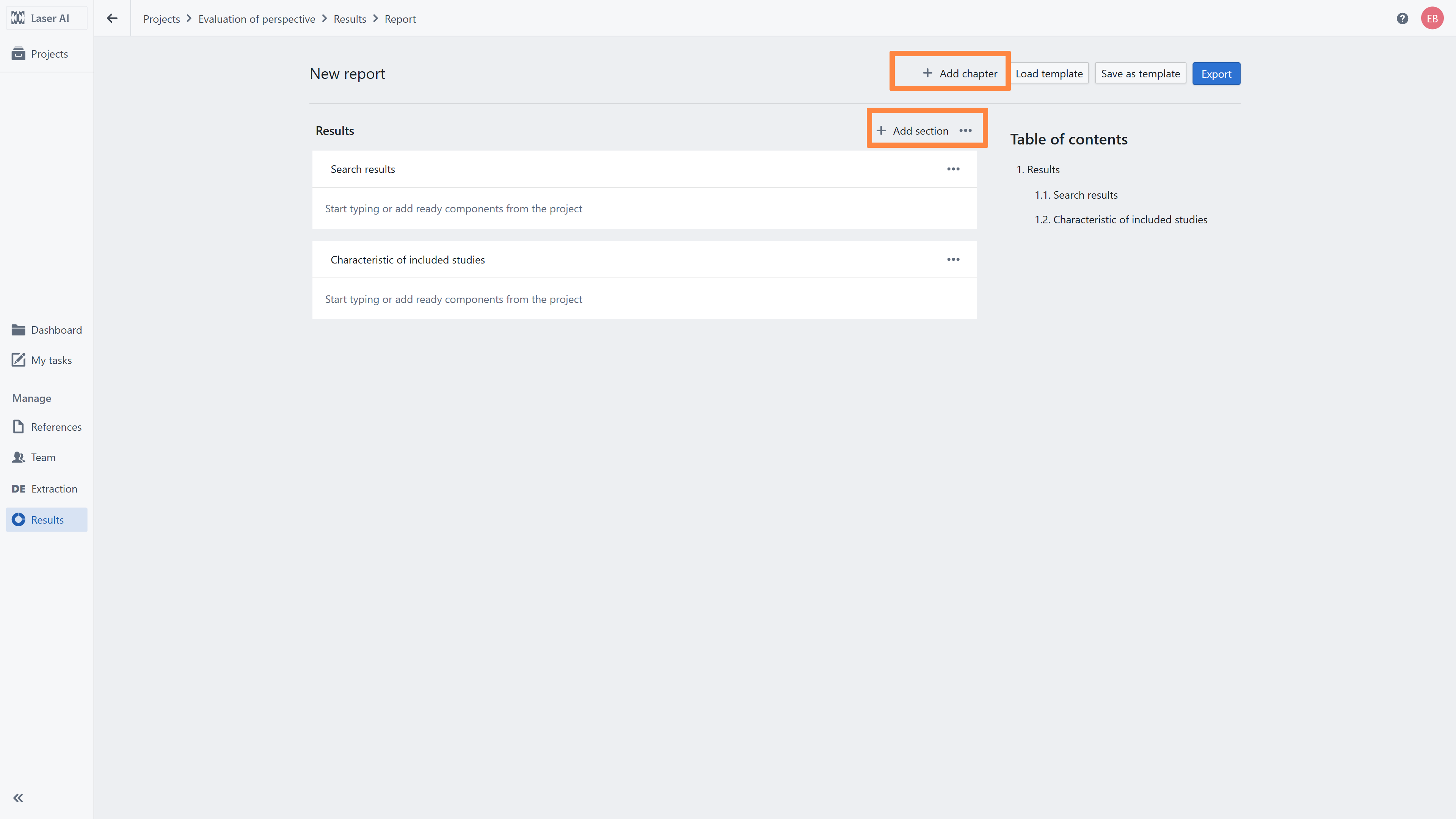
If you are starting from scratch(e.g. no templates are available in your organization’s document
library), follow these steps:
Create chapters to define the document structure.
Add sections within each chapter.
Begin preparing the content within each section.
To modify text, use the toolbox located in the right corner of the text editor section.
When you are working in the text editor, the section is locked, which means that other users cannot modify it.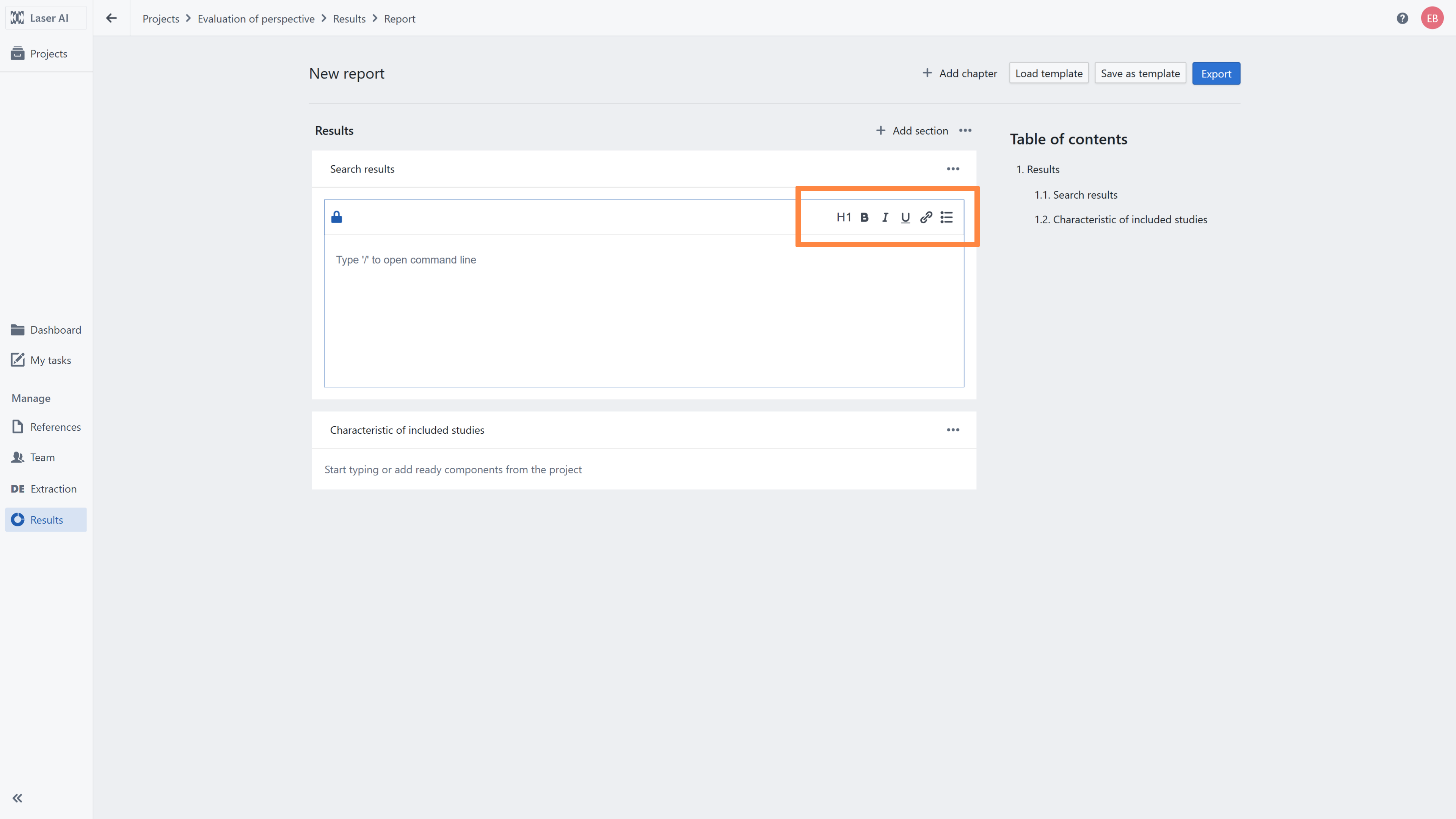
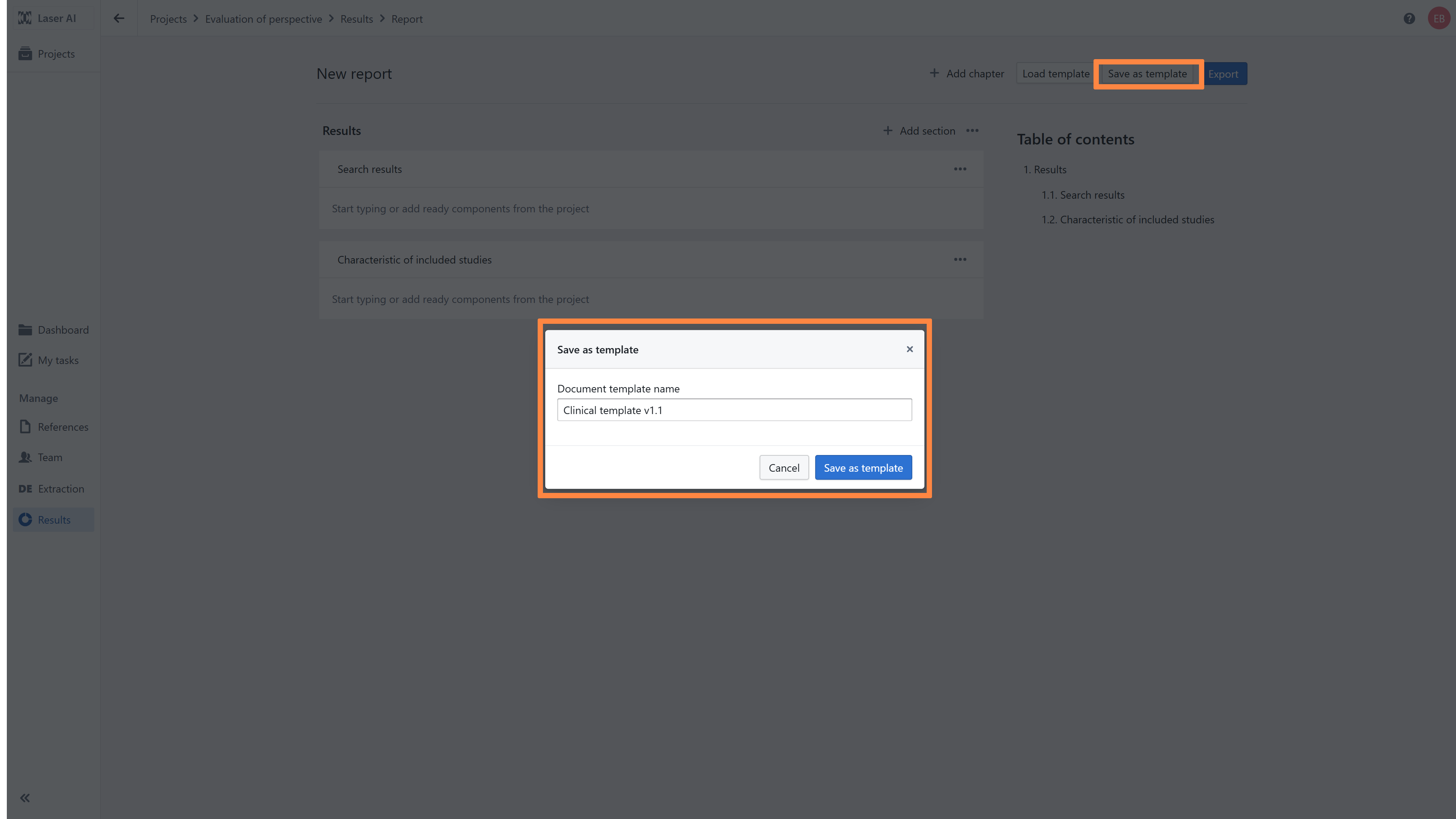
Each report can be saved as a template and reused in future projects. To do this, click the Save as
template button.
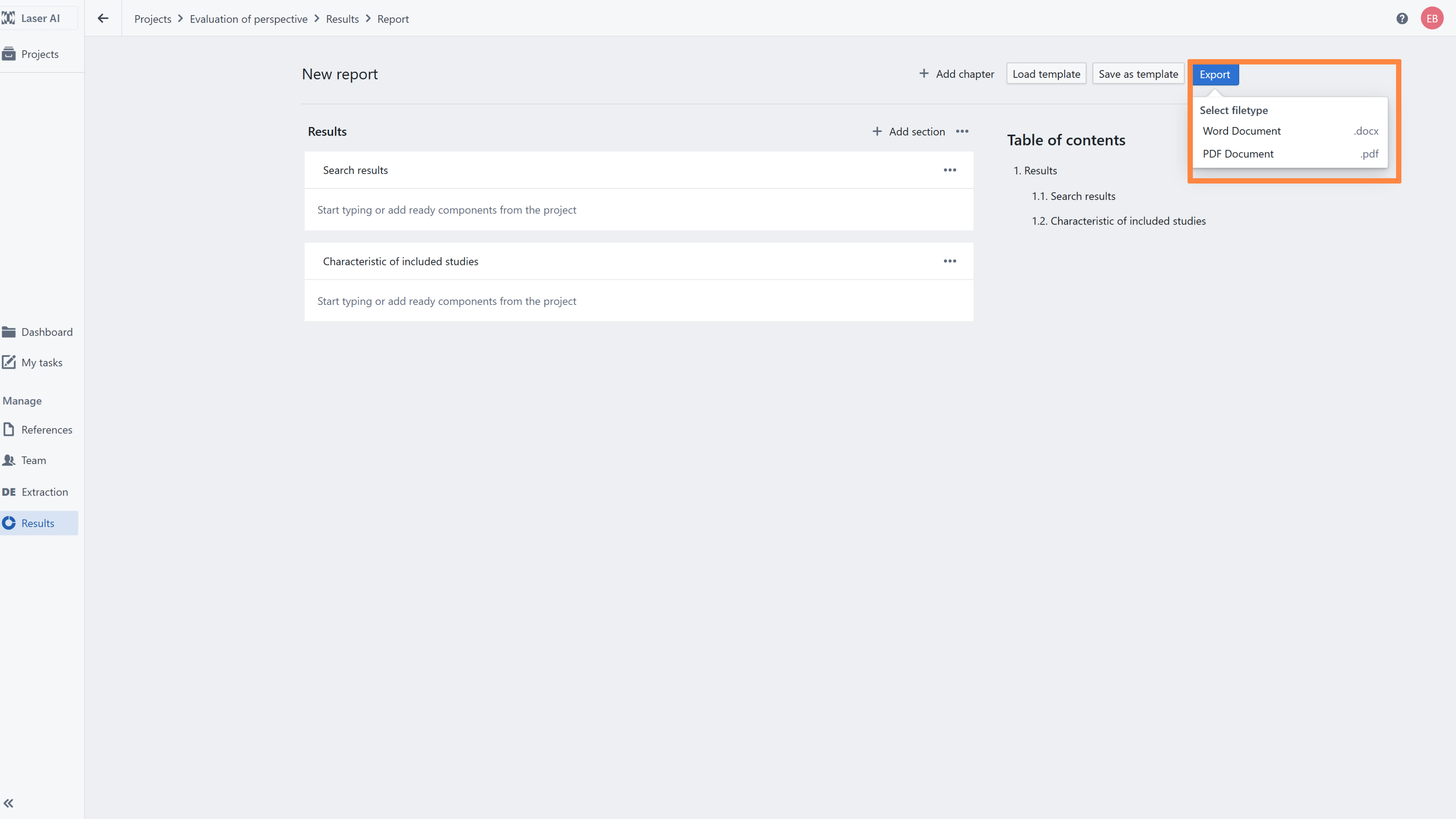
Reports can be exported in two formats: Word document or PDF
Related Articles
1. How to design document template
2. Introduction to documents library
2. Introduction to Results and Export options
Was this article helpful?
That’s Great!
Thank you for your feedback
Sorry! We couldn't be helpful
Thank you for your feedback
Feedback sent
We appreciate your effort and will try to fix the article