The inclusion/exclusion decisions for the Title and Abstract screening can be made in both Reference List View and Focus Mode.
TIP: We recommend using Focus Mode, as it is more easily supported by AI models. Based on previous reviewer decisions, the AI prioritizes references with the highest probability of being included, displaying them first. In the Focus Mode, the ranking updates automatically as you work. However, in the Reference List View, you must manually apply the ranking by clicking the "Apply Ranking" icon to reorder references. You can also customise display options in Focus mode, such as enabling AI-powered abstract formatting to help you find relevant information in context.
Reference list view
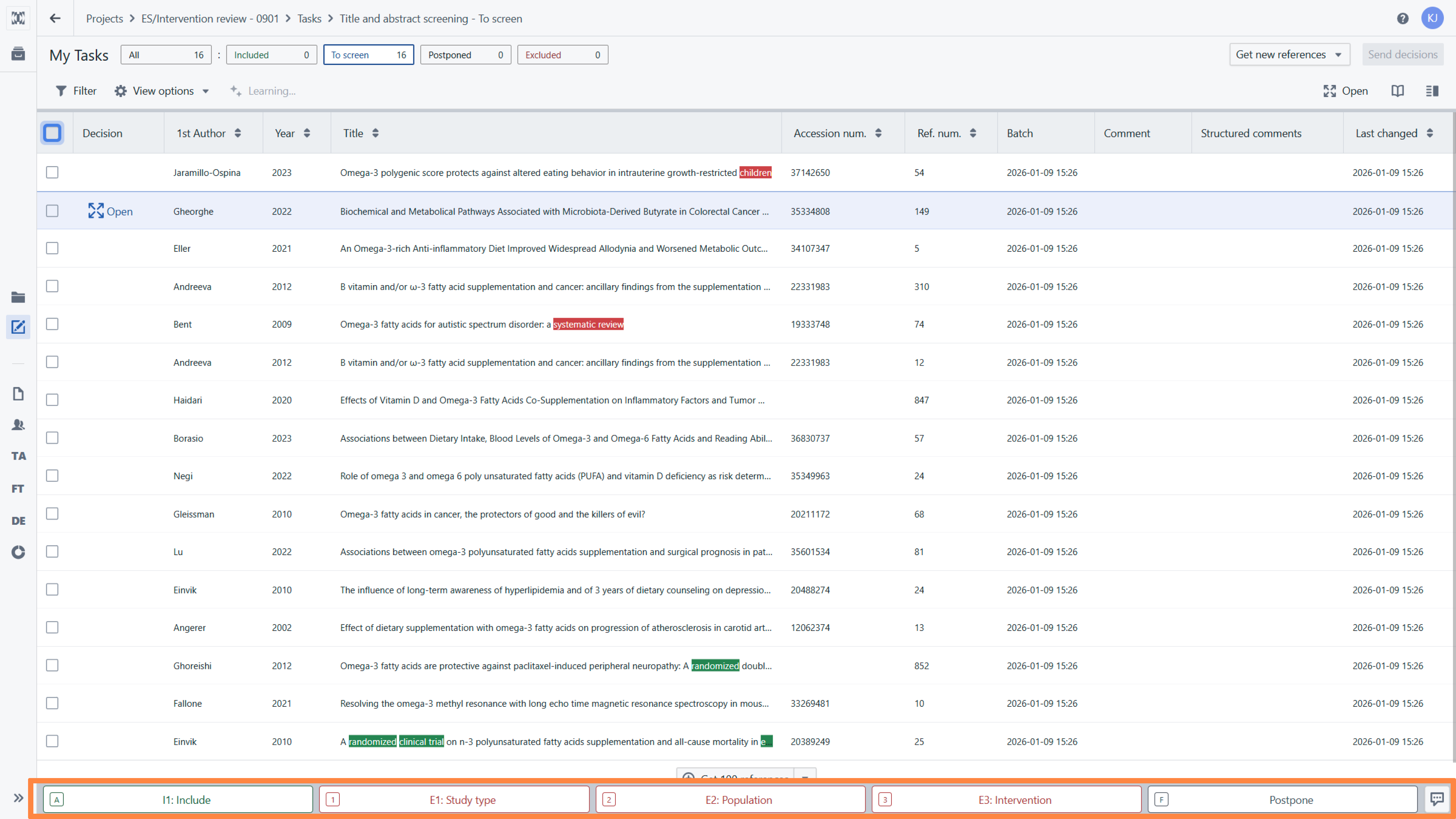
On the right you can access all the references uploaded to a project. On the left you can use filters to sort and filter records using boolean operators.
At the bottom of the dashboard you will find the decision panel. It contains the Include/Exclude buttons, you can also Postpone decision.
Note that each In/Out button has a keyboard shortcut that allows you to speed up the screening:
- A - Include the records
- 1 - 9 - Exclude with a reason
At any time you can open a reference in Focus mode by selecting a single reference and clicking
on the icon next to the reference or in the top right-hand corner. Details of Focus mode are given below.

To make the decision on the reference list, click on a particular reference and choose In/Out/Postpone button. To add a comment or structure comment, click on the speech bubble in the lower right corner.
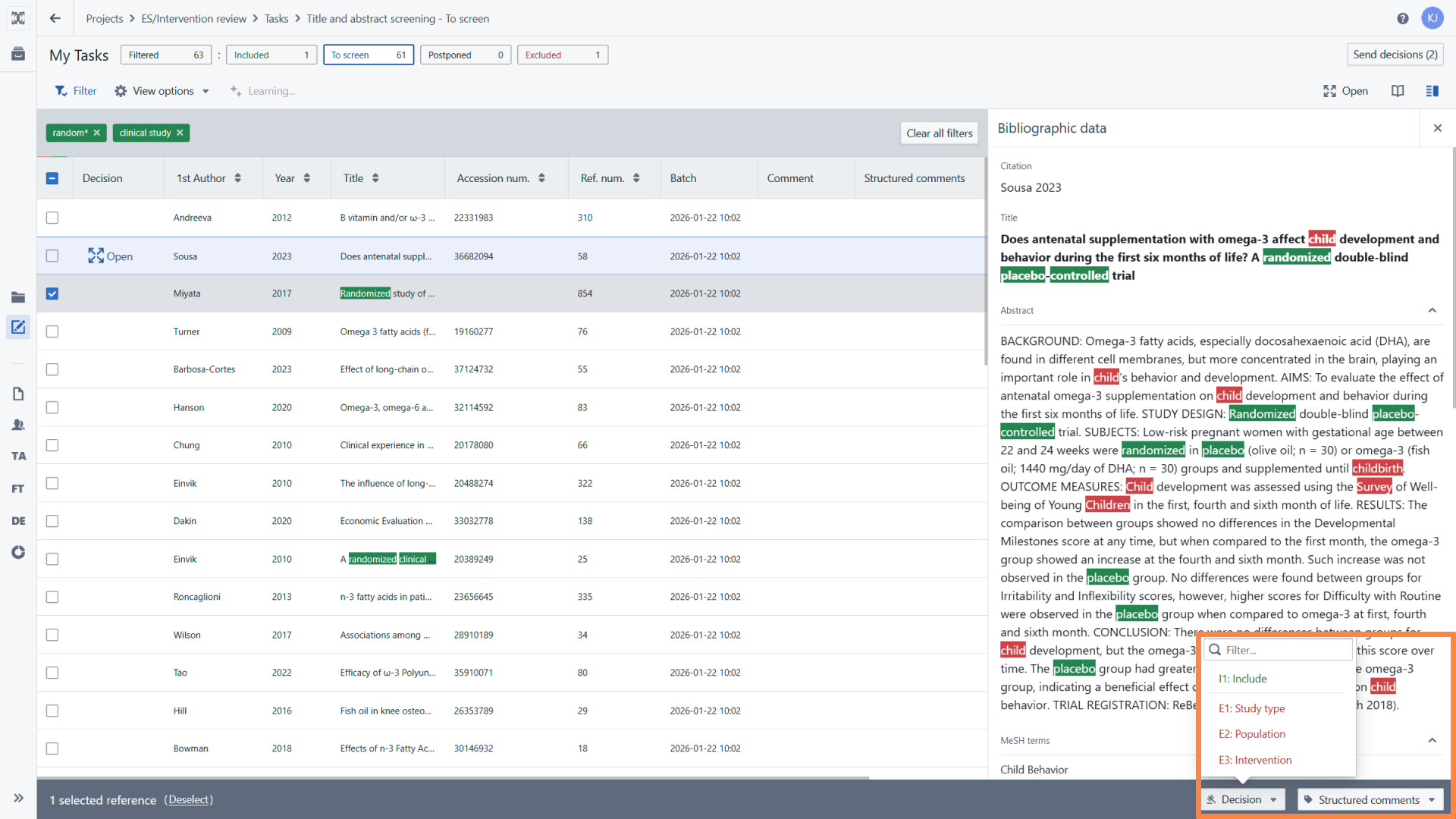
You can also select one or more references and make a decision by clicking on the 'Decision' button at the bottom of the panel.
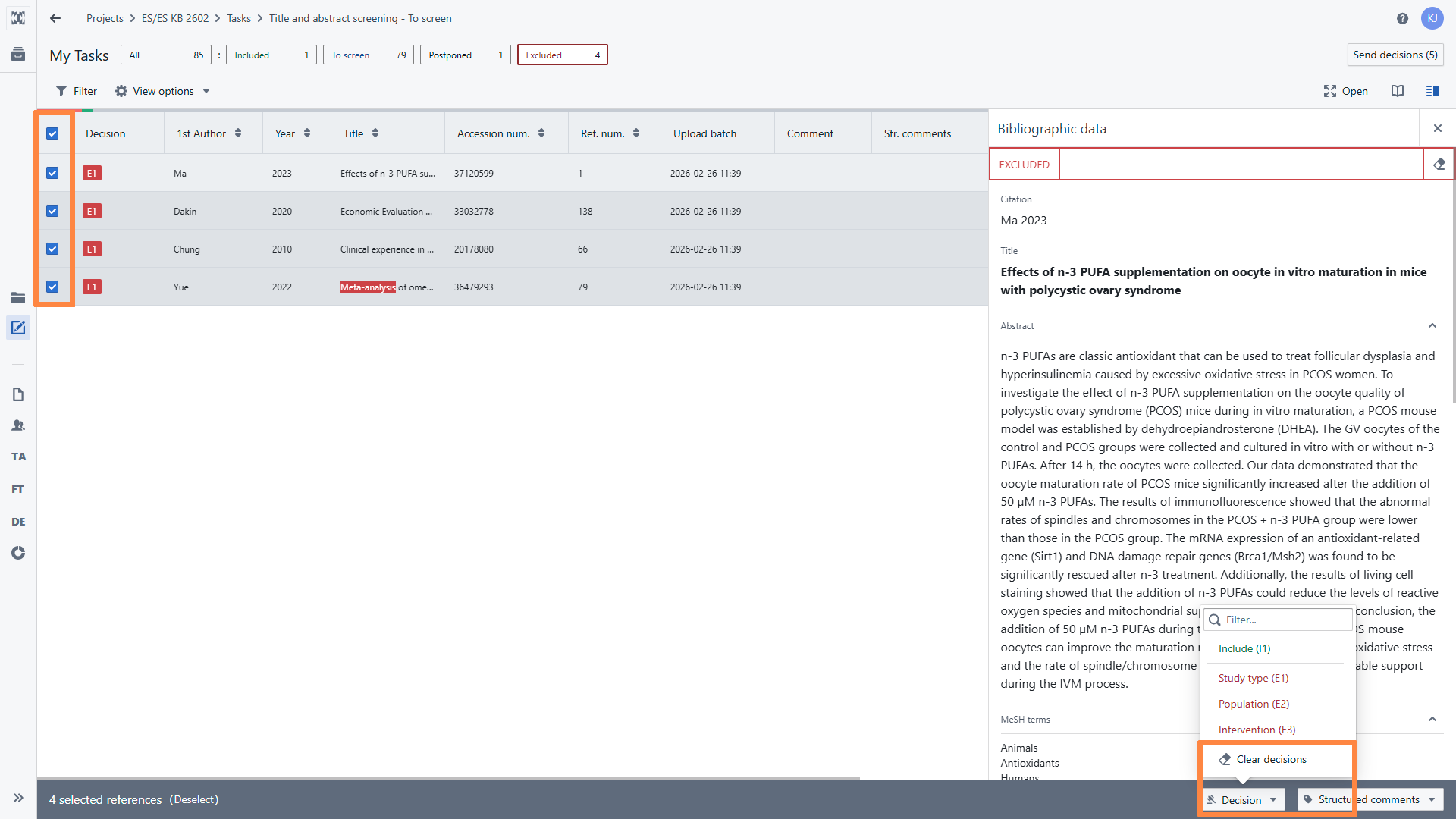
While making decisions in the reference list, you can clear the decisions for the selected references all at once. To do this, select the references for which you want to clear the decisions and click the 'Clear decisions' button in the 'Decisions' section of the 'Decisions' panel.
Focus Mode
The view in Focus mode is divided into three sections:
- Left side panel with the tabs for Bibliographic data, Reference list, Instructions and Highlights, Settings
- Abstract view (central part of the screen)
- Decision panel (right side of the screen) - Includes buttons for Inclusion and Exclusion decisions, and structured comments, as well as the text field for additional comments.

In this article you will see how to customise the view of the focus mode according to your own preferences.
Regardless of whether you are screening in the Reference list or Focus mode, after you make a decision for a batch or all records, you have to submit them by clicking the "Send decision" button located at the top of the page in the Reference list view. Until you won’t click this button, the In/Out decisions or potential conflicts won’t be visible to the project manager and cannot be compared with the other user's decision (in the case of double screening).
Note that once you have sent your decision, you will not be able to modify it. The only way to change the decision is via the References panel in manager mode.
During the screening you access the list of references by clicking on the “Reference list” icon in the left sidebar. Here you can check how many references remain to be screened, how many are included and excluded and which of them are postponed by clicking the appropriate tab.
Once you have selected a particular group of references, you can switch between them, add comments and structured comments, and change the decision if necessary.
Remember that in this tab only the records for which the decision has not been sent are visible. Records for which the Send button has been used can be found in the My Tasks section on the 'Completed tab'.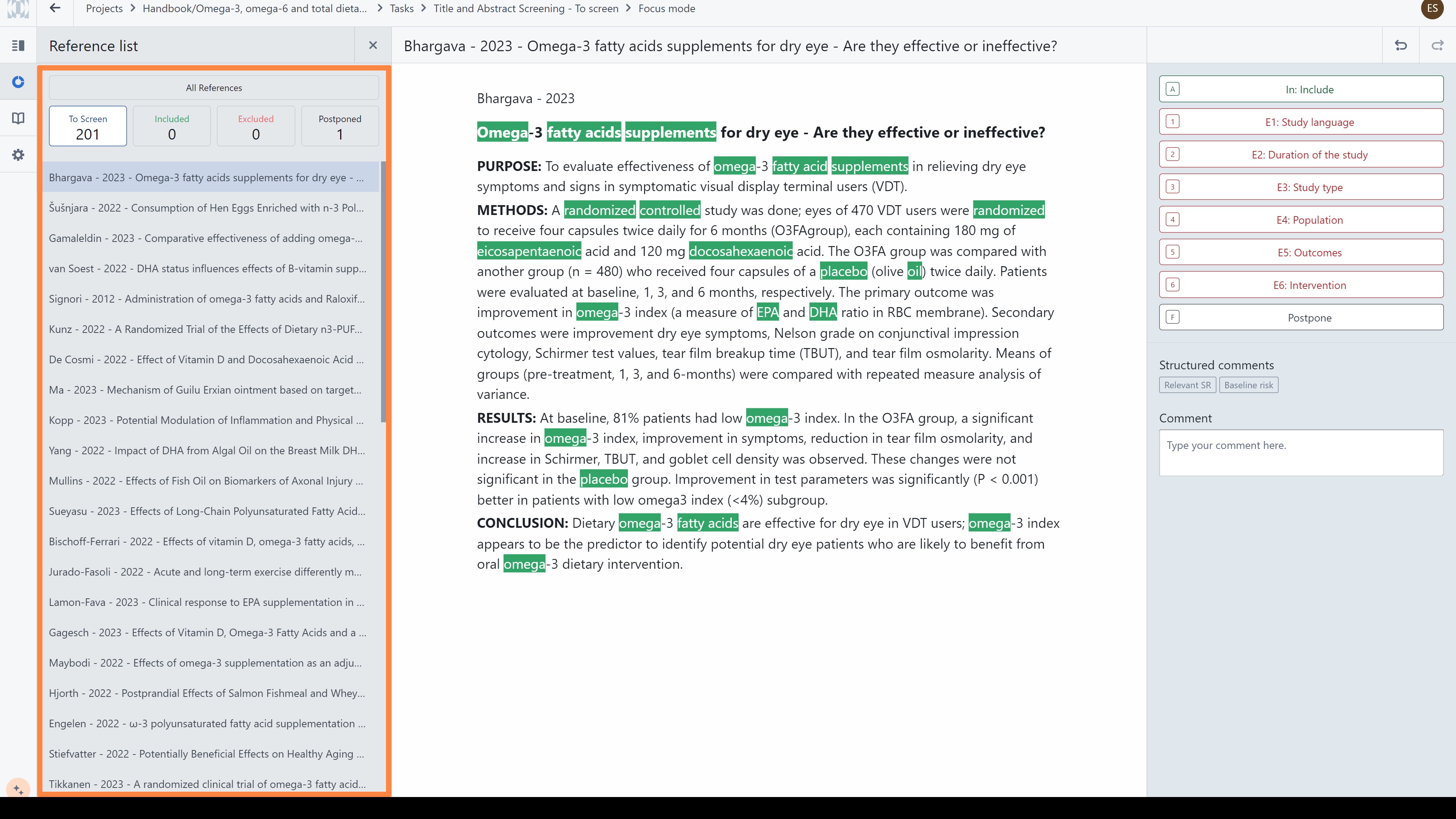
RELATED ARTICLES
Was this article helpful?
That’s Great!
Thank you for your feedback
Sorry! We couldn't be helpful
Thank you for your feedback
Feedback sent
We appreciate your effort and will try to fix the article