After completing data extraction (with or without QA), you can export data from Laser AI for further analysis.
To do this:
- Open the Extraction Summary panel on the Data Extraction Stage Dashboard, or
- Go to the Results tab in the left-side navigation panel.
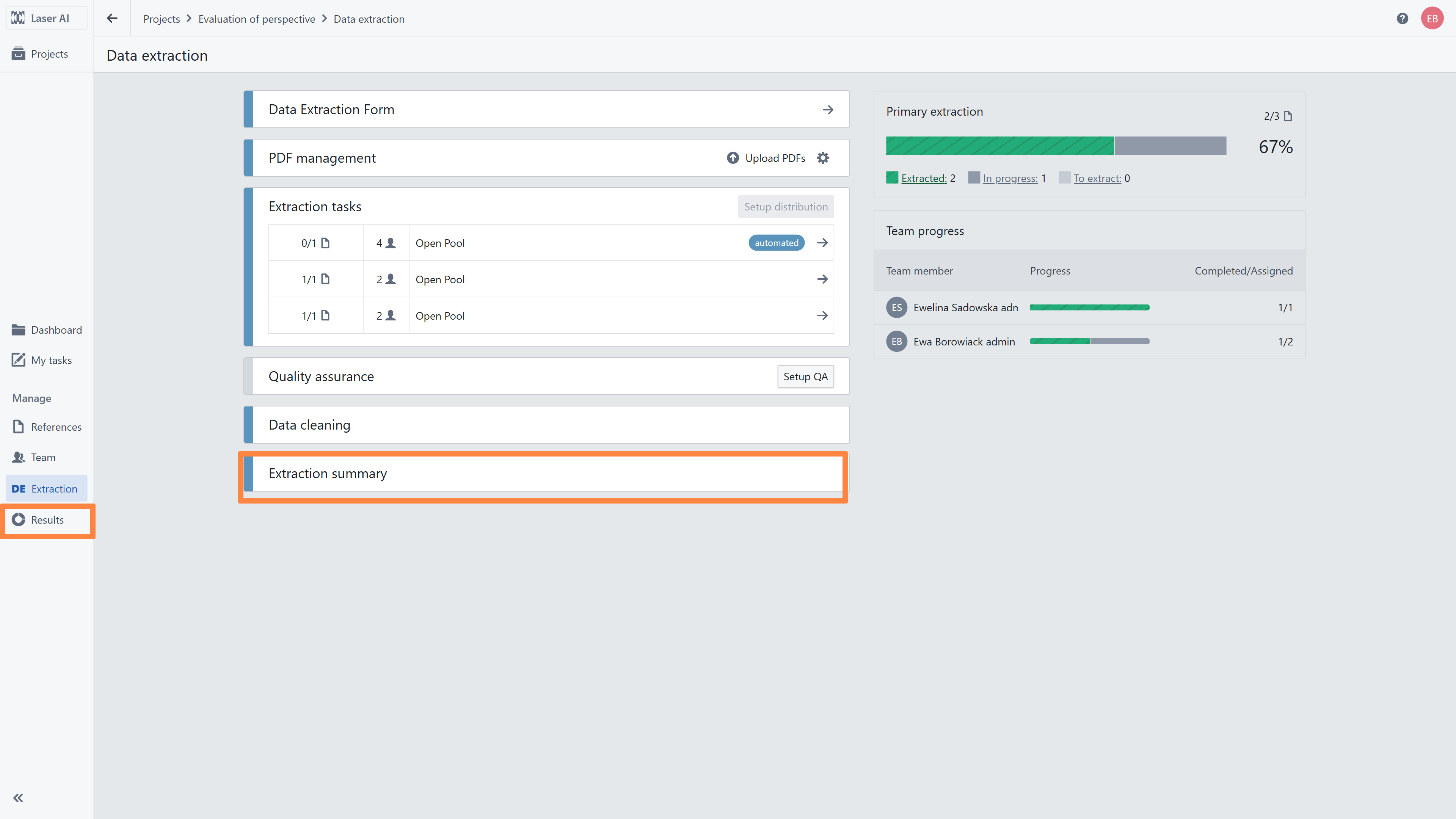
Note: By default, the data extraction summary displays the latest version of the extracted data; however, you can change this in the reference details view for each study.You can export extracted data in CSV format by clicking "Export Current Data." This means that you should first decide which data you want to export and in which format.
In the extraction summary module, you can view/filter your extracted data in various ways before exporting it.
- First, you can select the data format.
- The "Simplified" option minimizes the number of rows, making it more readable; however, please note that some connections (such as autoconnect or many) might not be available.
- In the statistical form, you will first be asked which sections of the data extraction form you want to export. In this format, all types of connections are visible.


- In the simplified format, you can explore and/or export data for a specific tab, or create a custom view by selecting the relevant sections.

- You can use the filter option to display only studies that have passed QA, studies from a specific year, or those corresponding to a selected reference.

- You can hide certain fields or even subfields to display, for example, only the main extracted value without the author-reported value or comments.

Tip: You can also modify the view by applying header colors from the form or by adjusting the table style (compact, standard, or relaxed).

If you need a more tailored export, such as organizing columns and rows in a different way, merging extracted values into a single cell, or exporting only selected data (based on filters applied to extracted data rather than extraction fields), use the New Extraction Analysis panel located in the Results tab.
RELATED ARTICLES
- Data extraction Dashboard overview
- Modification of extracted data on Reference list
- Performing data extraction
- Flexible Extraction Analysis
Was this article helpful?
That’s Great!
Thank you for your feedback
Sorry! We couldn't be helpful
Thank you for your feedback
Feedback sent
We appreciate your effort and will try to fix the article