TABLE OF CONTENTS

While a data extraction process is in progress, the form can be modified in two ways. The appropriate approach depends on the extent of the modifications and whether they affect existing or future tasks.
Minor changes, which do not require creating a new version of the data extraction template, and
Major changes such as adding/removing a new data extraction field or AI model to the specific field, which are handled through the versioning mechanism.
Minor changes in data extraction form
Here you can modify data extraction form by:
spreading existing vocabulary and adding additional terms
adding or updating field instructions
editing Input Validation, Required Field and Key Field Selection
Adding extra terms to the existing vocabulary
To add new terms to your uploaded vocabulary, locate the specific vocabulary and add new terms in the "Additional Terms" area below the uploaded vocabulary. Once you have made your changes, click 'Save Form'.
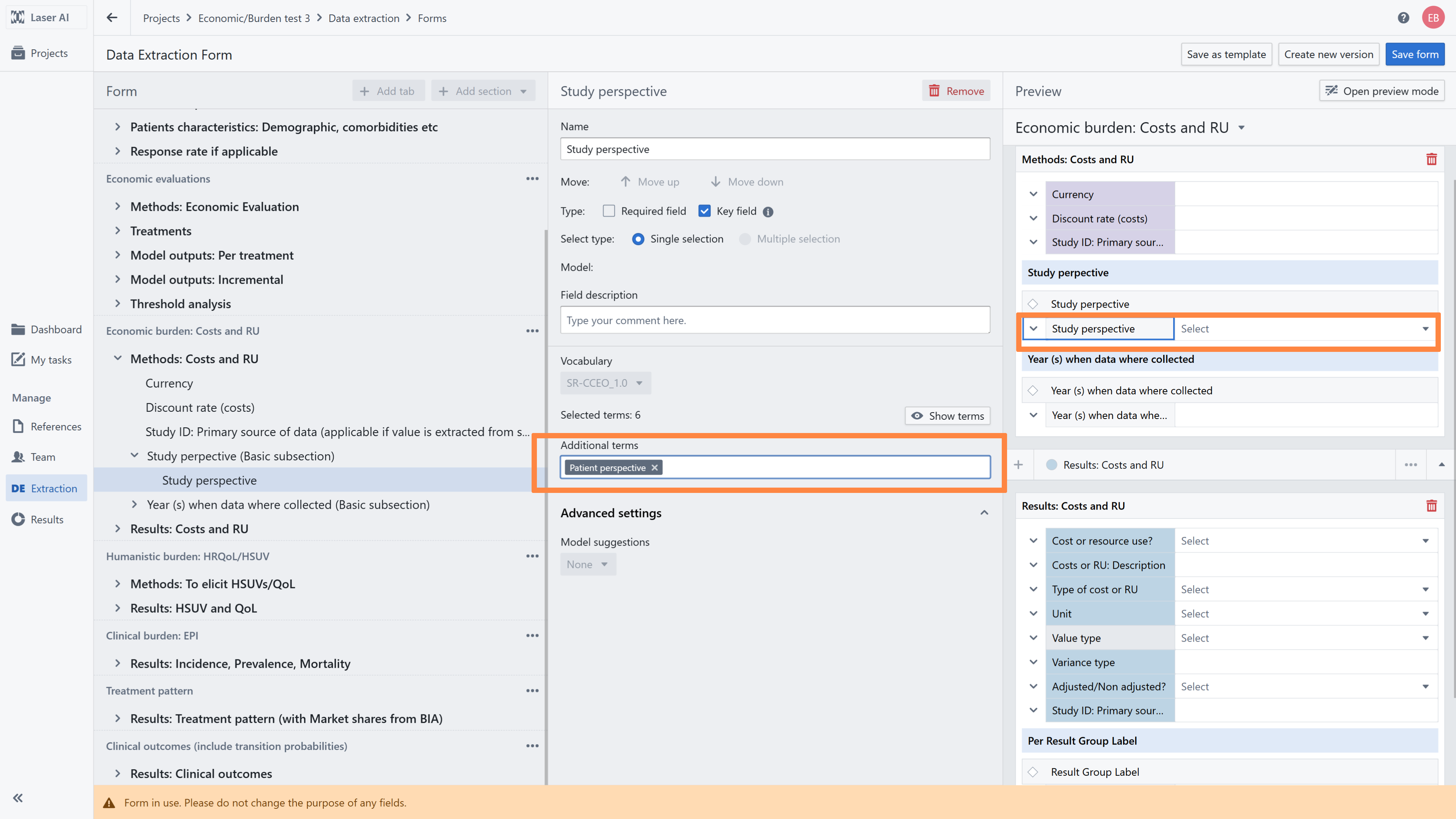
In case of multi-level vocabularies, if you have uploaded a vocabulary with only part of its concepts, you can complement it with the remaining concepts (i.e. sibling levels) from this vocabulary.
Example:
During the data extraction you noticed that only vocabularies for experimental and observational studies were selected. If other study types have been added to the vocabulary previously, you can add more study types to the vocabulary in the data extraction.

Note: in the case of updating vocabularies, the changes will be visible immediately after saving them, both for distributed and non-distributed PDFs Adding or updating field instruction
To add or update a field description, locate the specific field and write a new description or modify existing one. Once you have made your changes, click 'Save Form'.
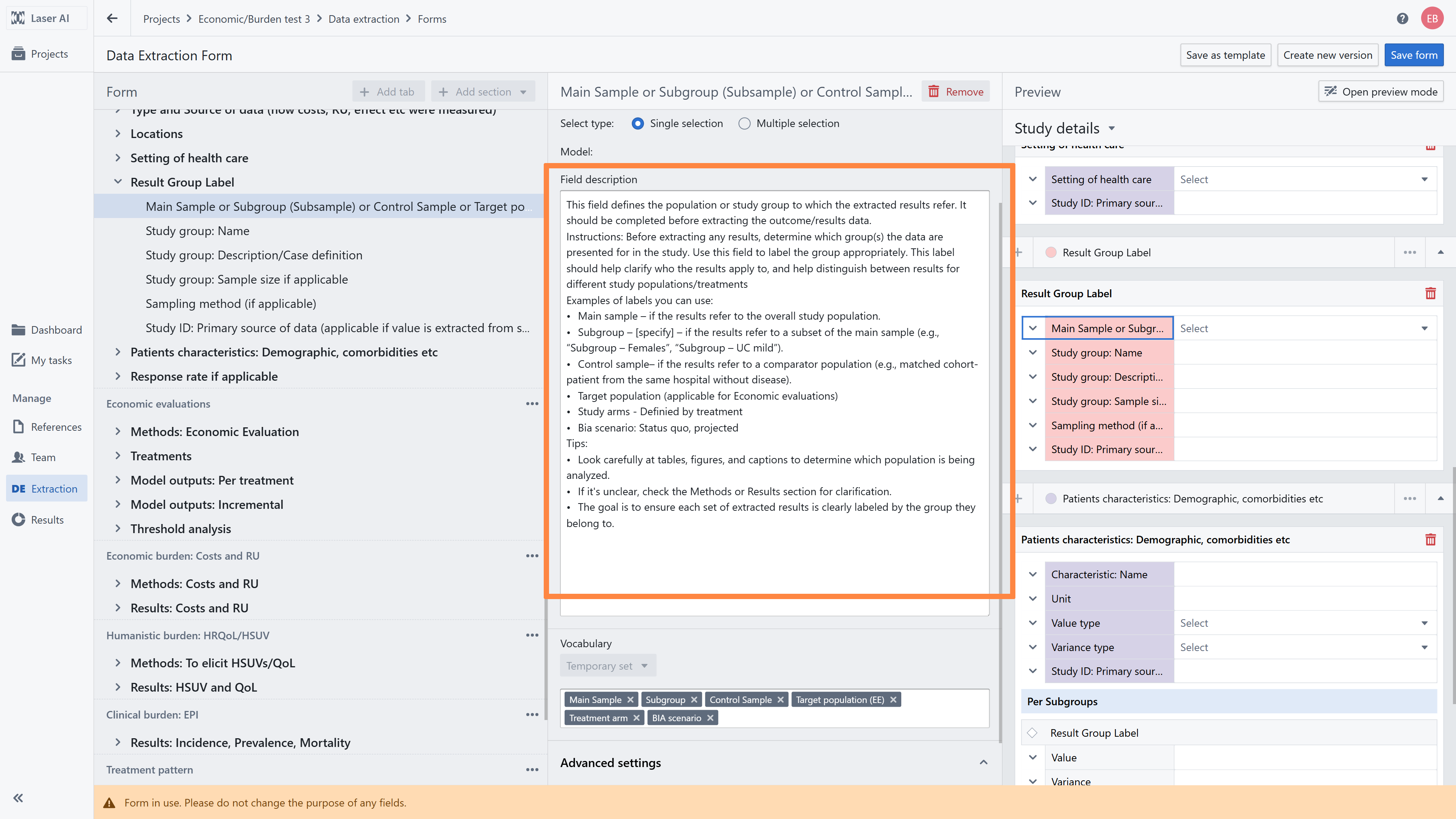
Note: If you update or add a field instruction, the changes will be visible immediately after saving, for both distributed and non-distributed PDFs.Editing Input Validation, Required Field and Key Field Selection
You can make additional changes related to the targeted fields.
Required field – this option informs the Researcher that a particular field must be extracted. If the Researcher attempts to submit the extraction without completing this field, a validation message is displayed
Key field - enables you to decide if this field should be used as an object name
Input validation - this function allows you to verify if the extracted value is consistent with your assumptions
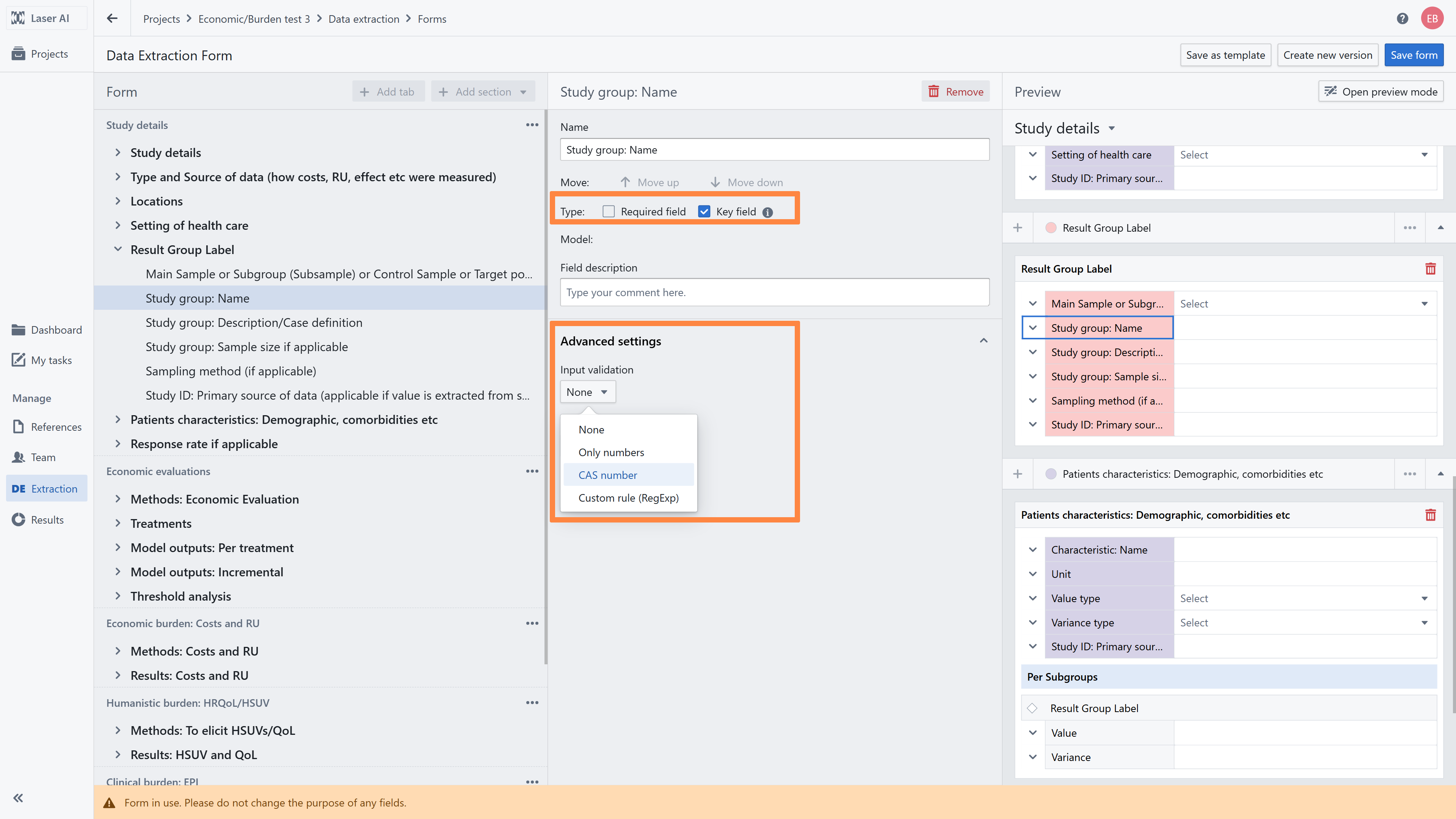
Note: In the case of editing required field, input validation and key field, will be available only for new distributionsMajor changes in data extraction form
Major changes – require the creation of a new version of the data extraction form.
Major changes include structural or functional modifications, such as adding or removing fields, sections, or tabs, changing field configurations, or adding, removing AI models assigned to fields.
Create new version of data extraction form
To create a new version of the data extraction form, click the 'Create new version' button located in the upper-right corner.
Alternatively, you can click the same button in the form settings panel, which is available after selecting the form header in the left panel.
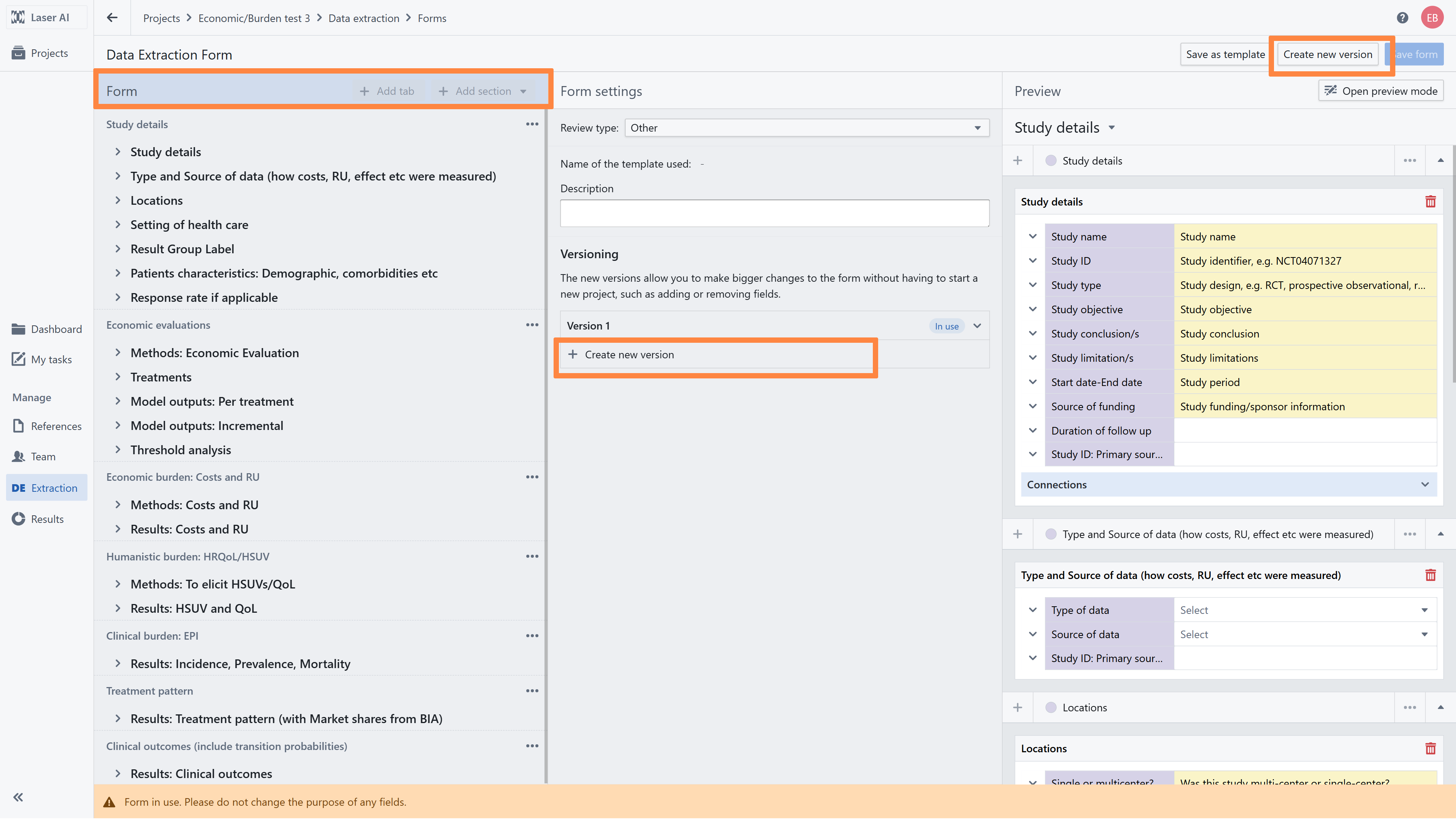
Once you finish editing the data extraction form, you can add a description of the changes that were made and then click Save form.
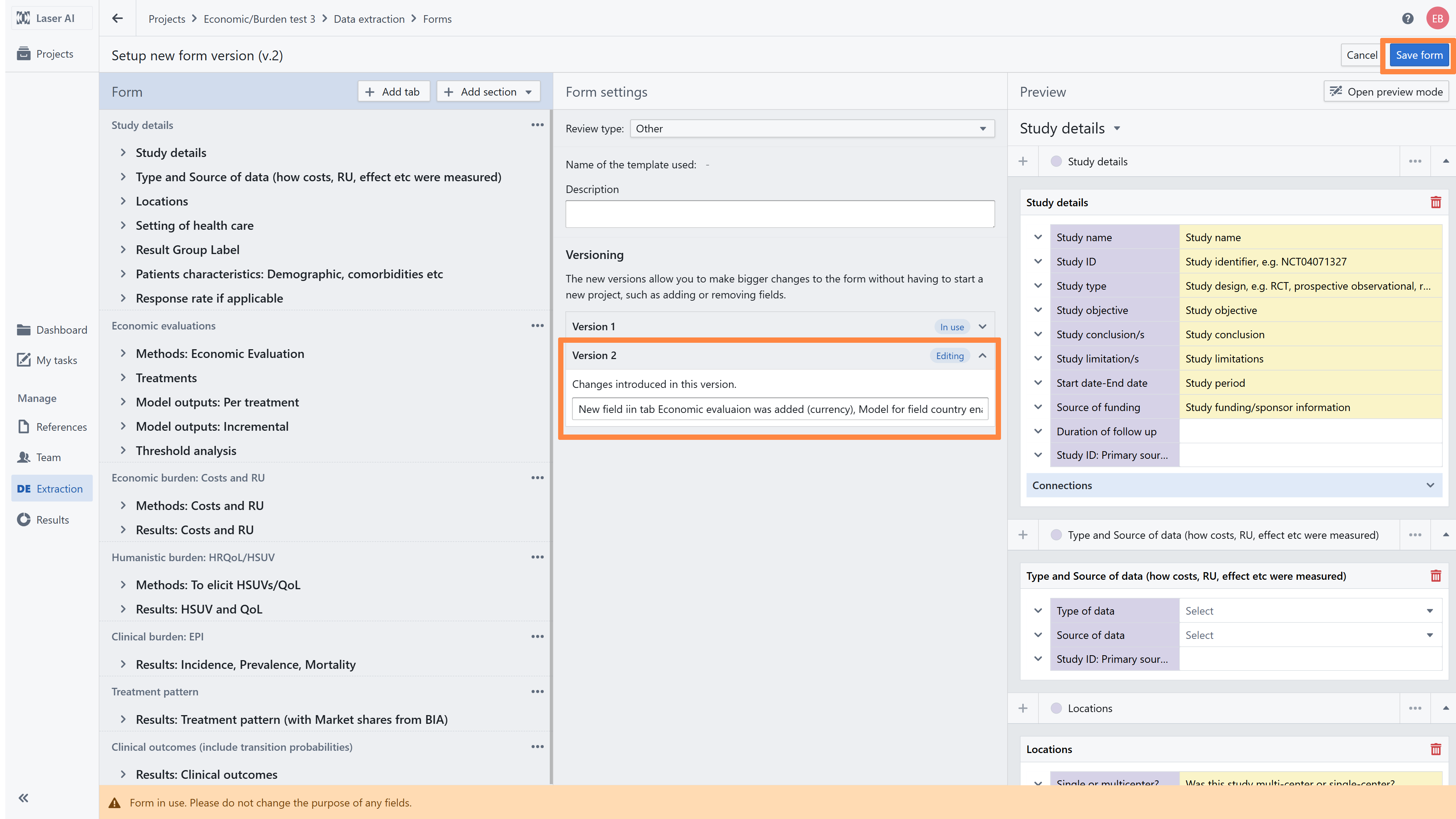
After the new version is saved:
Undistributed tasks are reassigned to the new form and reprocessed.
Tasks already in progress must be completed using the previous form version.
Completed tasks remain unchanged but can be filtered and edited through the Reference detail view.
Modify already extracted studies after creating a new version of the data extraction form
After saving a new version of the data extraction form, completed tasks remain unchanged and cannot be reopened in Research mode.
However, they can be filtered and edited through the Reference detail view.
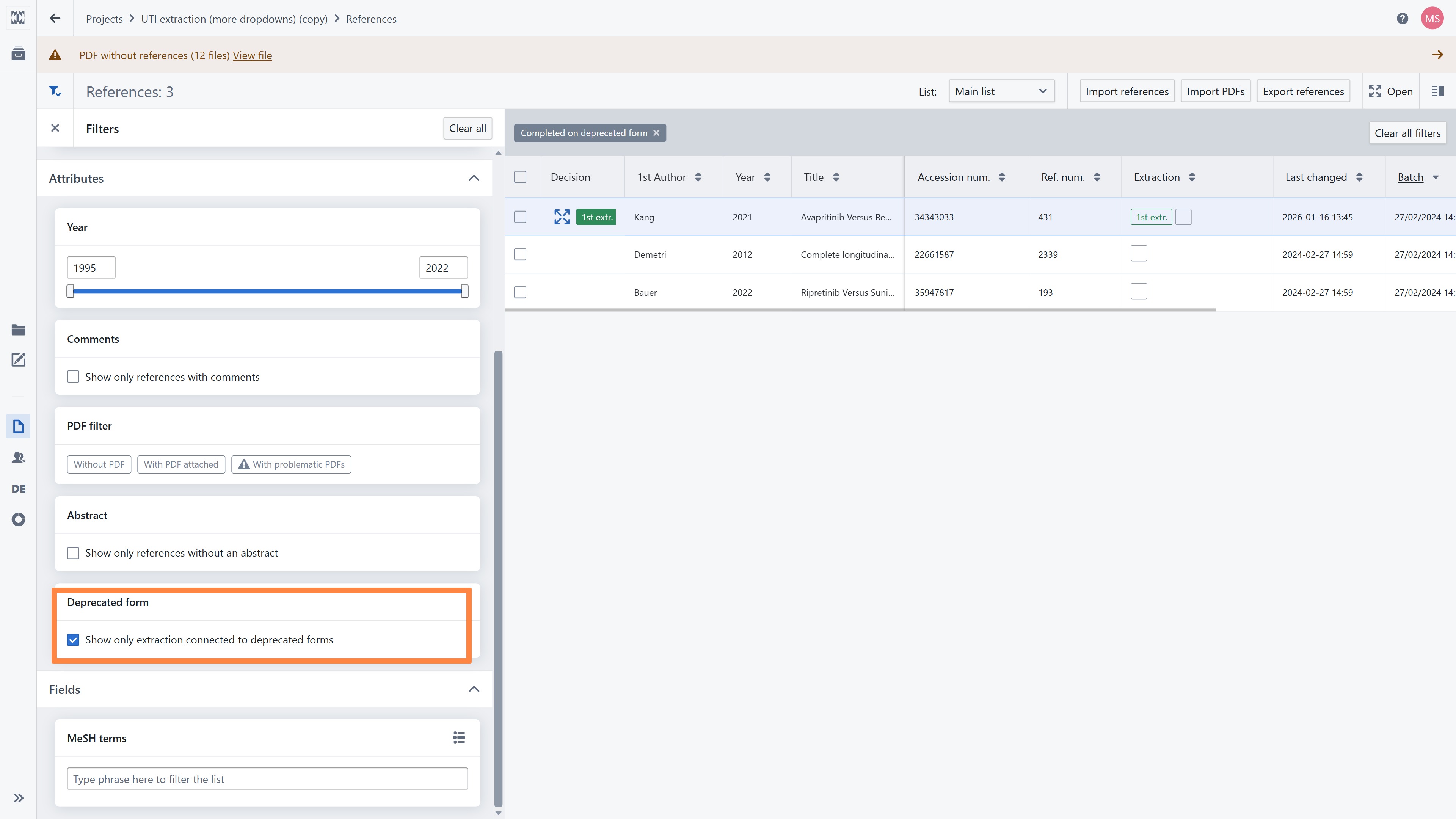
To modify a study using the new version of the data extraction form, go to Reference details, apply the Deprecated form filter, and select the study you want to modify.
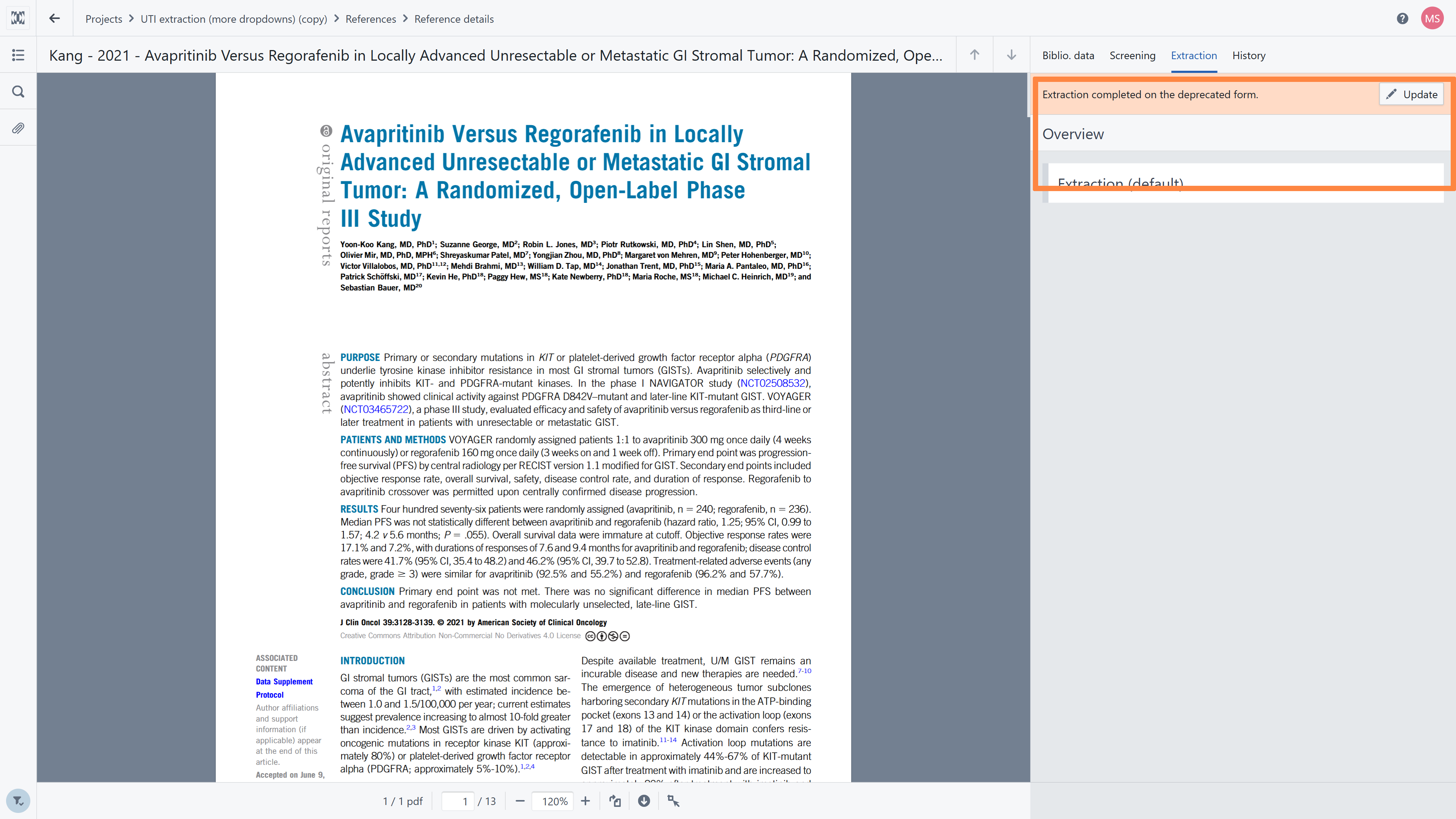
Next, click Update in the Extraction tab.
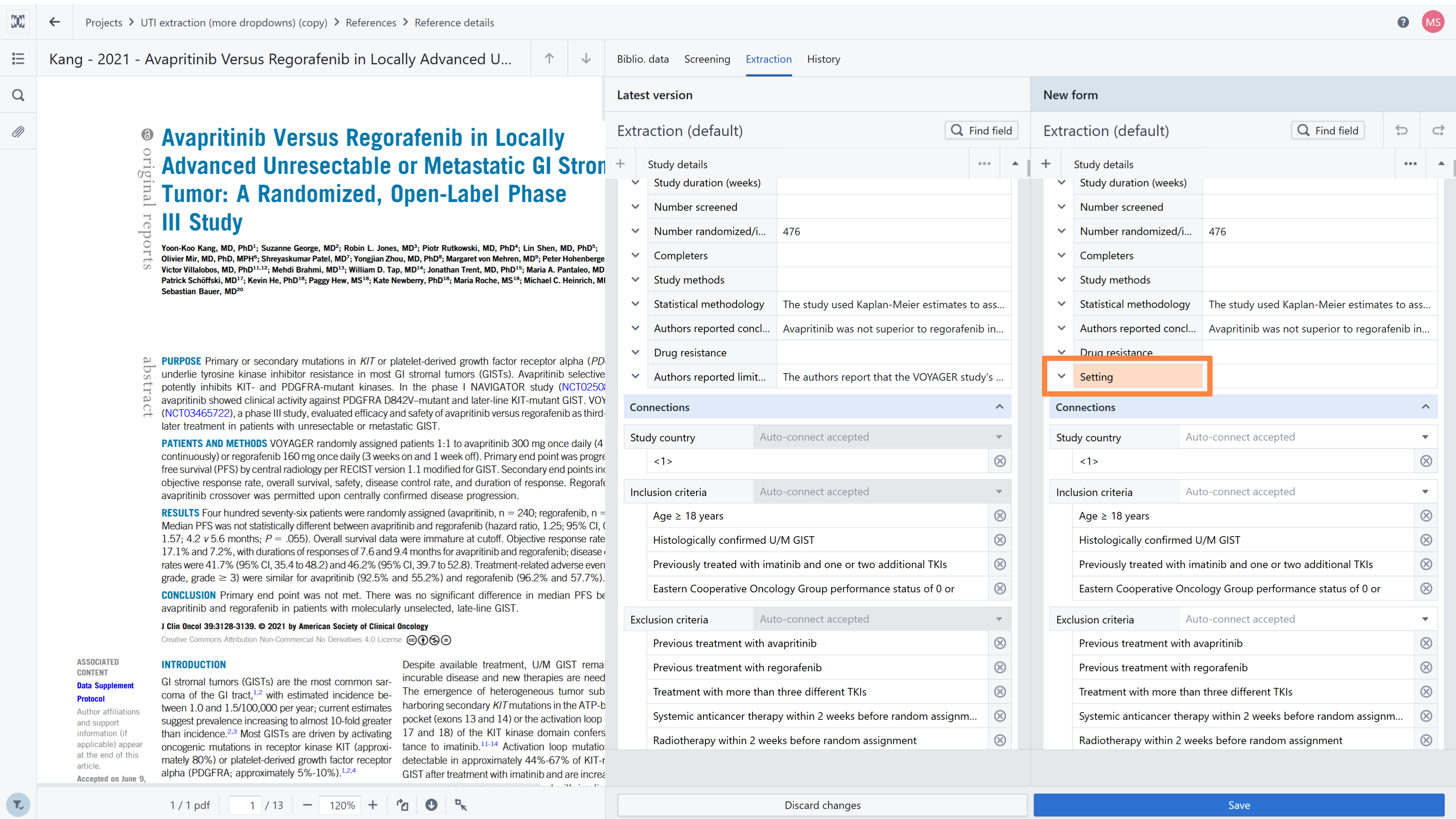
You will see two data extraction forms: the latest version and the new version, where newly added fields are highlighted in orange.
After making the required modifications, click Save.
RELATED ARTICLES
Was this article helpful?
That’s Great!
Thank you for your feedback
Sorry! We couldn't be helpful
Thank you for your feedback
Feedback sent
We appreciate your effort and will try to fix the article